





HapAttend Standalone TimeClock

- HapAttend - Make It Happen
- In the bustling world of office management, HapAttend emerged with a vision to alleviate the burdens of attendance tracking. Our passionate team of like-minded individuals united to create an intelligent attendance solution. Leveraging cutting-edge technology, we simplified and enhanced the process, allowing businesses to thrive.
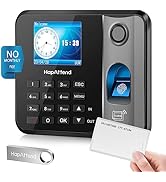
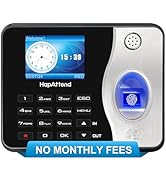
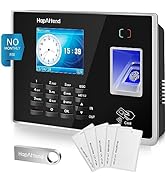
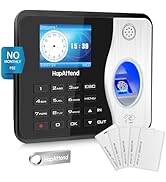
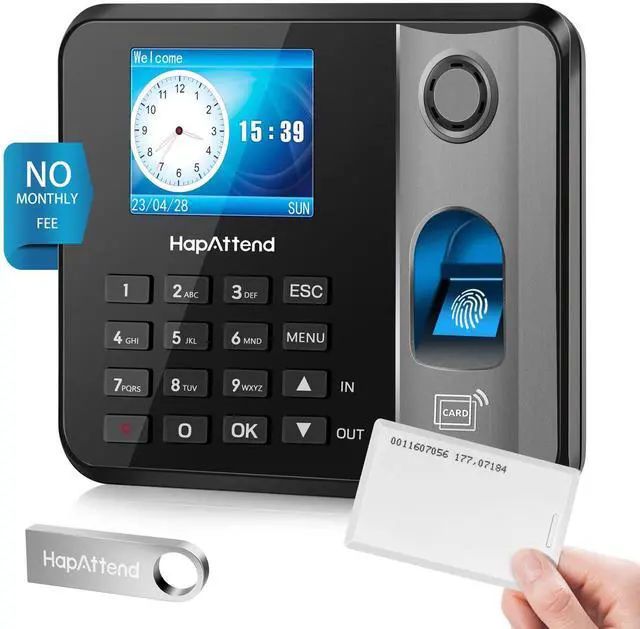
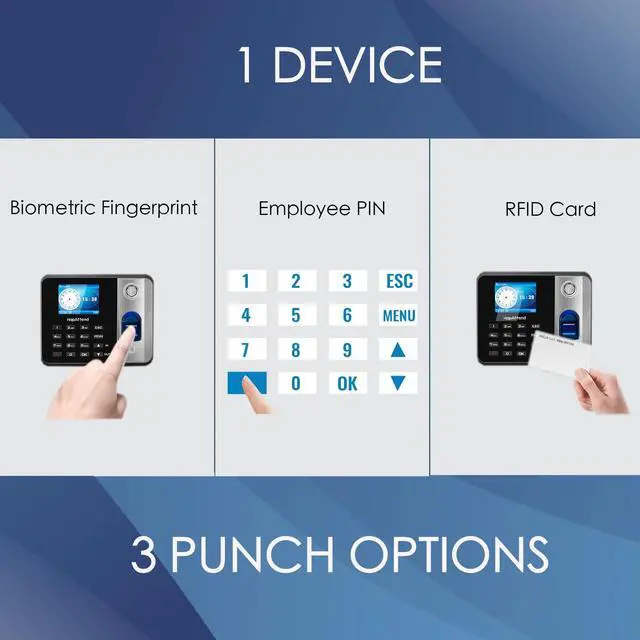
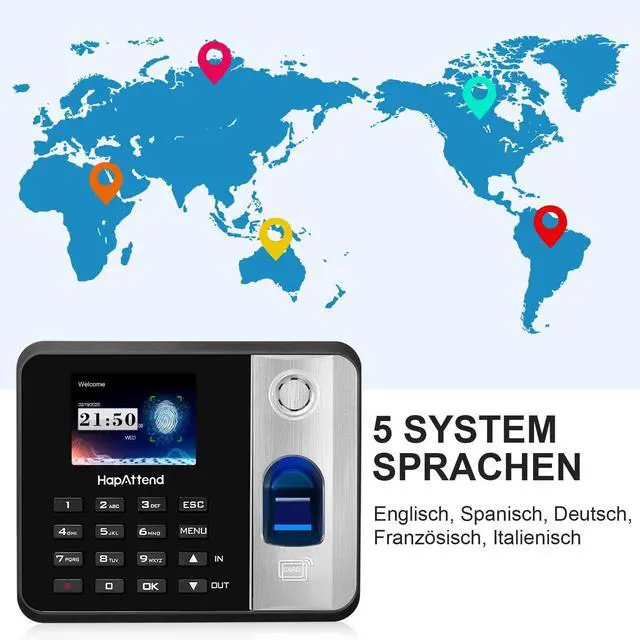
3 IN 1 Fingerprint Time Clock




RFID Cards for Time Clock
Why Are Our Prices So Low?
Our mission is simple: to bring you high-quality products and exceptional service at unbeatable prices.
How do we do it? By keeping our costs low.
Unlike our competitors, we don’t pay for expensive retail spaces or flashy offices. Instead, we pass those savings directly to you.
We rely on word of mouth, recommendations, and loyal customers like you to keep our business thriving.
Thank you for trusting us—we’re excited to be your go-to source for years to come!
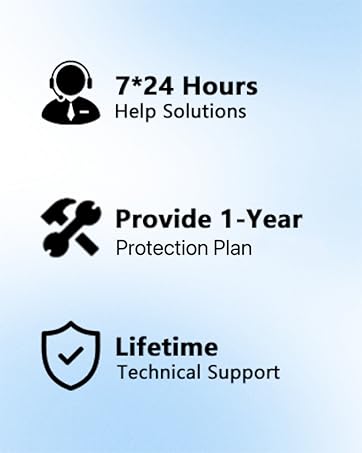
If there’s anything more we can do, we’re always here to help!
HapAttend - Make The Attendance Happen
HapAttend H1 time clock show
You should be running your business instead of it running you!


Locked out from time clock, can't access to the menu and prompt “Manager"
1. Press MENU button.
2. Input ID: 24406083, press OK button.
3. Input password 87654312, press OK button.
4. You can enter “User Mgt”, select “Clean All Manager” and confirm to save.
How to change the year?
You can use the “up” or “down” keys to adjust the month and date. The year will update automatically as the month changes.
Whether to support overnight shift and how to set up?
Sure, just need to change the Day Cut Off Time.
Consider set to 3 am,If the user clock out before 3 am,the total working hours will be counted as the previous day working hour. If after 3 am, the hours until clock out will be counted as the next day.
Does it need WiFi?
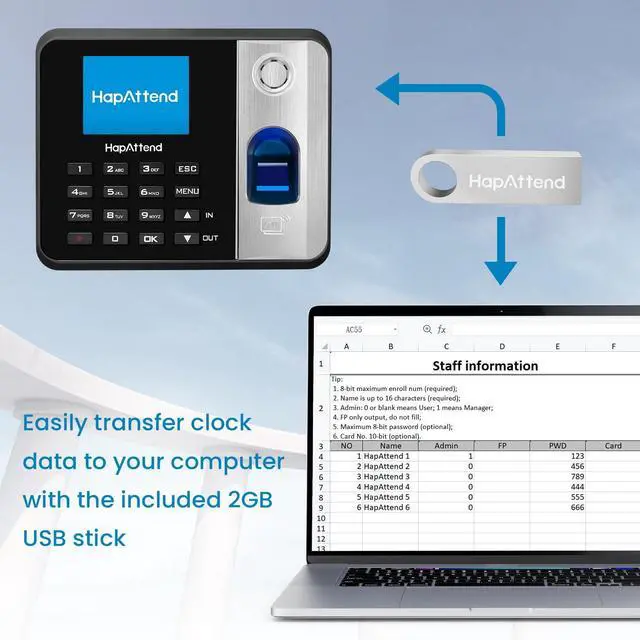
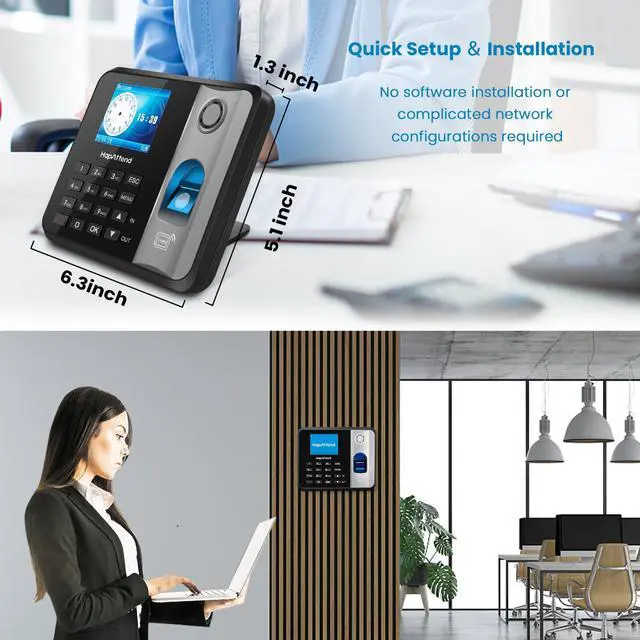
Fully self-contained standalone time clock, no software installation or network configuration required. No need WiFi, no cloud remote function.
Time clock prompt "please try it later"
Re-Verify time defaults to 5 minutes. If you make several check-in attendance punches within 5 minutes, the clock only record the first punch record.
Which Time Clock is Right For You?
 Upgraded H1 Time Clock |  Fingerprint H2 Time Clock |  Fingerprint H3 Time Clock |  RFID Thick Cards |  RFID Thin Cards | |
|---|---|---|---|---|---|
Price | — | — | — | — | — |
Recognition Method | Fingerprint/RFID/Password | Fingerprint/RFID | Fingerprint/RFID | 10 PCS for H1 H2 H3 | 10 PCS for H1 H2 H3 |
Company Size | 3000 Users | 1000 Users | 1000 Users | — | — |
Operation Method | Microsoft Excel | Microsoft Excel | Microsoft Excel | — | — |
Time Format | 24-hour / 12-hour (AM/PM) | 24-hour / 12-hour (AM/PM) | 24-hour / 12-hour (AM/PM) | — | — |
WIFI/Network | ? | ? | ? | ? | ? |
Remote Access | ? | ? | ? | ? | ? |
No Monthly Fees | ? | ? | ? | ? | ? |
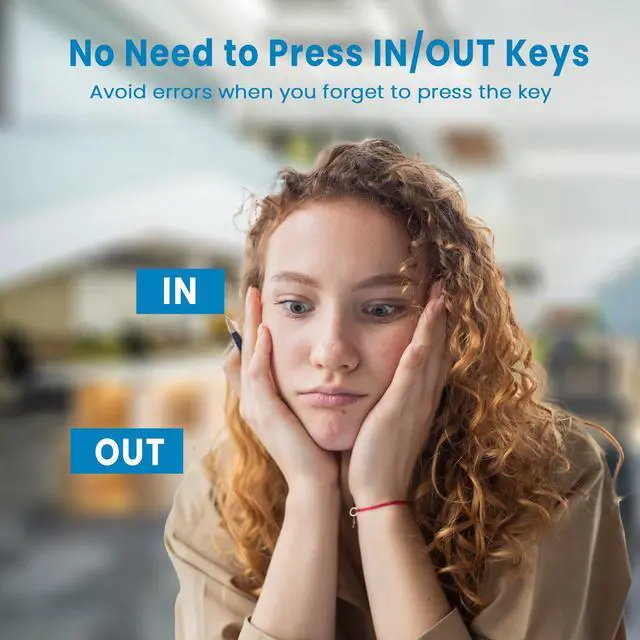
Automatic In/out | ? | ? | ? | ? | ? |
Calculating Hours | ? | ? | ? | ? | ? |
Overnight Shift | ? | ? | ? | ? | ? |
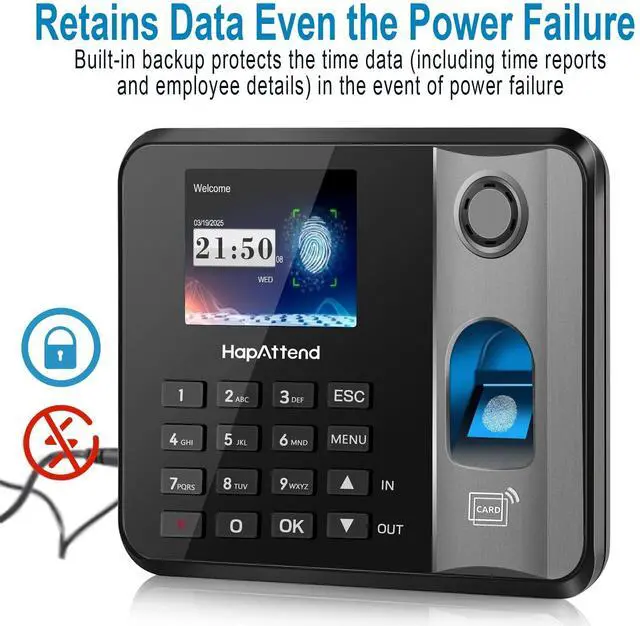
Power-off Protection | ? | ? | ? | ? | ? |
Edit Error Punches | ? | ? | ? | ? | ? |
HapAttend Standalone TimeClock
- HapAttend - Make It Happen
- In the bustling world of office management, HapAttend emerged with a vision to alleviate the burdens of attendance tracking. Our passionate team of like-minded individuals united to create an intelligent attendance solution. Leveraging cutting-edge technology, we simplified and enhanced the process, allowing businesses to thrive.
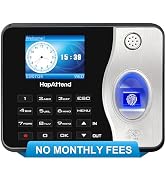
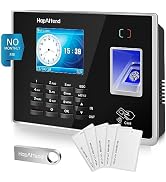
3 IN 1 Fingerprint Time Clock

RFID Cards for Time Clock
Why Are Our Prices So Low?
Our mission is simple: to bring you high-quality products and exceptional service at unbeatable prices.
How do we do it? By keeping our costs low.
Unlike our competitors, we don’t pay for expensive retail spaces or flashy offices. Instead, we pass those savings directly to you.
We rely on word of mouth, recommendations, and loyal customers like you to keep our business thriving.
Thank you for trusting us—we’re excited to be your go-to source for years to come!
If there’s anything more we can do, we’re always here to help!
HapAttend - Make The Attendance Happen
HapAttend H1 time clock show
You should be running your business instead of it running you!
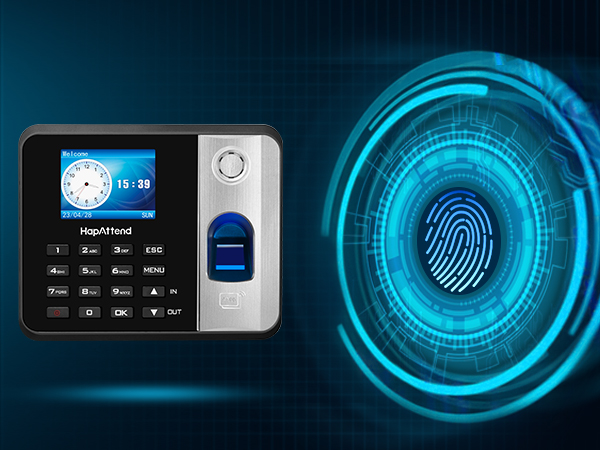
Clear Voice Prompts
Fingerprint Reader Eliminates Buddy Punching
Punch in Effortlessly&Securely with RFID
Power On/ Power Off
2.8 Inch HD Color Screen


| Identification | Fingerprint, RFID & Password |
|---|---|
| User | Up to 3000 |
| Administrator | Up to 10 |
| Fingerprint | Up to 3000 |
| RFID Card | Up to 3000 |
| Record | Up to 100000 |
| Remote Access | No WIFI & Internet |
| USB | USB 2.0 (Include) |
| Power Supply | DC 5V 1A |
| Operating Humidity | 20%-80% |
| Operating Temp | 0°C - 45°C, Indoor use only |
| Dimensions | 6.3*5.1*1.3 (inch) |
| What's In The Box | 1*Time Clock 1*USB 5*RFID Cards 1*User Maual 1*Charger 1*Mounting Accessories |
Locked out from time clock, can't access to the menu and prompt “Manager"
1. Press MENU button.
2. Input ID: 24406083, press OK button.
3. Input password 87654312, press OK button.
4. You can enter “User Mgt”, select “Clean All Manager” and confirm to save.
How to change the year?
You can use the “up” or “down” keys to adjust the month and date. The year will update automatically as the month changes.
Whether to support overnight shift and how to set up?
Sure, just need to change the Day Cut Off Time.
Consider set to 3 am,If the user clock out before 3 am,the total working hours will be counted as the previous day working hour. If after 3 am, the hours until clock out will be counted as the next day.
Does it need WiFi?
Fully self-contained standalone time clock, no software installation or network configuration required. No need WiFi, no cloud remote function.
Time clock prompt "please try it later"
Re-Verify time defaults to 5 minutes. If you make several check-in attendance punches within 5 minutes, the clock only record the first punch record.
Which Time Clock is Right For You?
 Upgraded H1 Time Clock | Fingerprint H2 Time Clock | Fingerprint H3 Time Clock | RFID Thick Cards | RFID Thin Cards |
|---|---|---|---|---|
| Price | ||||
| — | — | — | — | — |
| Recognition Method | ||||
| Fingerprint/RFID/Password | Fingerprint/RFID | Fingerprint/RFID | 10 PCS for H1 H2 H3 | 10 PCS for H1 H2 H3 |
| Company Size | ||||
| 3000 Users | 1000 Users | 1000 Users | — | — |
| Operation Method | ||||
| Microsoft Excel | Microsoft Excel | Microsoft Excel | — | — |
| Time Format | ||||
| 24-hour / 12-hour (AM/PM) | 24-hour / 12-hour (AM/PM) | 24-hour / 12-hour (AM/PM) | — | — |
| WIFI/Network | ||||
| ? | ? | ? | ? | ? |
| Remote Access | ||||
| ? | ? | ? | ? | ? |
| No Monthly Fees | ||||
| ? | ? | ? | ? | ? |
| Automatic In/out | ||||
| ? | ? | ? | ? | ? |
| Calculating Hours | ||||
| ? | ? | ? | ? | ? |
| Overnight Shift | ||||
| ? | ? | ? | ? | ? |
| Power-off Protection | ||||
| ? | ? | ? | ? | ? |
| Edit Error Punches | ||||
| ? | ? | ? | ? | ? |