


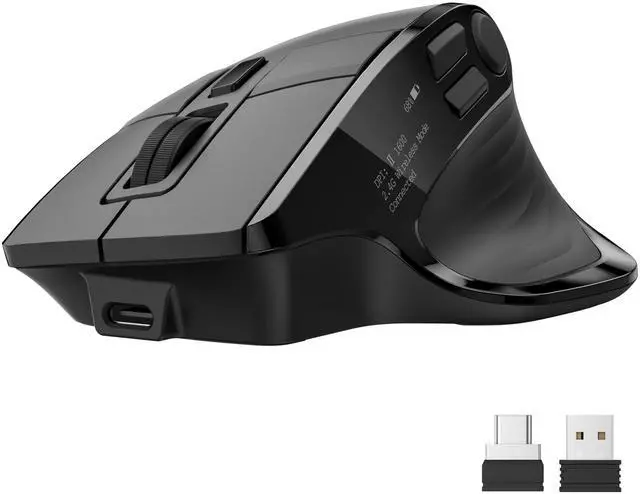
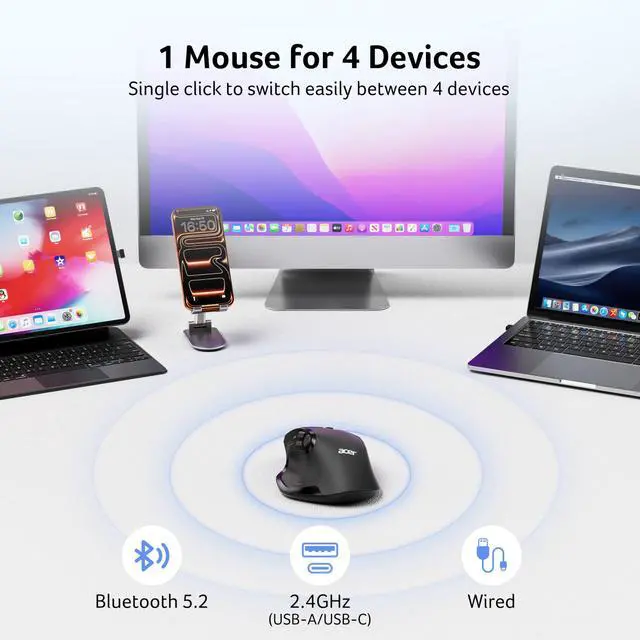
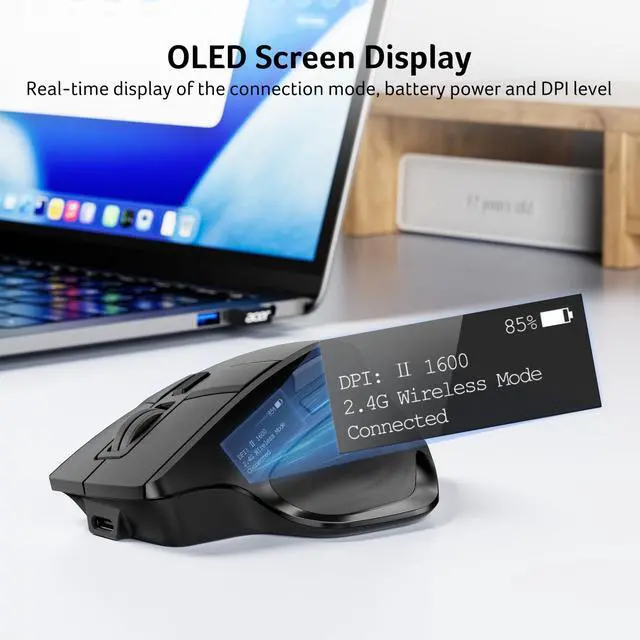



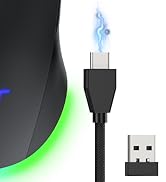
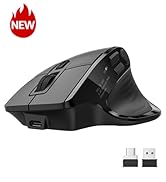
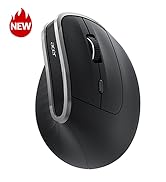
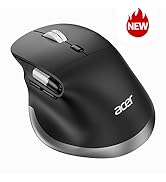
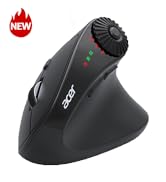
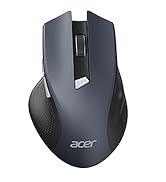
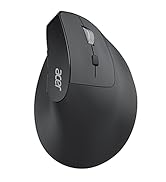
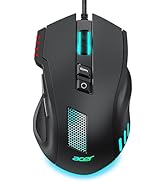
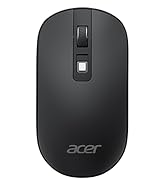


Suitable for Almost Any Scenario——Bluetooth, 2.4G USB A/C Wireless, Wired Connection


| Q1 | Why is my wireless mouse not working? |
|---|---|
| - | 1. Ensure the mouse is fully charged. 2. Make sure the power switch at the bottom of the mouse is turned on. 3. Ensure the USB receiver is properly connected to your computer. 4. Keep the mouse within 10 meters of your computer for optimal performance. |
| Q2 | Why does my wireless mouse occasionally disconnect? |
| - | 1. Low battery power. 2. The mouse is too far from the computer. 3. There is significant wireless interference around, leading to an unstable signal. |
| Q3 | Can this mouse be connected via Bluetooth? |
| - | Yes, you can connect with "OMR 289 Mouse BT" via Bluetooth |
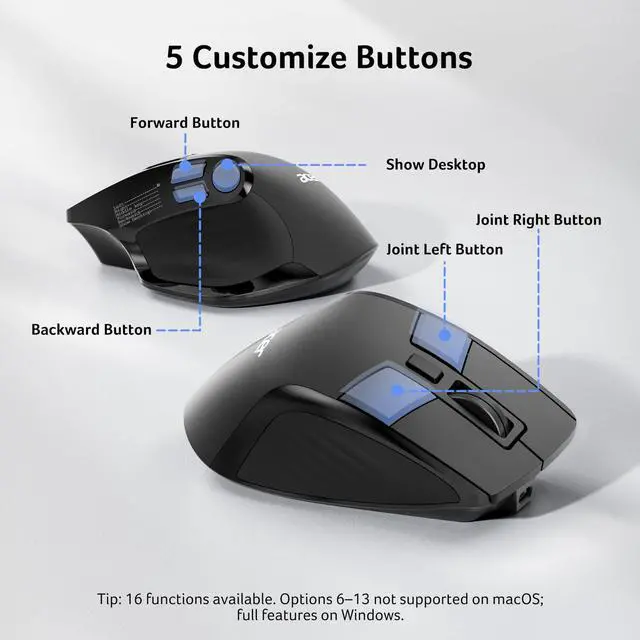
| Q4 | How many programmable options does this mouse have? |
| - | It has 16 preset options: 1. Left; 2. Right; 3. Middle key; 4. Forward; 5. Backward; 6. Show Desktop; 7. Switch window; 8. Lock PC; 9. Calculator; 10. Explorer; 11. Cut; 12. Copy; 13. Paste; 14. Volume up; 15. Volume down; 16. Play/pause. |
| NOTE: | Options 6-13 are not supported on macOS. |
| Q5 | How to reset the mouse buttons to factory settings? |
| - | Press the left, middle and right buttons at the same time for 3 seconds to clear the customization and reset the default button function. |
| Q6 | Can the USB-A and USB-C receivers of the mouse be used at the same time? |
| - | No, it only supports connection with one receiver. When switching, make sure the other receiver is unplugged from the device to avoid interference. |
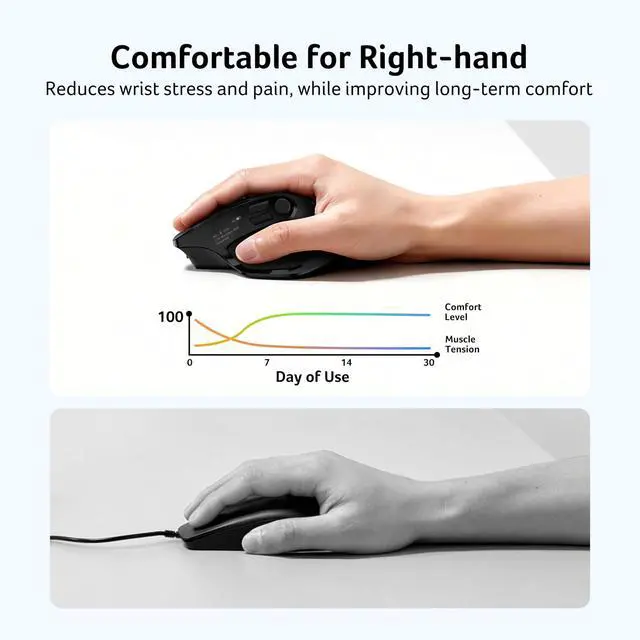
| Q7 | Is this mouse suitable for all hand sizes? |
| - | This mouse prefer medium to large sized hands users. This mouse is L 4.8 inches, W 3.3 inches, H 2 inches, and a weight of 5oz. |
| NOTE: | Please adjust your grip to require 1-2 weeks of adjustment. |
Acer Dual Mode Gaming Mouse
Acer Mouse
Acer Wireless Mice
