



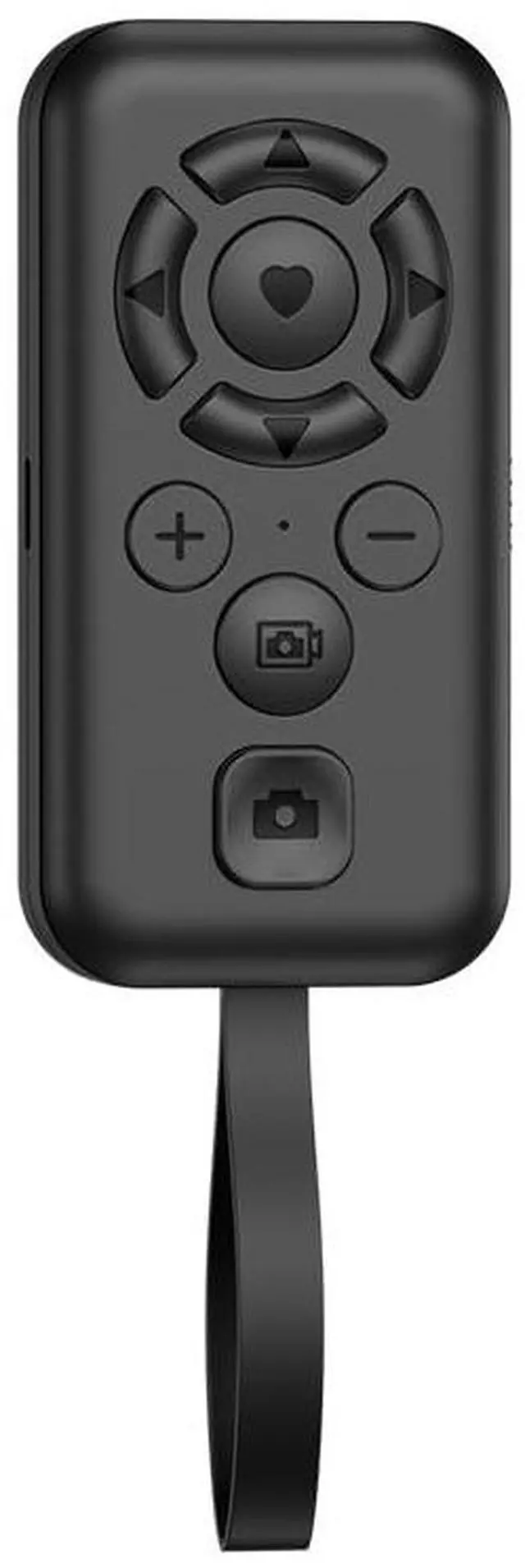


The iPhone needs to open the phone "Settings" - "Accessibility" - "Zoom" - "Turn on Zoom", the screen will become larger after turning on the zoom function, and the screen will return to normal display with three fingers and two taps of the screen.

Instructions:
1. Slide the side switch button, and the remote control's blue indicator light will flash.
2. Turn on the Bluetooth of the phone, search for "Yiser-M9", and click pairing. After displaying "connected", the indicator light will stop flashing; that is, the connection is successful.
3. The red light will turn on when charging, and the red light will turn off when it is full.
Notes:
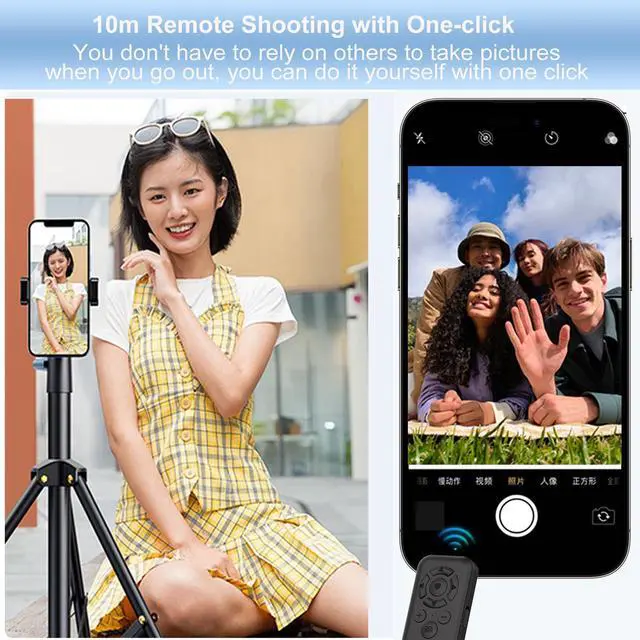
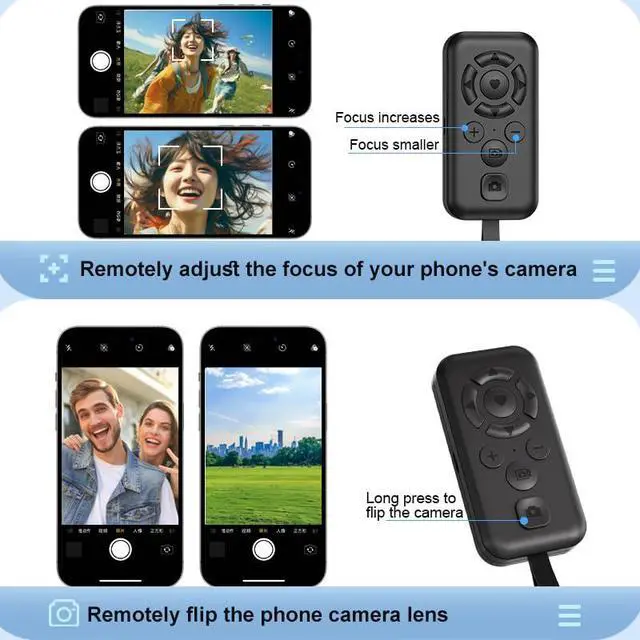
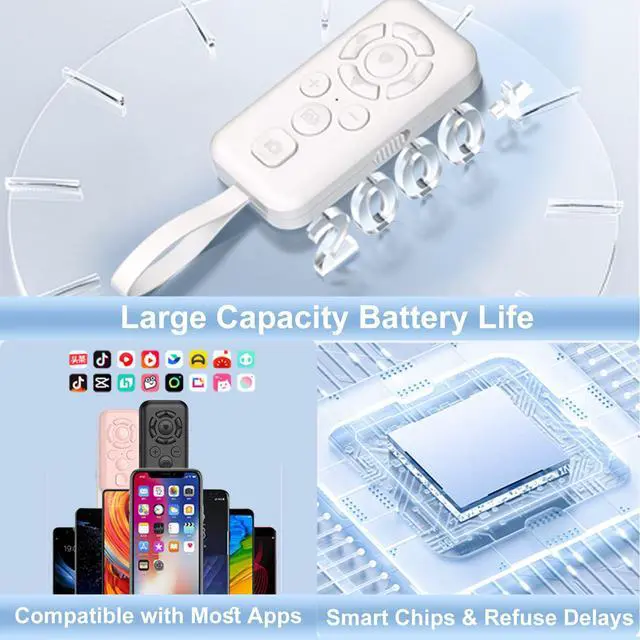
- Shooting function: Support the shooting interface of the original camera of the phone and most apps, and some apps do not support individual functions.
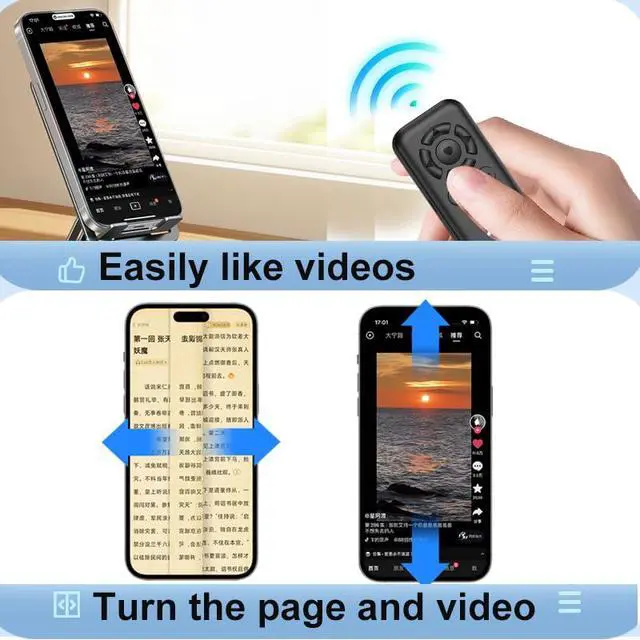
- Entertainment function: Swipe up and down to support various short video apps, swipe left and right to support all kinds of e-books.
The iPhone needs to open the phone "Settings" - "Accessibility" - "Zoom" - "Turn on Zoom", the screen will become larger after turning on the zoom function, and the screen will return to normal display with three fingers and two taps of the screen.
Instructions:
1. Slide the side switch button, and the remote control's blue indicator light will flash.
2. Turn on the Bluetooth of the phone, search for "Yiser-M9", and click pairing. After displaying "connected", the indicator light will stop flashing; that is, the connection is successful.
3. The red light will turn on when charging, and the red light will turn off when it is full.
Notes:
- Shooting function: Support the shooting interface of the original camera of the phone and most apps, and some apps do not support individual functions.
- Entertainment function: Swipe up and down to support various short video apps, swipe left and right to support all kinds of e-books.