



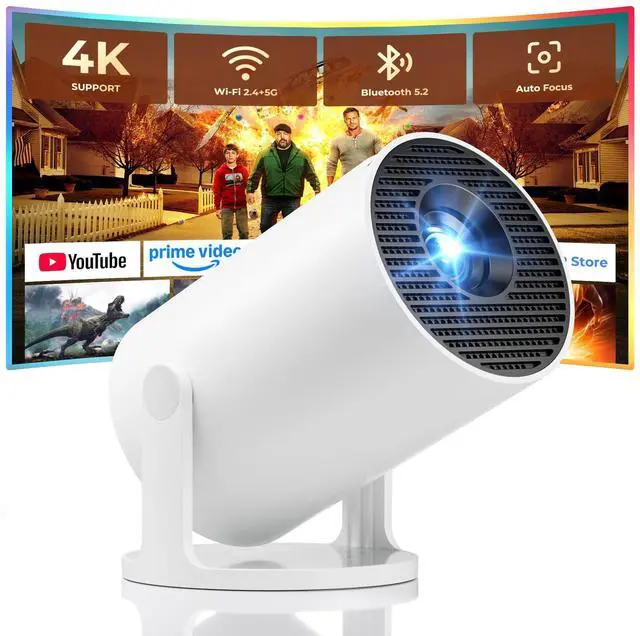
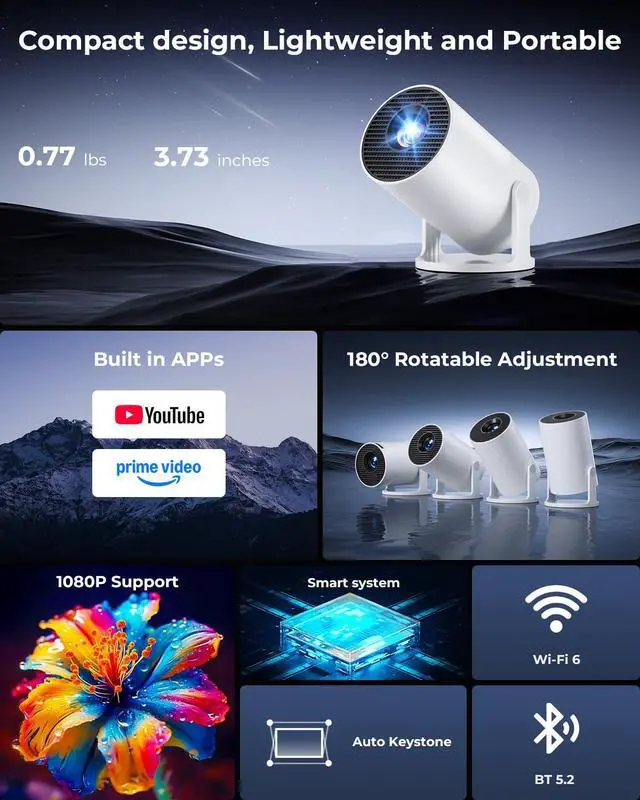
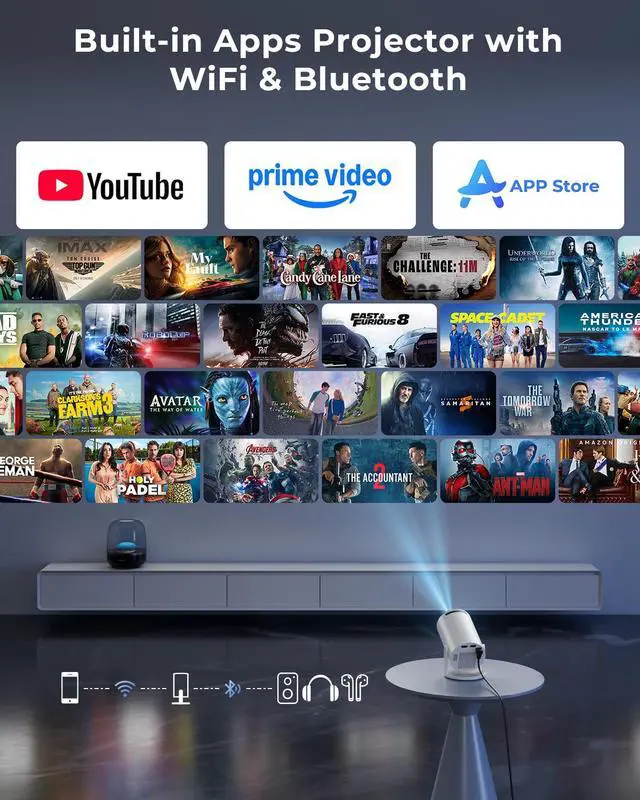
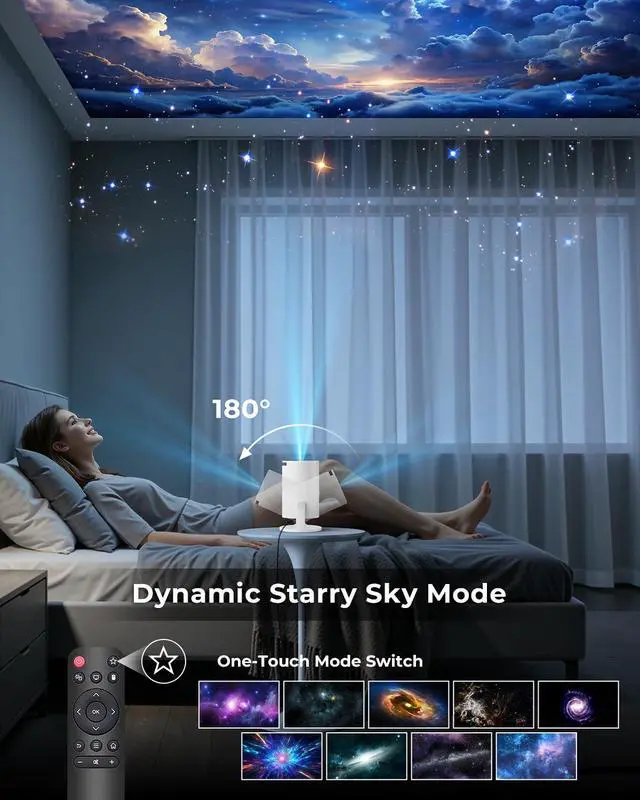
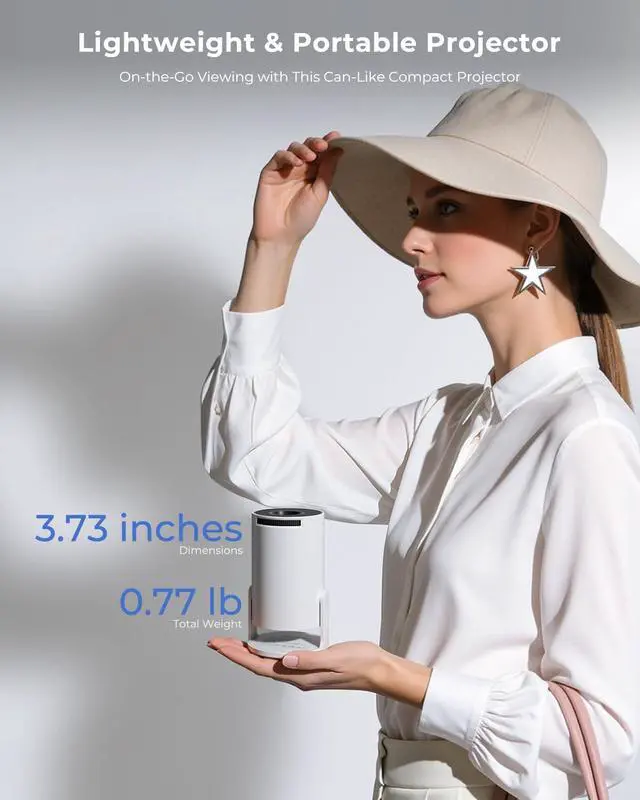
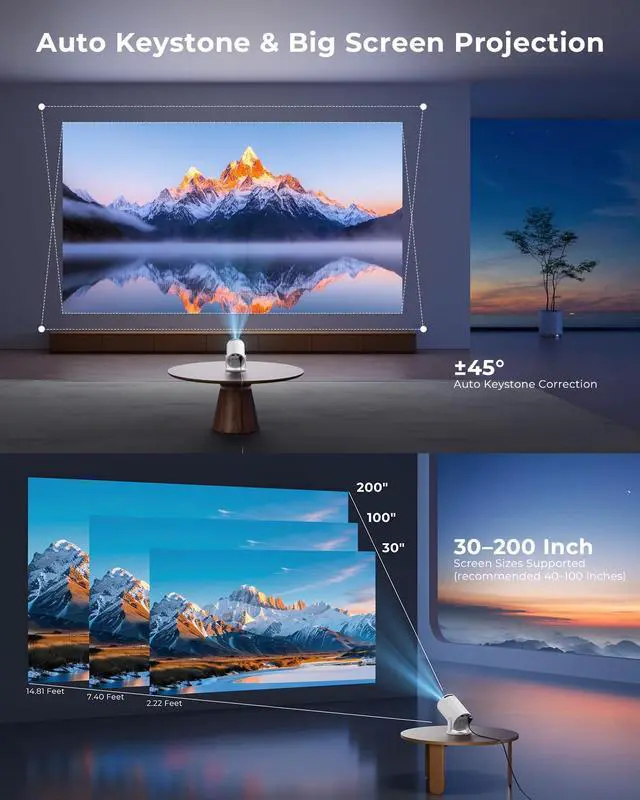


mini projector with wifi and bluetooth
Merchant Video


Quick Start Video Guide
How to Connect Wi-Fi?
- Go to Wi-Fi
- Select your Wi-Fi network and enter the password
- Wait 3–5 seconds
- The Wi-Fi icon on the Home screen turns green when connected
How to Connect iPhone to Projector (Wireless & Wired)
Two quick connection methods:
Wireless: Same Wi-Fi ? Open ScreenCast on projector ? Tum on screen mirroring on phone.
Wired: Use HDMI adapter (not included) ? Select HDMI input ? Enable phone mirroring.
How to Connect Laptop & Projector?
1. Connect your laptop to the projector using the included HDMI cable. (For laptops without an HDMI port, use a USB-C/Thunderbolt adapter or dock.)
2. Press Input and select HDMI.
3. Wait 3–5 seconds for the connection.
4. Press Win + P (Windows) or Cmd + F1 (Mac) to choose Duplicate or Extend mode.
Check Your Time Zone for Smooth App Access (YouTube Example)
- Go to Settings ? Date & Time and turn on Automatic Time.
- Reopen YouTube and try again.
Set Up Screen Mirroring (iPhone Example)
- On the projector, open ScreenCast and make sure it shows “Activated” (top right).
- Connect the projector to Wi-Fi: go to Wi-Fi, enter the password, and wait until the home screen Wi-Fi icon turns green.
- On your phone, connect to the same Wi-Fi network as the projector.
- Open Screen Mirroring / Cast / Share Screen on your phone and select the projector.