




Before You Buy, Please Note:
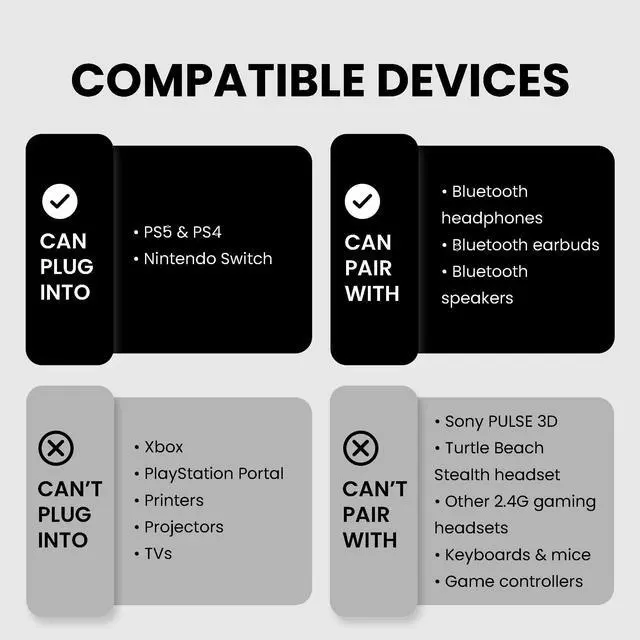
Compatible:
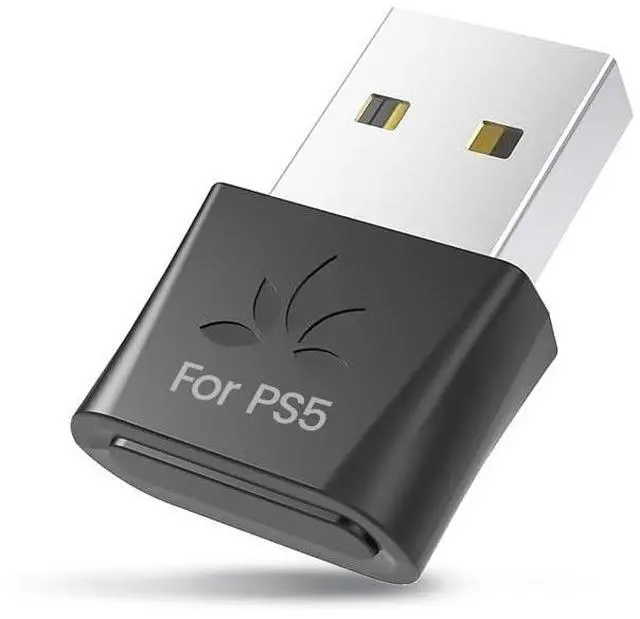
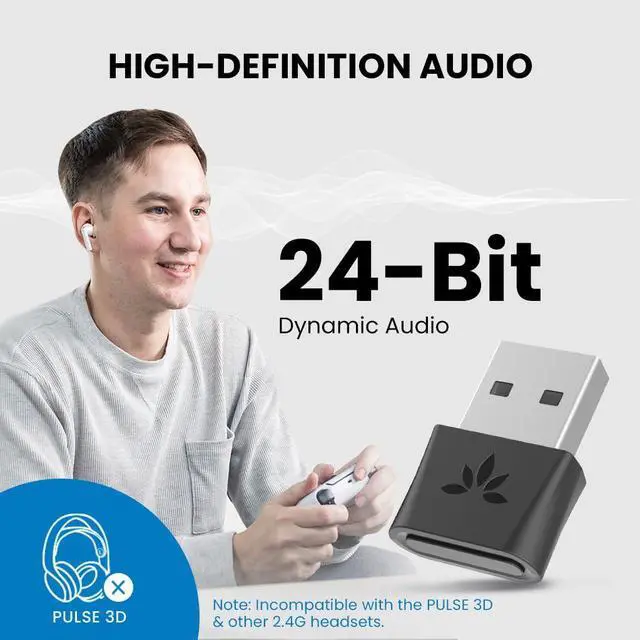
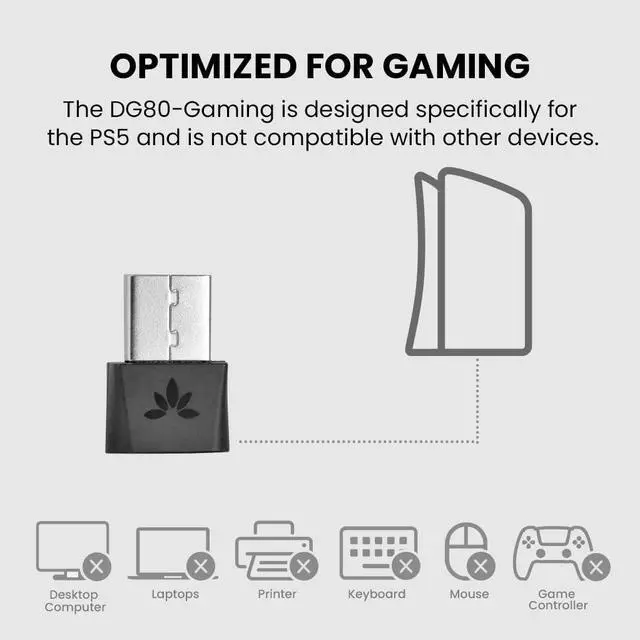
- Works with PS5, PS4, Swith Console; Connects to Bluetooth headphones, earbuds, speakers.
Not Compatible:
- Does not work with pc, mac, linux, tv, PS5 Portal, printers and projectors, for use with pc, consider the C81-PC for best results.
- Not compatible with pulse 3d and 2.4G wireless headsets, keyboards, mice and game controllers.

EASY SETUP

Plug In
Insert DG80-Gaming into USB-A port. Press and hold the button to enter fast-flashing pairing mode.

Pair
Turn off your phone’s Bluetooth to prevent interference. Press and hold the headphone’s button to activate pairing mode.

Wait for Connection
Wait until the LED slows and indicates connection.

Settings
Set PS5 output to "Avantree DG80G" and input to "Microphone on Controller."
SPECIFICATIONS
COMPARISON TABLE
 Avantree DG80-Gaming |  Avantree C81-Gaming |  Avantalk C82 |  Avantree C81-PC |  Avantree DG60P | |
|---|---|---|---|---|---|
Customer Reviews | — | — | — | — | — |
Price | — | — | — | — | — |
Compatibility | PS5, PS4 | PS5, PS4 | PS5, PS4, PC, Mac | PC & Mac | PC, Mac, PS4, PS5 |
Supported Devices | Audio devices (ie headphones) | Audio devices (ie headphones) | Audio devices (ie headphones) | Audio devices (ie headphones) | Audio devices (ie headphones) |
USB Port Type | USB-A | USB-C | USB-C | USB-C | USB-A |
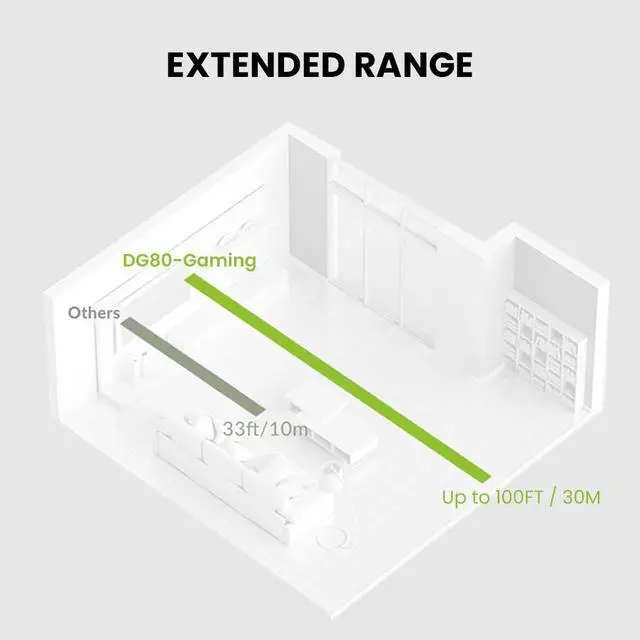
Operating Range | Up to 100ft / 30m | Up to 100ft / 30m | Up to 100ft / 30m | Up to 100ft / 30m | Up to 164ft / 50m |
Supported Bluetooth Codecs | aptX-Adaptive/HD/LL, aptX, SBC | aptX-Adaptive/HD/LL, aptX, SBC | LC3, aptX Adaptive, aptX, SBC | aptX-Adaptive/HD/LL, aptX, SBC | aptX-Adaptive/HD/LL, aptX, SBC |
Latency | 40ms | 40ms | 40ms | 40ms | 40ms |
Audio Quality | 24bit / 96kHz | 24bit / 96kHz | 24bit / 96kHz | 24bit / 96kHz | 24bit / 96kHz |
Q1: I can't pair with my headphones. What should I do?
1. Check for Existing Connections: 60% of pairing issues happen because the headphones are already connected to another device, such as your smartphone. Turn off Bluetooth on any other connected devices.
2. Ensure Pairing Mode: 20% of pairing issues occur because the headphones aren’t in pairing mode. Turning them on doesn’t necessarily enable pairing mode. Look for flashing red and blue LEDs as an indication, or refer to the user manual.
3. If Issues Persist:
3.1 Clear Interference: Nearby devices (e.g., Wi-Fi routers, smart TVs) can affect pairing. Unplug or move away from these devices.
3.2 Reset the Adapter: Press and hold the DG80G button for 2 seconds until the LED flashes white and blue. Then, quickly double-tap the button. The LED will turn solid blue briefly, then return to flashing white and blue.
3.3 Reset the Headphones: Check your user manual if you need guidance on resetting your headphones.
---------------------------
Q2: How to Enhance Talk and Game Audio Quality on PS5?
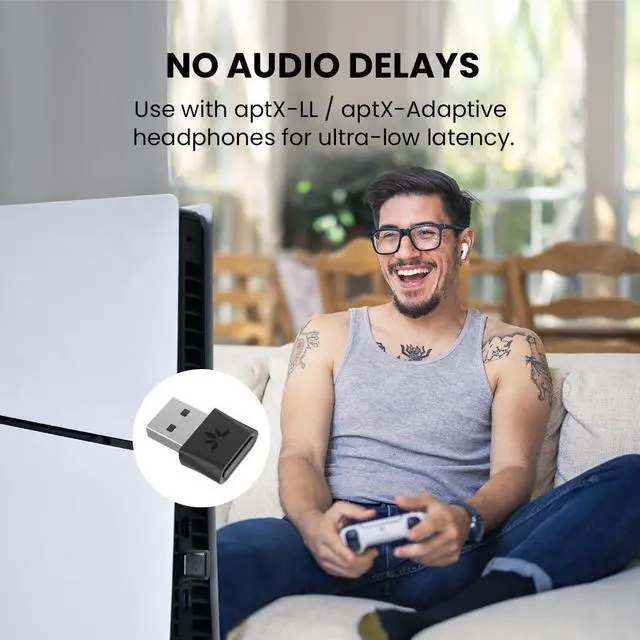
To enhance PS5 audio during gaming, avoid using Bluetooth headphones' microphones. which switch to a lower-quality mono mode. Instead, use the PS5 controller's mic to maintain high-quality stereo sound.
Before You Buy, Please Note:
Compatible:
- Works with PS5, PS4, Swith Console; Connects to Bluetooth headphones, earbuds, speakers.
Not Compatible:
- Does not work with pc, mac, linux, tv, PS5 Portal, printers and projectors, for use with pc, consider the C81-PC for best results.
- Not compatible with pulse 3d and 2.4G wireless headsets, keyboards, mice and game controllers.

EASY SETUP
Plug In
Insert DG80-Gaming into USB-A port. Press and hold the button to enter fast-flashing pairing mode.
Pair
Turn off your phone’s Bluetooth to prevent interference. Press and hold the headphone’s button to activate pairing mode.
Wait for Connection
Wait until the LED slows and indicates connection.
Settings
Set PS5 output to "Avantree DG80G" and input to "Microphone on Controller."
SPECIFICATIONS
| Bluetooth Version | v5.3 |
|---|---|
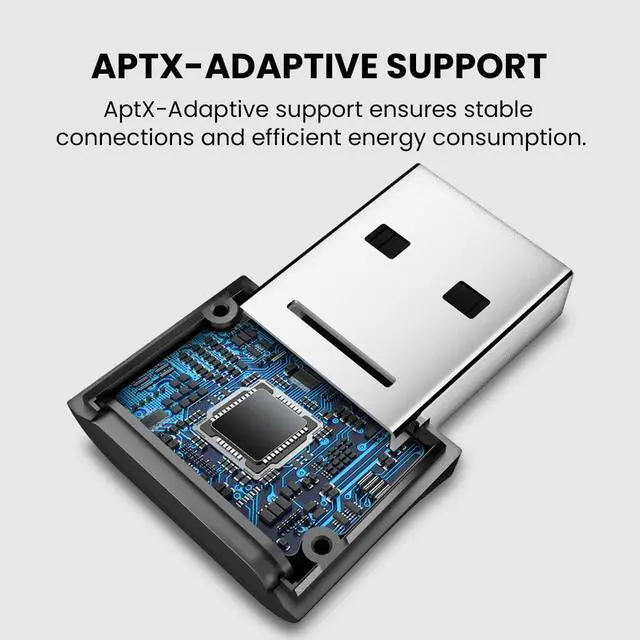
| Supported Audio Codecs | aptX-HD, aptX-Adaptive, aptX-LL, aptX, SBC |
| Supported Bluetooth Profiles | A2DP, AVRCP, HSP, HFP |
| Operating Range | Up to 100ft / 30m |
| Frequency Range | 2.4GHz - 2.48GHz |
| Size | 14mm x 26mm x 7mm |
| Net Weight | 3g |
| Jack Type | Type A |
COMPARISON TABLE
Avantree DG80-Gaming | Avantree C81-Gaming | Avantalk C82 | Avantree C81-PC | Avantree DG60P |
|---|---|---|---|---|
| Customer Reviews | ||||
| — | — | — | — | — |
| Price | ||||
| — | — | — | — | — |
| Compatibility | ||||
| PS5, PS4 | PS5, PS4 | PS5, PS4, PC, Mac | PC & Mac | PC, Mac, PS4, PS5 |
| Supported Devices | ||||
| Audio devices (ie headphones) | Audio devices (ie headphones) | Audio devices (ie headphones) | Audio devices (ie headphones) | Audio devices (ie headphones) |
| USB Port Type | ||||
| USB-A | USB-C | USB-C | USB-C | USB-A |
| Operating Range | ||||
| Up to 100ft / 30m | Up to 100ft / 30m | Up to 100ft / 30m | Up to 100ft / 30m | Up to 164ft / 50m |
| Supported Bluetooth Codecs | ||||
| aptX-Adaptive/HD/LL, aptX, SBC | aptX-Adaptive/HD/LL, aptX, SBC | LC3, aptX Adaptive, aptX, SBC | aptX-Adaptive/HD/LL, aptX, SBC | aptX-Adaptive/HD/LL, aptX, SBC |
| Latency | ||||
| 40ms | 40ms | 40ms | 40ms | 40ms |
| Audio Quality | ||||
| 24bit / 96kHz | 24bit / 96kHz | 24bit / 96kHz | 24bit / 96kHz | 24bit / 96kHz |
Q1: I can't pair with my headphones. What should I do?
1. Check for Existing Connections: 60% of pairing issues happen because the headphones are already connected to another device, such as your smartphone. Turn off Bluetooth on any other connected devices.
2. Ensure Pairing Mode: 20% of pairing issues occur because the headphones aren’t in pairing mode. Turning them on doesn’t necessarily enable pairing mode. Look for flashing red and blue LEDs as an indication, or refer to the user manual.
3. If Issues Persist:
3.1 Clear Interference: Nearby devices (e.g., Wi-Fi routers, smart TVs) can affect pairing. Unplug or move away from these devices.
3.2 Reset the Adapter: Press and hold the DG80G button for 2 seconds until the LED flashes white and blue. Then, quickly double-tap the button. The LED will turn solid blue briefly, then return to flashing white and blue.
3.3 Reset the Headphones: Check your user manual if you need guidance on resetting your headphones.
---------------------------
Q2: How to Enhance Talk and Game Audio Quality on PS5?
To enhance PS5 audio during gaming, avoid using Bluetooth headphones' microphones. which switch to a lower-quality mono mode. Instead, use the PS5 controller's mic to maintain high-quality stereo sound.