


• $39.99
  • Free 30-day Returns
  • Price alert

    Best Sellers

    Newegg
    • + $11.20 Shipping
    Shop it at NeweggBusiness.

    Meet Your Seller

    HDMI Video Capture Card with Loop-Out Passthrough - USB 3.0 Game Capture Card for Live Streaming/Recording - Works with OBS/PS5/Switch/Xbox/PC/Mac - Plug & Play No Driver Needed

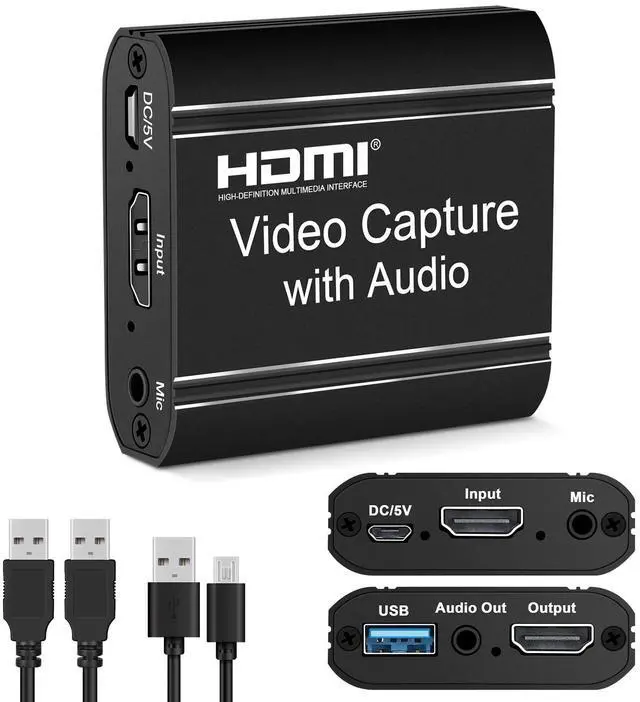
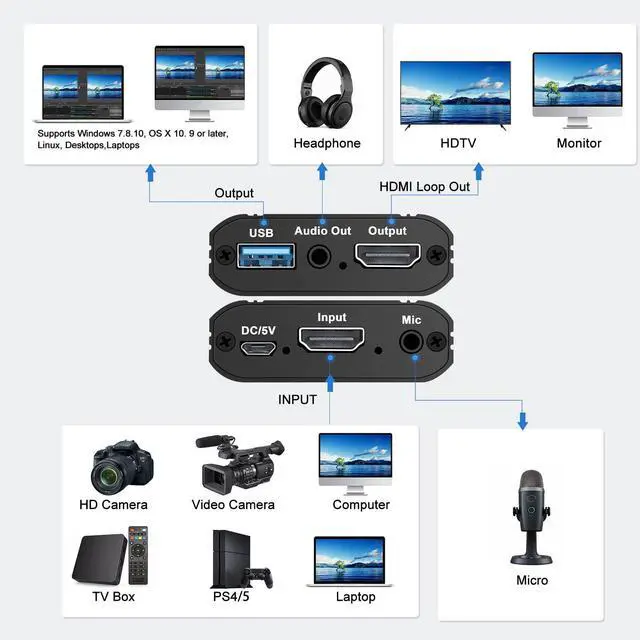
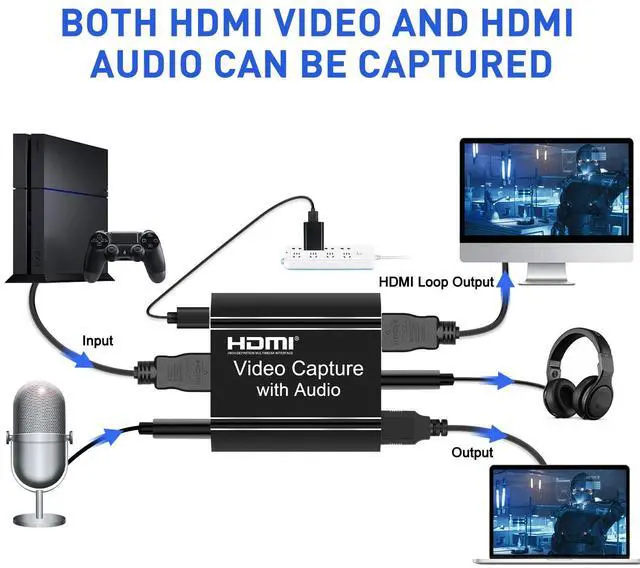
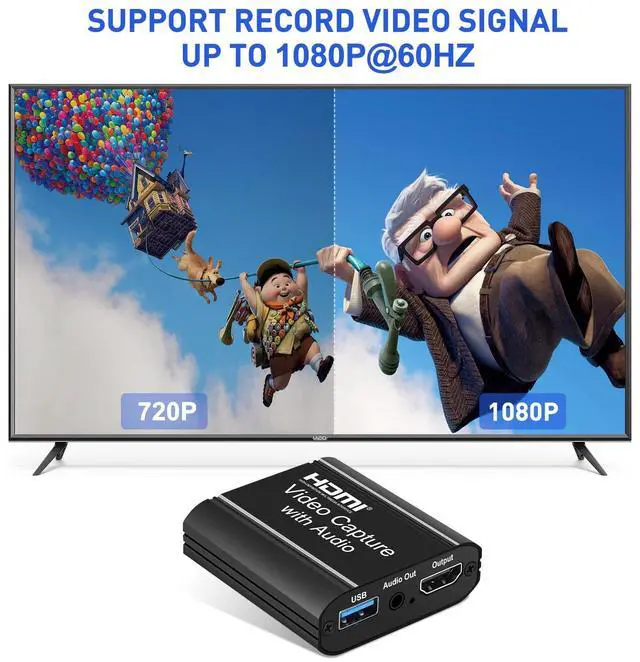
    • HDMI Video Capture Card4K@30Hz HDMI capture card features an aluminum alloy shell for durability and heat dissipation. It captures & streams 1080p@60fps via USB 2.0 with zero latency, perfect for gaming, live streaming, and conference recording. Supports HDMI loop-out for real-time monitoring.
    • 4K PassthroughEnjoy smooth, lag-free gameplay recording with 4K@30Hz input & 1080p@60Hz output. Ideal for Switch, PS4/PS5, Xbox, and PC. USB 2.0 ensures high-speed data transfer, making it great for OBS, Zoom, Twitch & YouTube streaming.
    • 3.5mm Mic/Audio PortUnlike other capture cards, ours includes a built-in 3.5mm microphone input & headphone outputperfect for commentary, podcasts, or voiceovers. Easily connect a mic or headphones for real-time audio monitoring without extra adapters.
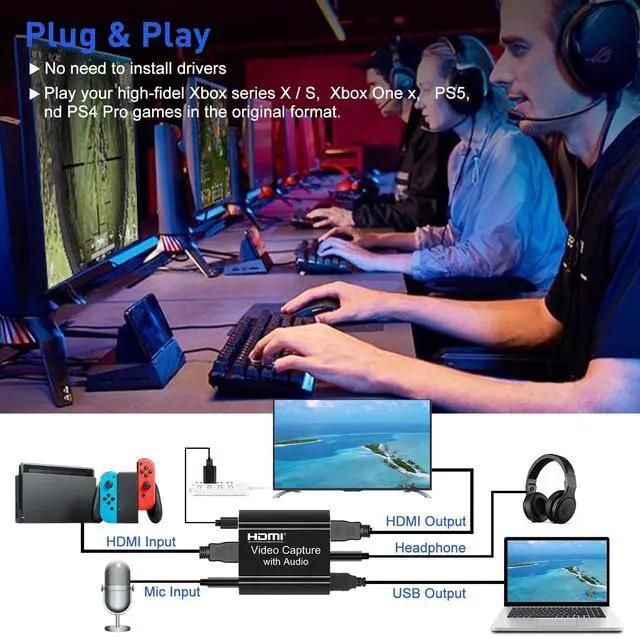
    • Plug & PlayWorks instantly with Windows 7/10/11, Mac OS X 10.9+, Linux, and Android. No software setup requiredjust plug in via USB 2.0 and start streaming! Compatible with Switch, PS5, Xbox One, DSLR cameras, and more
    • Whats Included1x HDMI Capture Card (Aluminum Alloy)1x USB 2.0 Cable (Dual Male) 1x Micro USB Cable (For Additional Power)1x User Manual (Easy Setup Guide)
    +
    +
    Overview
    Specs
    Reviews
    avatar

    Any questions? Our AI beta will help you find out quickly.

    capture card
    Loop-Out
    4K HDMI Video Game Capture Card

    How to set up the device?

    Capture Card

    Step 1:

    1. Open OBS as shown in Figure 1-1: Click the "+" source to add a video source.

    2. Double-click the video source added in the red box above to enter the setting page.

    3. In the red arrow bar, select "Video Capture Device".

    Capture Card

    Step 2:

    2.1 Select Device: USB Video

    2.2 Custom Resolution: Set Resolution/FPS Type to "Custom"

    2.3 Set the resolution: 1920x1080

    2.4 Set the frame rate: 60 frames per second

    2.5 Set video format: select "Any"

    Capture Card

    Step 3:

    Click "Start Recording" to record the video and audio of the source.

    Your recording file will be saved in the file in the upper left corner.

    Capture card for streaming
    capture card
    Loop-Out
    4K HDMI Video Game Capture Card

    How to set up the device?

    Capture Card

    Step 1:

    1. Open OBS as shown in Figure 1-1: Click the "+" source to add a video source.

    2. Double-click the video source added in the red box above to enter the setting page.

    3. In the red arrow bar, select "Video Capture Device".

    Capture Card

    Step 2:

    2.1 Select Device: USB Video

    2.2 Custom Resolution: Set Resolution/FPS Type to "Custom"

    2.3 Set the resolution: 1920x1080

    2.4 Set the frame rate: 60 frames per second

    2.5 Set video format: select "Any"

    Capture Card

    Step 3:

    Click "Start Recording" to record the video and audio of the source.

    Your recording file will be saved in the file in the upper left corner.

    Capture card for streaming
    HDMI Video Capture Card with Loop-Out Passthrough - USB 3.0 Game Capture Card for Live Streaming/Recording - Works with OBS/PS5/Switch/Xbox/PC/Mac - Plug & Play No Driver Needed

    Warranty & Returns

    Warranty, Returns, And Additional Information

    Warranty

    • Please contact the Seller directly for warranty information. Warranty information may also be found on the Manufacturer's website.
    • CONTACT

    Return Policies

    Manufacturer Contact Info

    LOADING...
    LOADING...