




If you experience issues such as no audio, screen freezing, or a blank screen with your AR glasses or USB-C monitor after using the hub, please follow these troubleshooting steps:
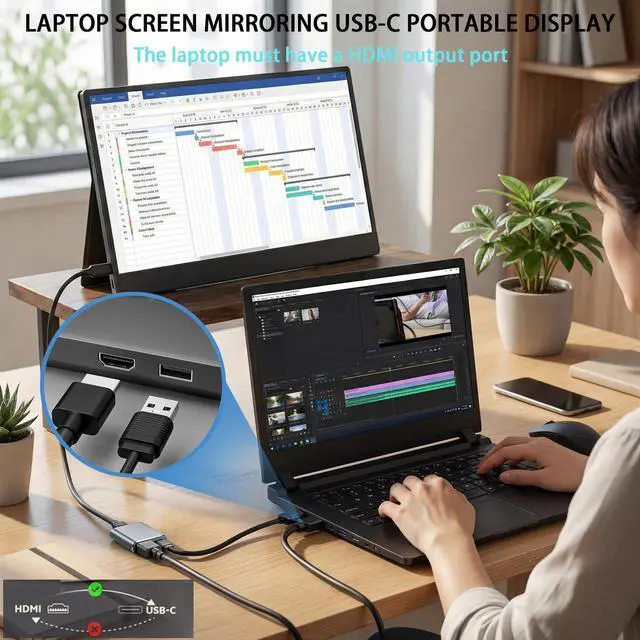
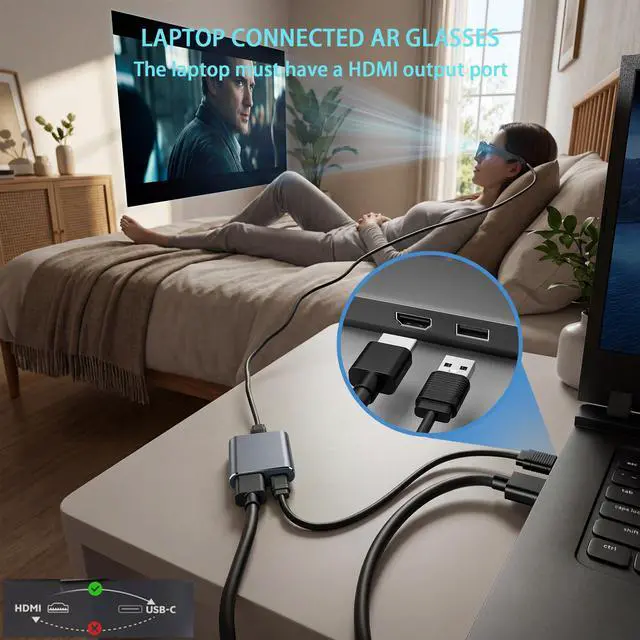
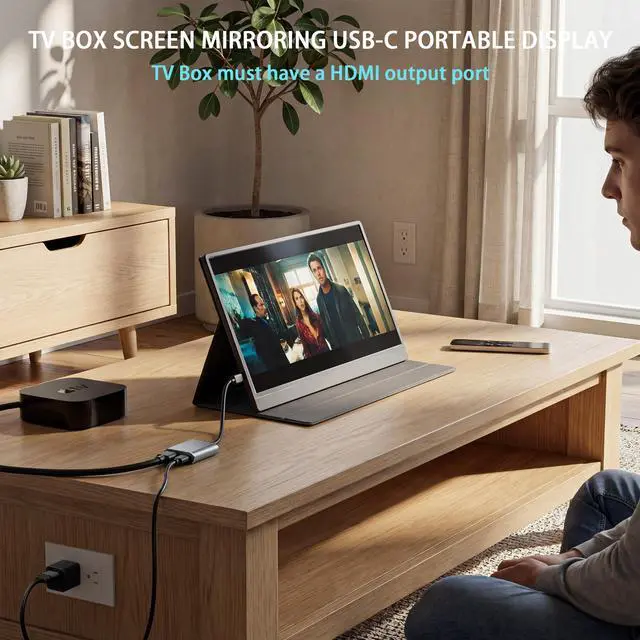
1. Before purchasing this hub, please confirm that your laptop, gaming console, TV box, or other device has an HDMI video output port.
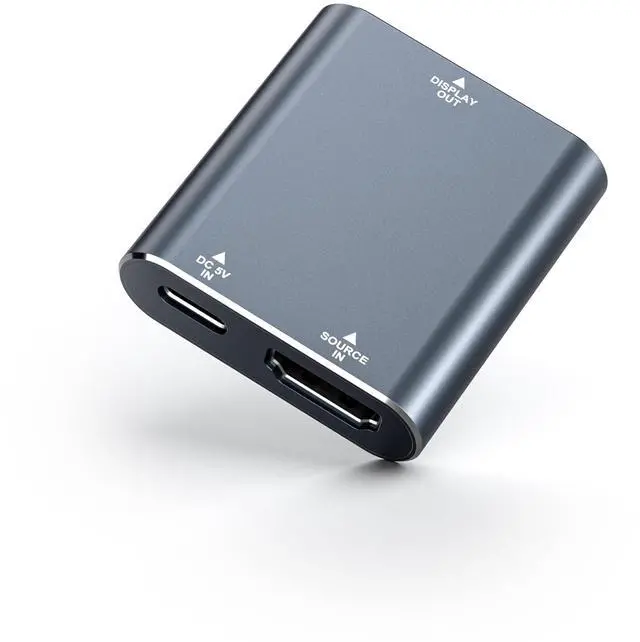
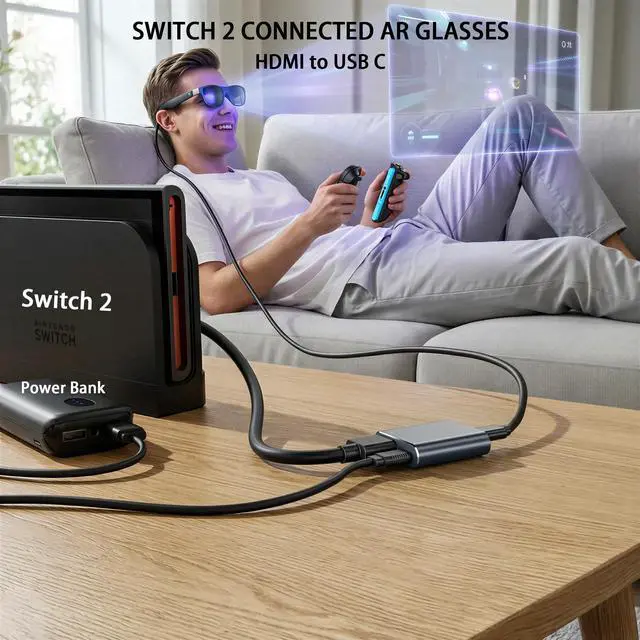
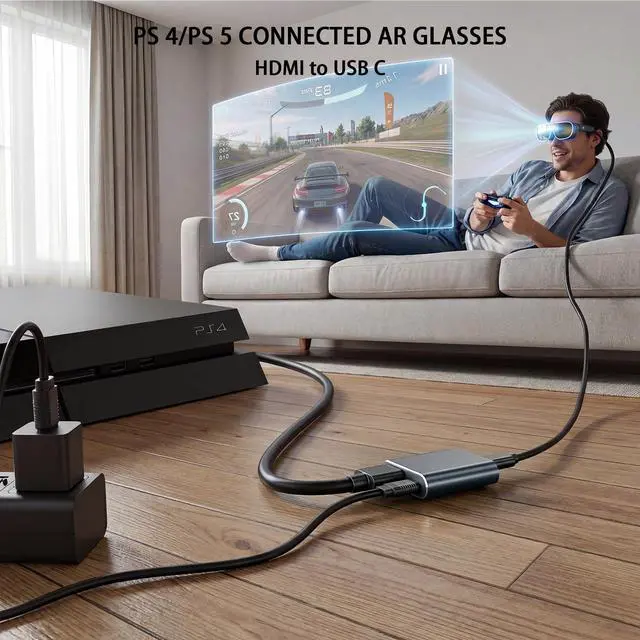
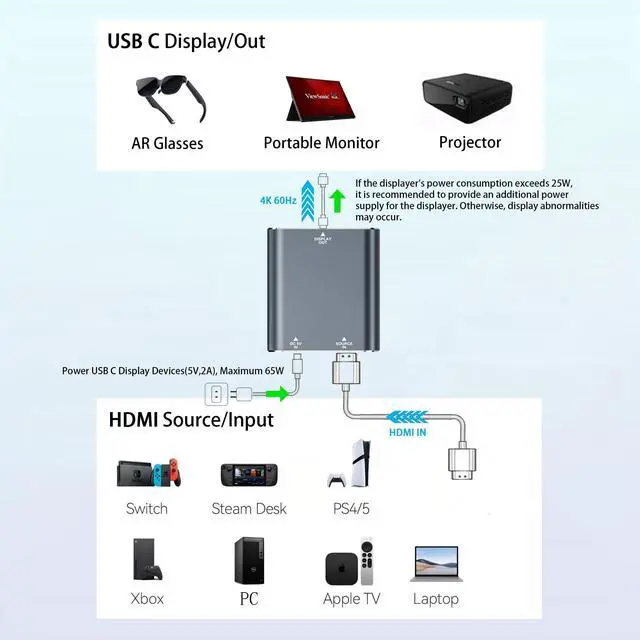
2. Refer to the hub connection diagram to verify that all ports are connected correctly and ensure that the connections are secure. Note: For the Nintendo Switch, you must enable TV mode and connect to our hub via the HDMI port on its dock.
3. The hub’s DC 5V port must be connected to a power source. You can use a USB-C cable to connect a power bank or charger to power the hub.
4. If you are using the Xreal AR glasses series and there is no audio, please switch the AR glasses to DP mode after connecting them. Specific steps are provided in the Xreal AR glasses manual. (AR glasses from other brands do not require a mode switch.)
5. If you are connecting to a PS4/PS5, laptop, or other device that does not output video, you need to disable the DHCP function on the device’s HDMI port.
6. If you are using a USB-C monitor and experience screen flickering or a blank screen, please check if the monitor’s power consumption exceeds 25W. If the power exceeds 25W, please connect the display to a separate power source first before connecting it to the hub. This is because the USB-C port on the hub supports a maximum power output of 25W.
7. Finally, please try replacing the HDMI cable and power cable to see if this resolves the issue. If the problem persists after following the steps above, or if you encounter other issues, please leave a message through the manual or Amozon seller KIHENG for assistance and to request a replacement hub.
If you experience issues such as no audio, screen freezing, or a blank screen with your AR glasses or USB-C monitor after using the hub, please follow these troubleshooting steps:
1. Before purchasing this hub, please confirm that your laptop, gaming console, TV box, or other device has an HDMI video output port.
2. Refer to the hub connection diagram to verify that all ports are connected correctly and ensure that the connections are secure. Note: For the Nintendo Switch, you must enable TV mode and connect to our hub via the HDMI port on its dock.
3. The hub’s DC 5V port must be connected to a power source. You can use a USB-C cable to connect a power bank or charger to power the hub.
4. If you are using the Xreal AR glasses series and there is no audio, please switch the AR glasses to DP mode after connecting them. Specific steps are provided in the Xreal AR glasses manual. (AR glasses from other brands do not require a mode switch.)
5. If you are connecting to a PS4/PS5, laptop, or other device that does not output video, you need to disable the DHCP function on the device’s HDMI port.
6. If you are using a USB-C monitor and experience screen flickering or a blank screen, please check if the monitor’s power consumption exceeds 25W. If the power exceeds 25W, please connect the display to a separate power source first before connecting it to the hub. This is because the USB-C port on the hub supports a maximum power output of 25W.
7. Finally, please try replacing the HDMI cable and power cable to see if this resolves the issue. If the problem persists after following the steps above, or if you encounter other issues, please leave a message through the manual or Amozon seller KIHENG for assistance and to request a replacement hub.