Out of stock
This item is currently out of stock and it may or may not be restocked.
Sold by Newegg

Shipped by Newegg

Shop it at NeweggBusiness.

Dual Monitor HDMI KVM Switch, 2 Port HDMI KVM Switch Support 4K@60Hz USB 3.0 KVM Switches for 2 Computers Share 2 Monitors and 4 USB 3.0 Ports Such as Keyboards, Mice Printers and U Disk

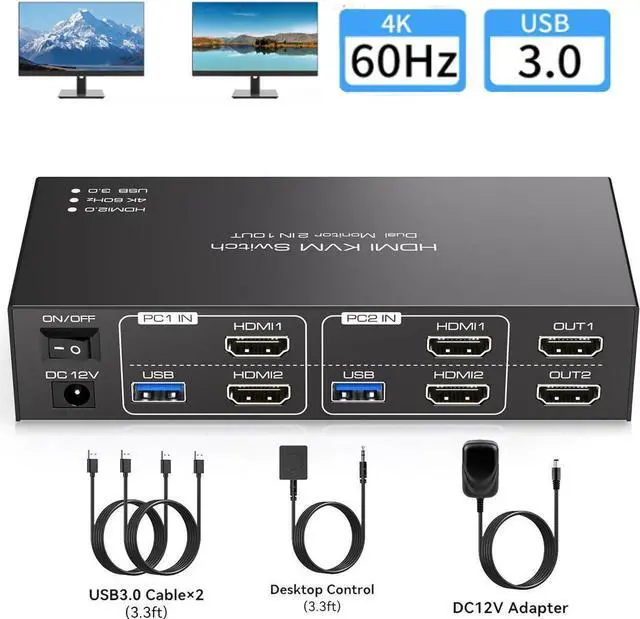
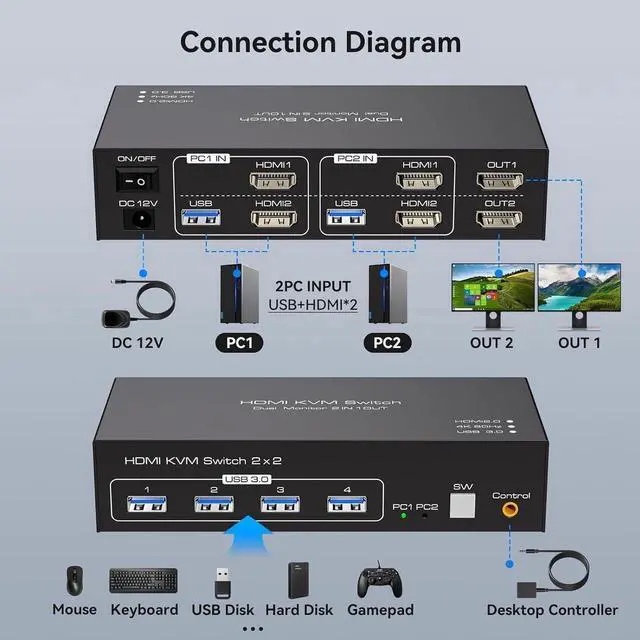
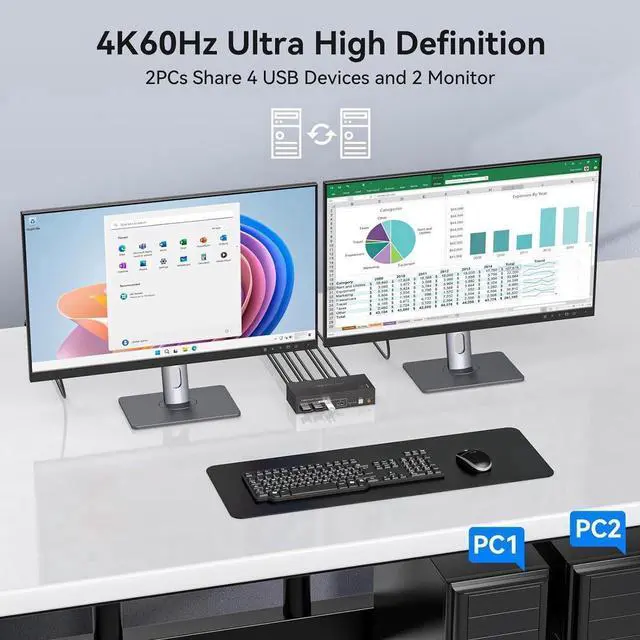
  • [KVM Switch 2 Monitors 2 Computers] The Dual Monitor KVM Switch allows 2 computers share dual monitor and 4 USB devices like mouse keyboard Printer .The kvm switch support copy mode and extension mode.copy mode: 2 monitors output the same picture. extender mode: 2 monitors output different pictures.
  • [Support Ultra HD 4K Visuals] Supports resolutions up to 4096*2160@60Hz(4K@60Hz).Additionally backward compatible with 4K30@Hz, 1080P or lower resolutions..Note: If you want to achieve the maximum resolution, It's crucial to ensure both the signal source and HD-MI cable support 4K@60Hz.
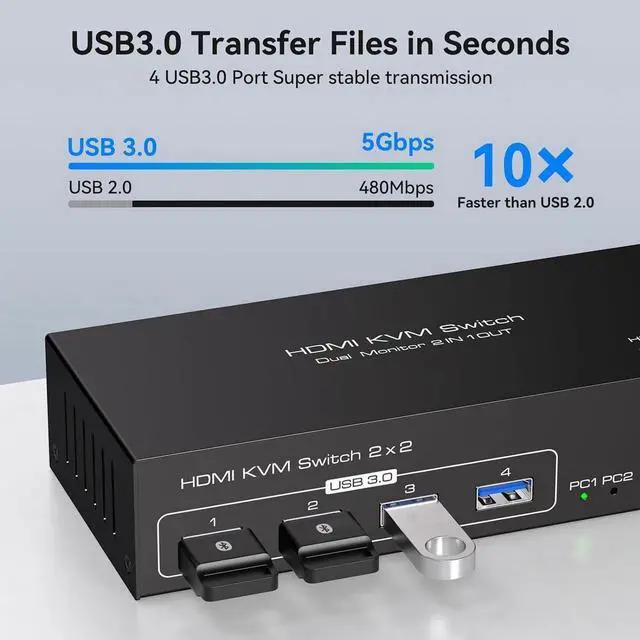
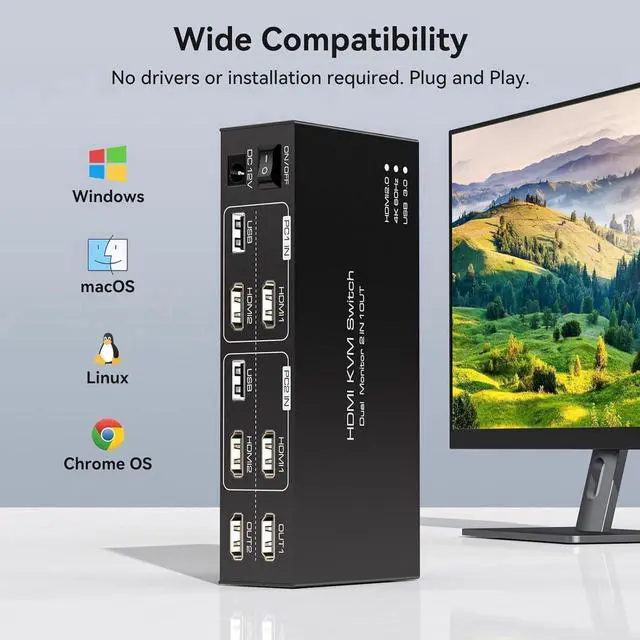
  • [USB 3.0 HDMI KVM Switch] Has four USB 3.0 ports with a data transfer rate up to 5Gbp/s, which is 10 times faster than USB 2.0 ports. USB 2.0 devices are compatible. Compatible with Windows/Vista/XP and Mac OS, Linux and Unix.
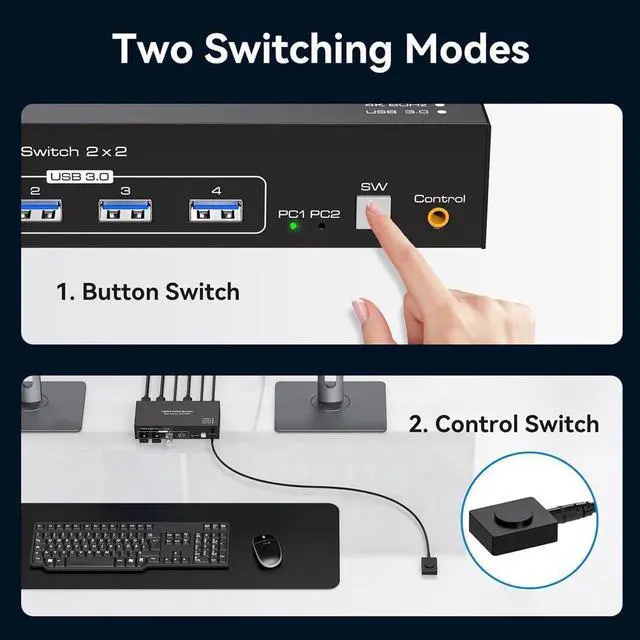
  • [Two Switching Way] The HDMI KVM Switches supports panel button and external wire controller switching. Using the wired extension button, you can place the KVM outside the work area.
Overview
Specs
Reviews
avatar

Any questions? Our AI beta will help you find out quickly.

Note:


1. Requires 2 HDMI ports for each connected computer and make sure your PC or laptop supports multiple monitors

2. After connecting the computers and the monitors through KVM, Please set the screen output mode on the computer (press Windows+P) and select the output mode in the pop-up window on the screen. Otherwise, only one of the two connected monitors has an image.

3. Before purchasing this product, please make sure that connecting your computer directly to the monitor can produce images normally, Otherwise, the KVM will not be available.

6
The KVM Switch 2 In 2 Out Has Two Switching Way


Supports panel button and external wire controller switching

Using the wired extension button, you can place the KVM outside the work area, making your desktop cleaner and tidier.

Or press the panel button next to the indicator light to achieve one-click switching, Simple, quick and easy to use, Let you can save more time to do other things!

NOTE: Keyboard shortcuts (hotkeys) toggles are not supported.

Warranty & Returns

Warranty, Returns, And Additional Information

Return Policies

LOADING...