

Your Browsing History



Any questions? Our AI beta will help you find out quickly.
2
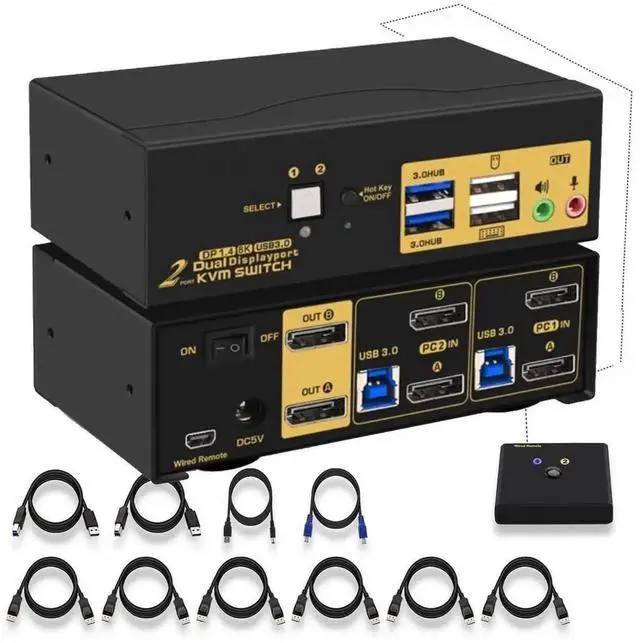
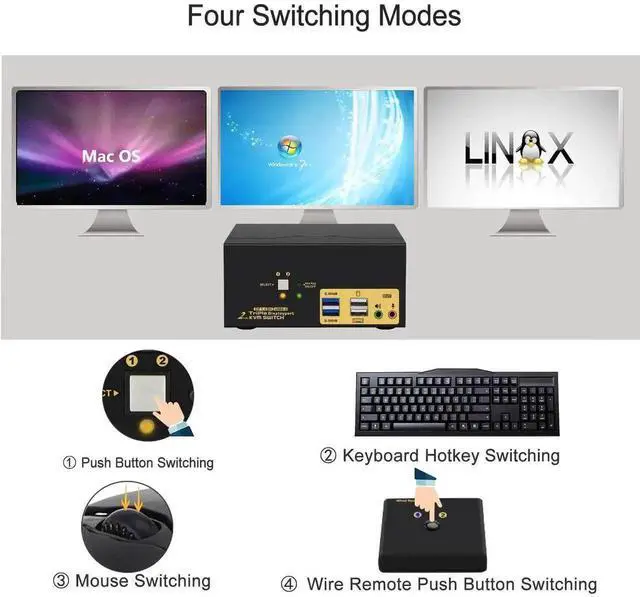
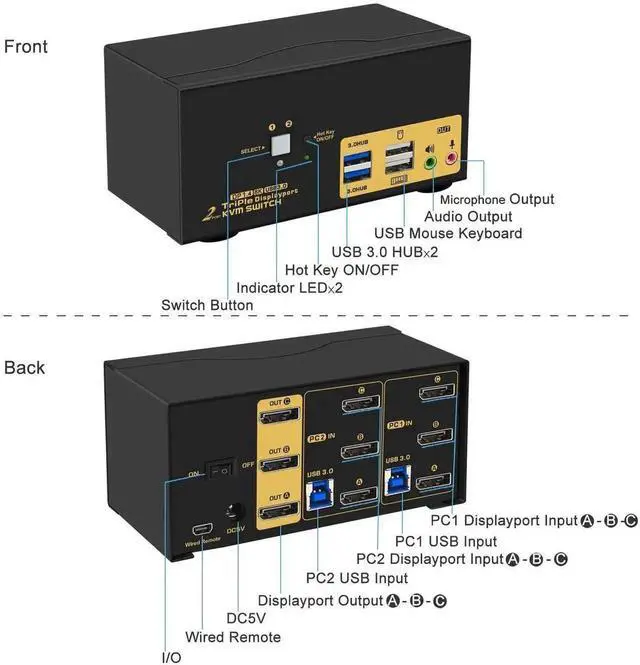
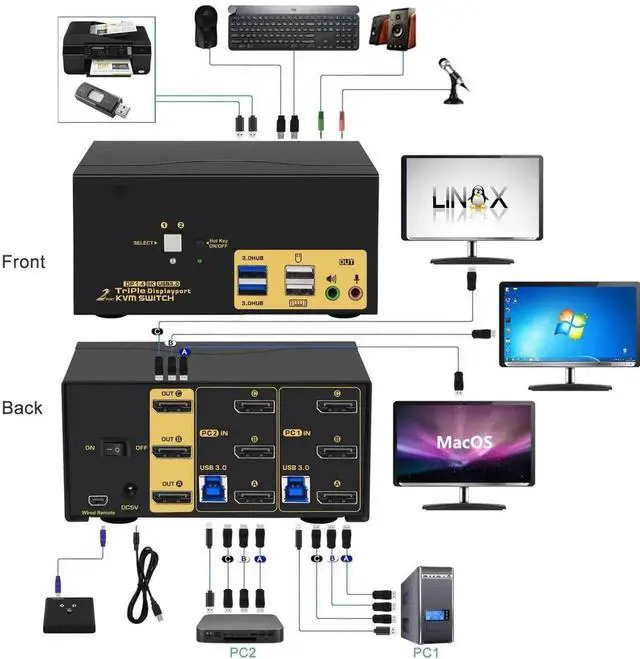
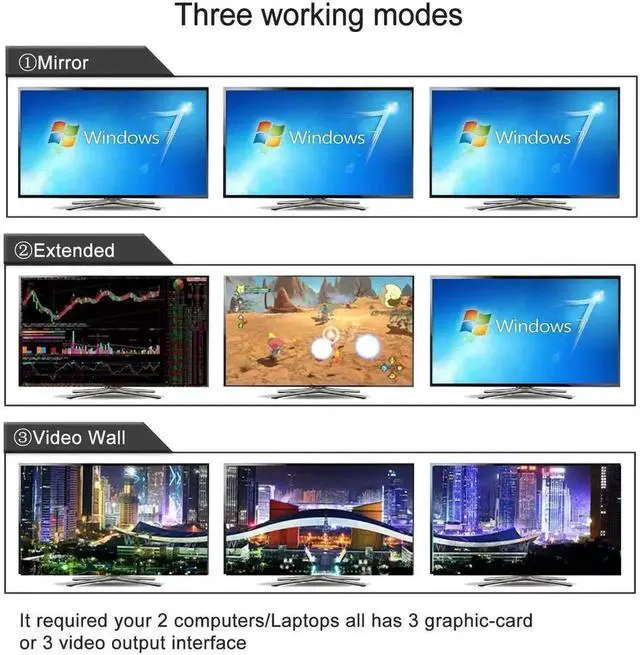
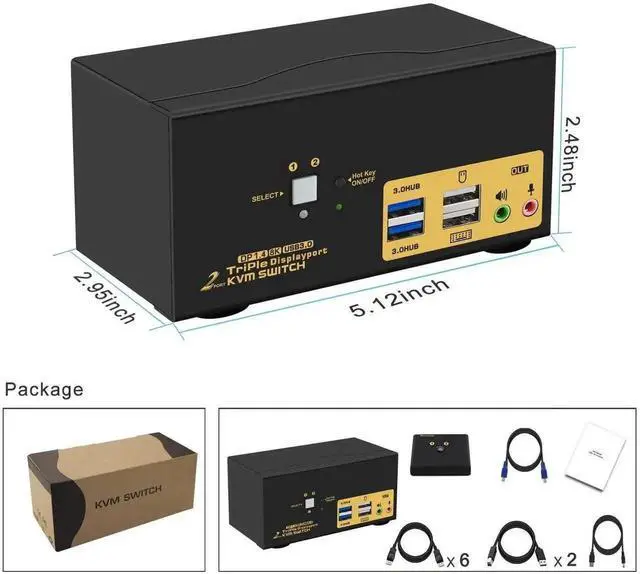
Port KVM Switch Displayport 144Hz: 2 computers/laptops sharing one set of keyboard & mouse, 3 monitors, audio, microphone and 2 pcs USB 3.0 peripheral devices. It comes with audio and microphone output, 2 pcs USB 3.0 hub, a DC5V 2A power adapter, and all input cables. (Tips: 1. This KVM switch required each of your computers with 3 video outputs, otherwise, 3 monitors can't display together. 2. This KVM switch without simulation EDID function, windows maybe move after switching. )
Installation Step:
1. Turn off all devices and unplug all cables;
2. Plug USB 3.0 cables (transfer USB signal and audio signal), Displayport cables into your computers and KVM switch;
3. Plug mouse into mouse slot of KVM switch, plug keyboard into keyboard slot of KVM switch (for gaming or mechanical keyboard, please plug them into USB 3.0 HUB on the front panel if they did not work well on rear USB ports);
4. Plug Displayport cables into the KVM switch and your Monitors;
5. Plug your speaker or microphone or wired remote push button switch into the KVM switch if needed;
6. Plug the DC5V 2A power adapter into the KVM switch and AC socket, turn on the KVM switch;
7. Turn on your computers;
8. Set computer display modes as extended display/duplicated display.
Package:
1 x 2 port displayport KVM switch
6 x displayport cables
2 x USB 3.0 cables
1 x DC 5V 2A Power adapter
1 x English manual
1 x wire remote push button switch