

Your Browsing History




Any questions? Our AI beta will help you find out quickly.
kvm switch 2 monitors 2 computers
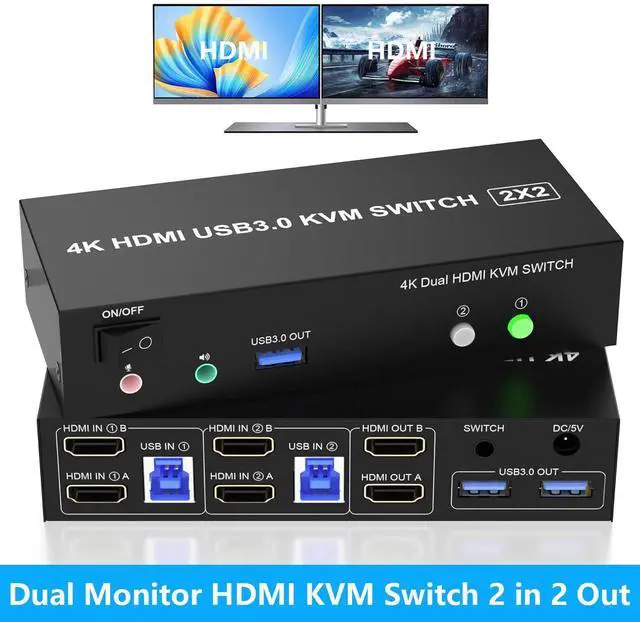
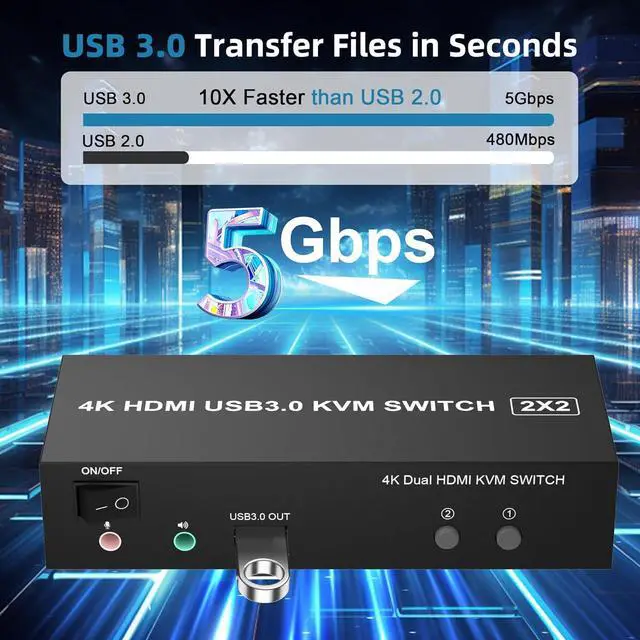
KVM Switch 2 monitors 2 computers allows two computers share dual monitor and 3 USB devices and separate audio and microphone output
This KVM dual monitor switch can simulate the EDID of the display, keep per PCs always having correct display information.
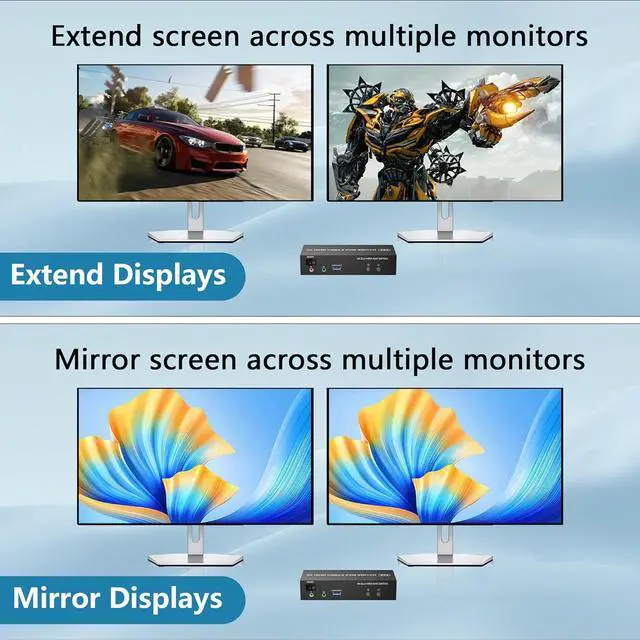
The hdmi kvm switch support extended and mirror display
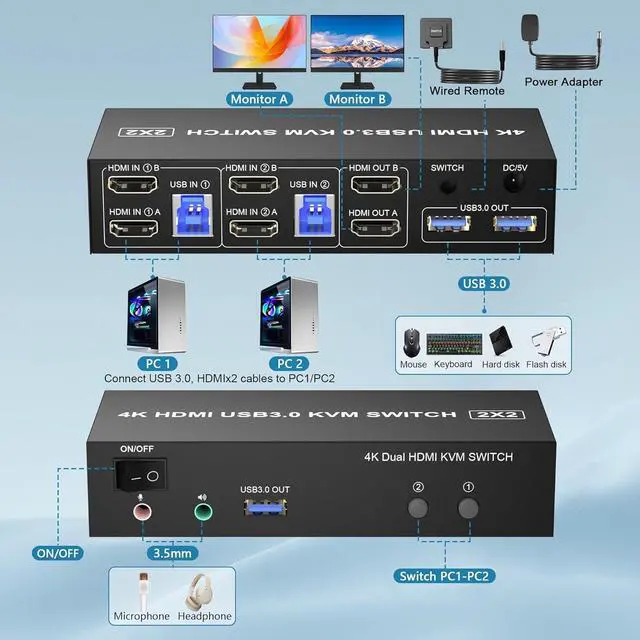
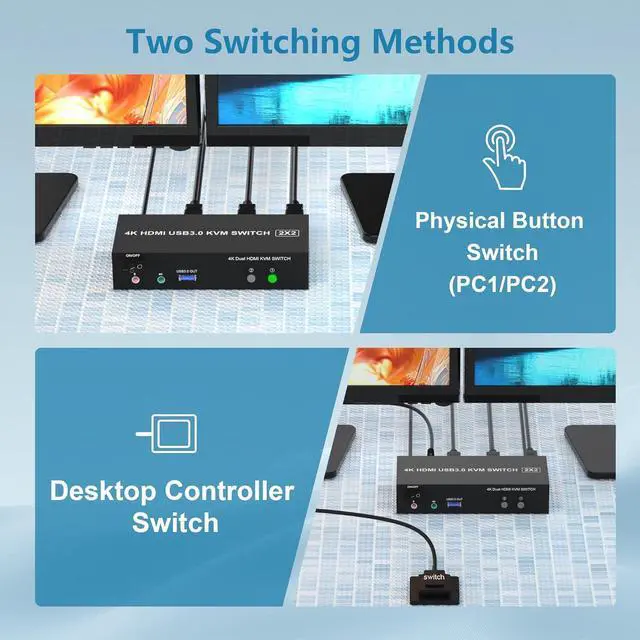
2 Switching modes: Button switch and wired remote.
Wide Compatibility, support most major OS including Windows, Linux, Mac
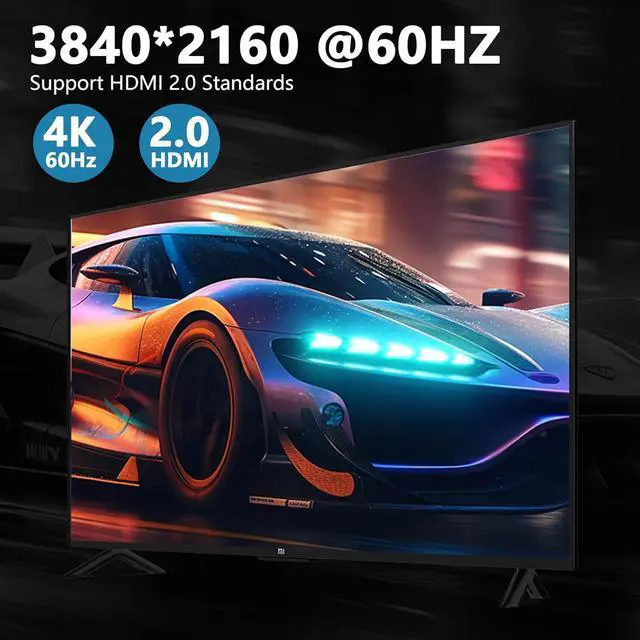
Supports resolutions up to 4096*2160@60Hz(4K@60Hz)
Please note:
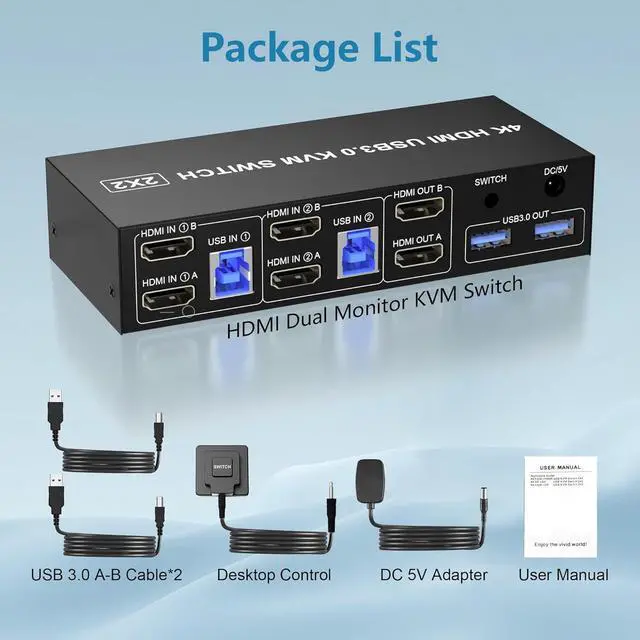
1)If the HDMI source is input from HDMI IN A, it needs to be output from the OUT A. If the HDMI source is input from HDMI IN B, then it needs to be output from the OUT B.
2) If you want to output 2 monitors simultaneously, 2 HDMI ports of one HDMI source computer must be connected. Specifically, HDMI A and HDMI B of PC1 IN should be connected at the same time, and OUT A and OUT B of the output ends should also be connected simultaneously. OUT A display the video from HDMI A, and OUT B will display the video from HDMI B.
CONNECTION
PC1 IN: USB IN 1 and HDMI IN1 A/HDMI IN1 B cables, device connected to computer 1.
PC2 IN: USB IN 2 and HDMI IN2 A/HDMI IN2 B cables, device connected to computer 2.
HDMI OUT: HDMI OUT A and HDMI OUT B, connected to 2 HDMl display devices.
Note:
1. Requires 2 HDMI ports for each connected computer and make sure your PC or laptop supports multiple monitors
2. After connecting the computers and the monitors through KVM, Please set the screen output mode on the computer (press Windows+P) and select the output mode in the pop-up window on the screen. Otherwise, only one of the two connected monitors has an image.
3. Before purchasing this product, please make sure that connecting your computer directly to the monitor can produce images normally, Otherwise, the KVM will not be available.