





Since our foundation in 2009,We are committed to creating leading-edge innovative consumer electronic devices and accessories.
We focus on HD Video& Audio accessories, Hub,HDMI Splitter,HDMI Switch and Ethernet connection.
AUKOKIOULA is committed to providing high-quality!products, friendly design and premium service toour customers
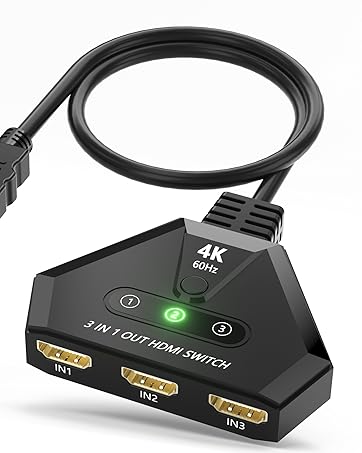
HDMI 4K@60hz
HDMI 3 IN 1 OUT
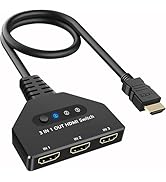
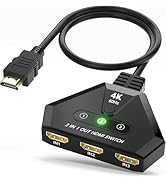
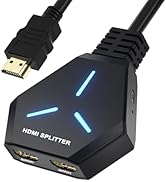
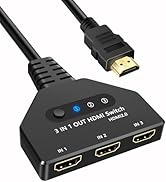
HDMI 4K@30hz
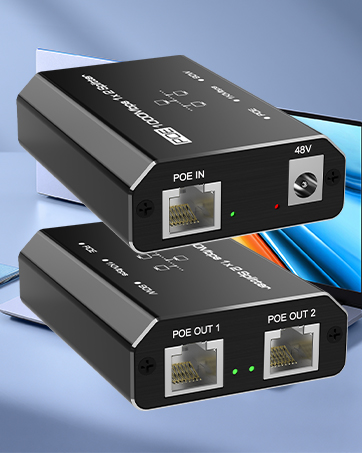
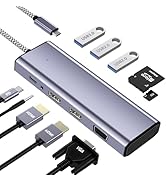
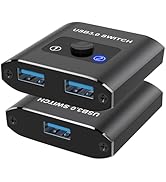
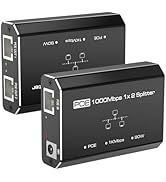
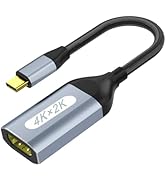
Splitter Adapter
![USB C to HDMI Adapter, 4K USB Type-C to HDMI Adapter [Thunderbolt 4/3Compatible] with iPhone 15/1...](//c1.neweggimages.com/sellingpilot/modules/product/a-plus/a383a198f816a6b0d7992037934c94fde88a91315430974c4a23e9a2efdb09e5.jpg)
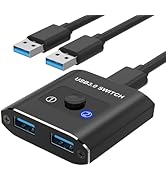
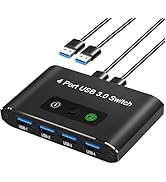
USB Switch
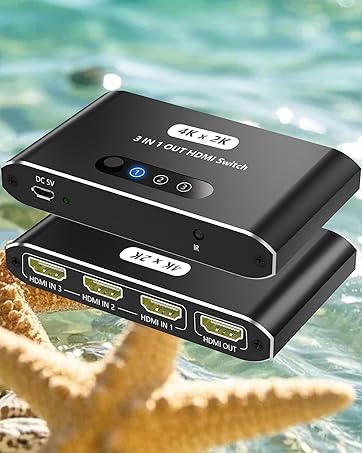
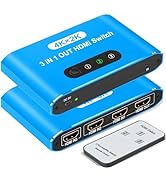
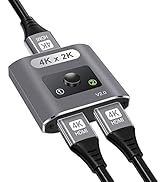
HDMI Switch
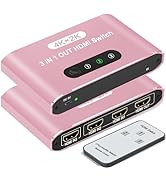
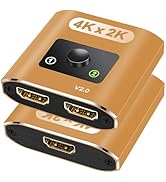
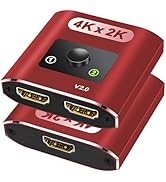
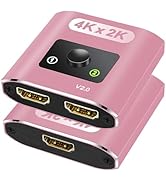
HDMI Switch 2 In 1 Out
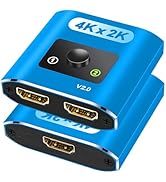
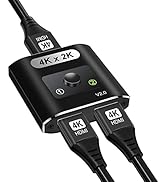
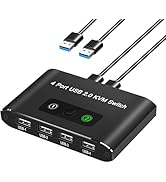
HDMI / USB Switch
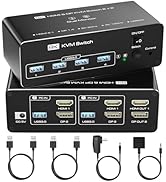
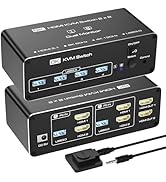
KVM
![USB C to HDMI Adapter, 4K USB Type-C to HDMI Adapter [Thunderbolt 4/3Compatible] with iPhone 15/1...](http://c1.neweggimages.com/sellingpilot/modules/product/a-plus/a383a198f816a6b0d7992037934c94fde88a91315430974c4a23e9a2efdb09e5.jpg)

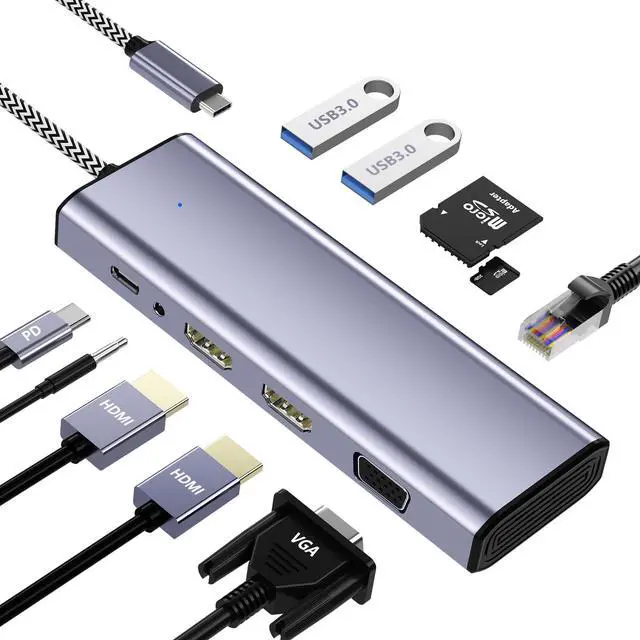
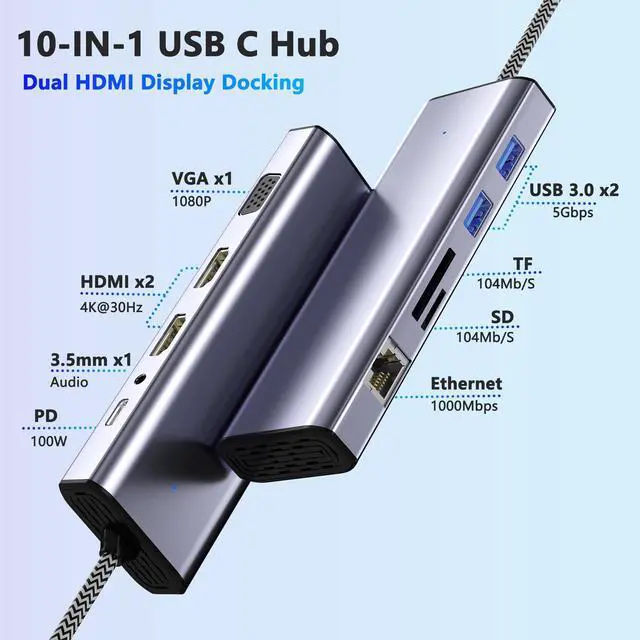
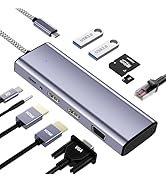
10 IN 1 Laptop Docking Station
10 in 1 USB C Dual HDMI Adapter USB C Docking Station Dual HDMI Monitors for Windows/iOS/Linux/Android System
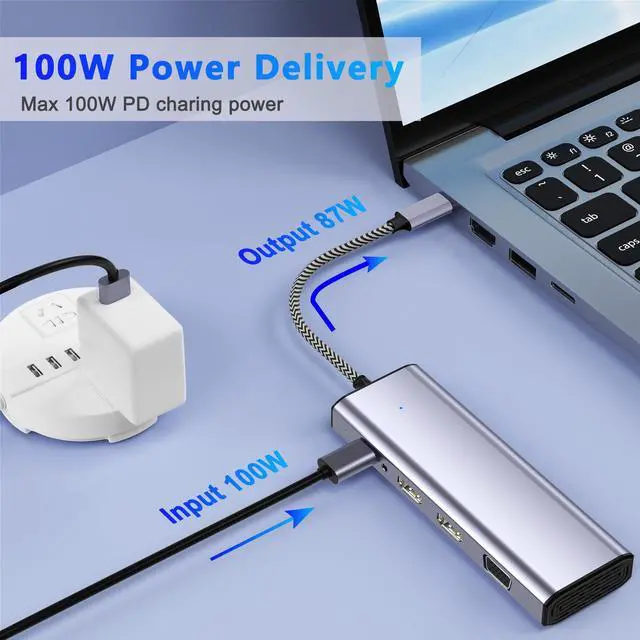
1*PD3.0 Charging Port: Up to 100W input and 87W output
HDMI 1 Max resolution: 4K@30Hz
HDMI 2 Max resolution: 4K@30Hz
1*VGA: 1080P@60Hz (When VGA is connected, each monitor Max resolution: 1080P@60Hz)
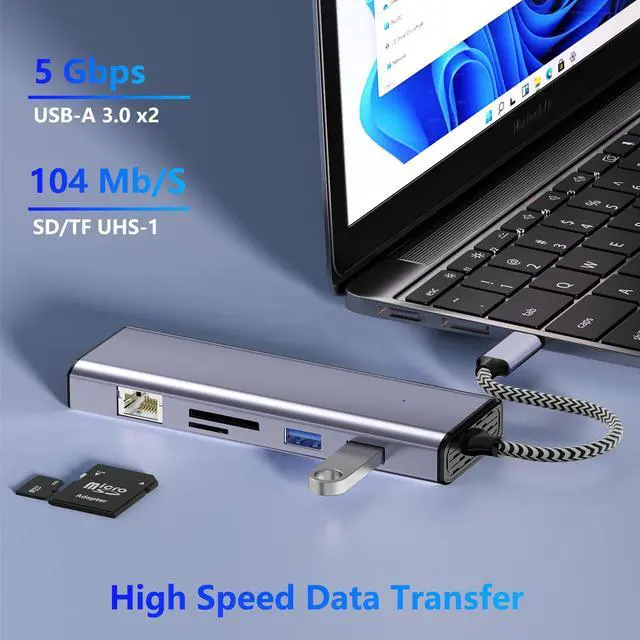
2* USB A 3.0 port: Data transfer up to 5Gbps
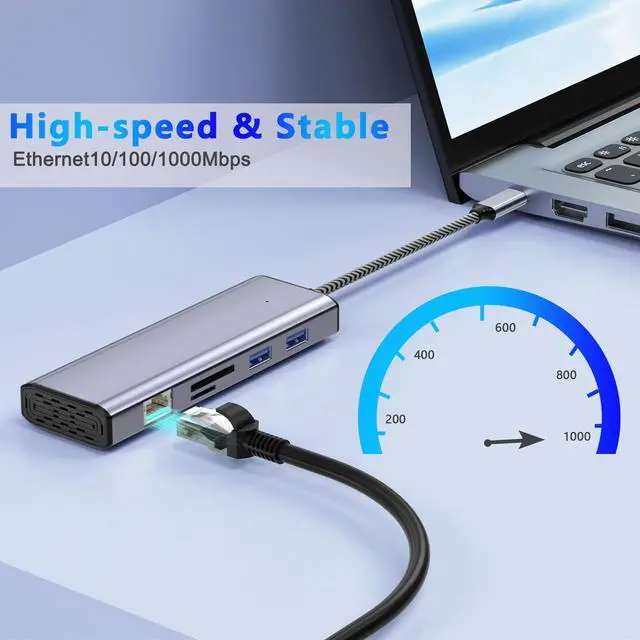
1*RJ45 Ethernet port: 1000Mbps
1* 3.5mm port: Audio function (Microphone voice function not supported)
1*SD/TF Card reader: Up to 104MB/S(SD/TF Card reader can only be alone work writing /reading speed 20MB/S)
Note:
Please provide power for USB C Docking Station first when connecting monitors or multiple devices or high power devices.

100W Power Delivery
Provide 100 W Power Delivery for your USB C laptops. Use your laptop while charging without worrying about your laptop running out of power.

USB C HDMI Multiport HUB
Auto-Adjusting Ethernet Port
This USB C Docking Station is for 10/100/1000 Mbps LAN networks. Simply plug in an Ethernet cable to enjoy ultra-fast gigabit Ethernet speeds and the reliability of a direct wired connection, eliminating concerns about Wi-Fi instability.
SD/TF Card Reader
SD/TF Card reader support writing /reading spend 20 MB/S, which can access files for Type-C devices, quickly view your photos or videos, good for Photographer or Designer or Video editor,etc.
Note: SD/TF cannot be read at the same time.
Super Fast Data Transfer
1 USB A 3.0 port ensure instant sync and file transfer at 5Gbps transfer speed accordingly, and easily connect smartphones, tablet, hard drives for effortless data transfer with USB C port. 2 extra USB A 2.0 allows you to connect keyboard or mouse without any lag.

Important note:
1. Triple Display for Windows: only support the Triple display for Windows. In extend mode, allows you to display the content of your laptop to 2 monitors with maximum output up to 3840*2160@30hz resolution.
2. MST FUNCTION: Mac OS DOES NOT support triple display. only supported by Windows.
3. Mac OS System: Apple laptops, its not support extending 2 different screens, and displays are in Mirror mode only which is limited by the Mac itself. means that the two external monitors are the same. but laptop screens can display different content from them.
4. Not support some USB-C devices: To use this product the host USB-C port from your device must support DisplayPort Alt Mode For using the display function, please confirm the USB-C port on your laptop supports video output. so please let us know if your devices are not in the compatibility list of user guide.
5. 4K HDMI Display: The final resolution of HDMI output depends on your host devices. (Only when your devices support 4K resolution, the video output will be 4K). Use HDMI2.0/DP1.4 or above cables for optimum performance.


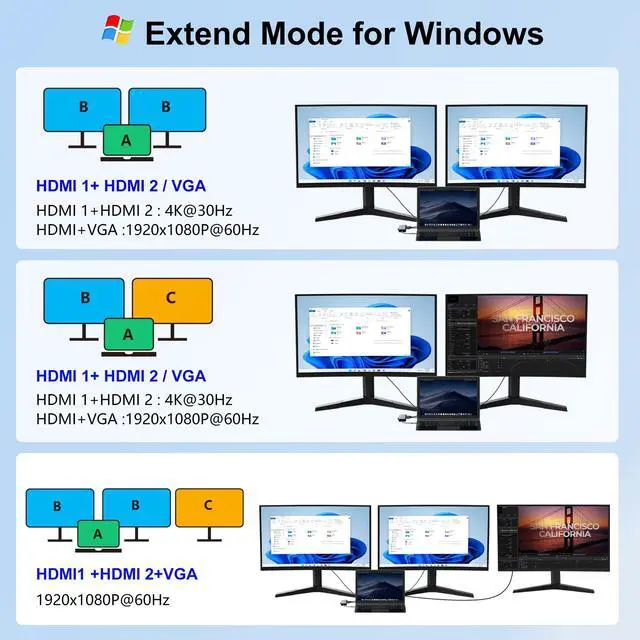
Windows System-Multiple Display Mode-Mirror Mode & Extend Mode:
Mirror Mode (AAAA Mode): The laptop shows the same images with external triple displays.
Extend Mode (ABBB and ABBC Mode): The Laptop shows different images with external triple displays, and VGA follows HDM1 (near VGA port).
How to extend monitor on Windows: When the HUB is connected to the laptop and connected to the display with an HDMI cable, you can use the shortcut key combination Win+P to select other modes such as expansion and copy, and support multiple expansion combinations such as ABC. In Windows Settings-System-Screen Settings, you can select the display order and resolution of the secondary screen through the settings, and you can change the refresh rate of the secondary screen in advanced display settings.
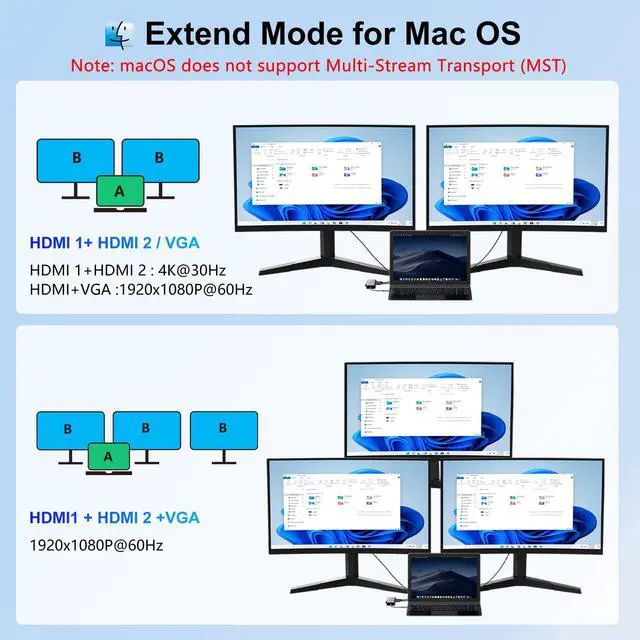
MacOS System -Mirror Mode & Extend Mode -Only SST Supported:
Mirror Mode (AAAA Mode): The Laptop shows the same images with displays.
Extend Mode (ABBB Mode): 3 external screens display the same images but are different from the laptop.
Note: ON MacOS only SST mode (AAAA and ABBB mode) is supported due to MacOS limitation.
How to extend monitor on Mac: When the HUB is connected to the laptop and connected to the display with an HDMI cable, you can change the resolution, refresh rate, mirroring and extension mode of the secondary screen in System Preferences-Display Settings, and support ABB’s extension mode and AAA’s copy mode.

Note: NOT for all USB-C port laptops, Make sure your laptop or PC supports ” Thunderbolt 3” ” Thunderbolt 4”or “displayport output mode(DP ALT mode)
What is USB-C DP ALT Mode?
DP Alt Mode allows USB-C ports to transfer dataideo via multiple interfaces, including the increasingly popular DisplayPort video interface. USB-C ports capable of transferring DisplayPort signals are either called USB-C DisplayPort or DP Alt Mode. They allow you to connect video sources (e.g. PCs, Blu-Ray players, etc.) and display devices (e.g. TVs, projectors, etc.) that support DisplayPort to each other via their USB-C ports to broadcast high-definition video.
But now not all USB-C ports feature DisplayPort Alt Mode functionality.
How do I know if my device supports DisplayPort over USB-C?
The best method to decipher whether your device supports DisplayPort over USB-C is to check either the product specs on the manufacturer’s official website or to check websites with in-depth product reviews and/or information. Within those sites you’ll be able to find detailed breakdowns of each port on the device.
Basically, Thunderbolt 3, Thunderbolt 4, and USB C 3.1 Gen 2 (or above) support video output. If you are not sure, you are welcome to ask us for a device compatibility check before purchase.
10 IN 1 Laptop Docking Station
10 in 1 USB C Dual HDMI Adapter USB C Docking Station Dual HDMI Monitors for Windows/iOS/Linux/Android System
1*PD3.0 Charging Port: Up to 100W input and 87W output
HDMI 1 Max resolution: 4K@30Hz
HDMI 2 Max resolution: 4K@30Hz
1*VGA: 1080P@60Hz (When VGA is connected, each monitor Max resolution: 1080P@60Hz)
2* USB A 3.0 port: Data transfer up to 5Gbps
1*RJ45 Ethernet port: 1000Mbps
1* 3.5mm port: Audio function (Microphone voice function not supported)
1*SD/TF Card reader: Up to 104MB/S(SD/TF Card reader can only be alone work writing /reading speed 20MB/S)
Note:
Please provide power for USB C Docking Station first when connecting monitors or multiple devices or high power devices.
100W Power Delivery
Provide 100 W Power Delivery for your USB C laptops. Use your laptop while charging without worrying about your laptop running out of power.
USB C HDMI Multiport HUB
Auto-Adjusting Ethernet Port
This USB C Docking Station is for 10/100/1000 Mbps LAN networks. Simply plug in an Ethernet cable to enjoy ultra-fast gigabit Ethernet speeds and the reliability of a direct wired connection, eliminating concerns about Wi-Fi instability.
SD/TF Card Reader
SD/TF Card reader support writing /reading spend 20 MB/S, which can access files for Type-C devices, quickly view your photos or videos, good for Photographer or Designer or Video editor,etc.
Note: SD/TF cannot be read at the same time.
Super Fast Data Transfer
1 USB A 3.0 port ensure instant sync and file transfer at 5Gbps transfer speed accordingly, and easily connect smartphones, tablet, hard drives for effortless data transfer with USB C port. 2 extra USB A 2.0 allows you to connect keyboard or mouse without any lag.
Important note:
1. Triple Display for Windows: only support the Triple display for Windows. In extend mode, allows you to display the content of your laptop to 2 monitors with maximum output up to 3840*2160@30hz resolution.
2. MST FUNCTION: Mac OS DOES NOT support triple display. only supported by Windows.
3. Mac OS System: Apple laptops, its not support extending 2 different screens, and displays are in Mirror mode only which is limited by the Mac itself. means that the two external monitors are the same. but laptop screens can display different content from them.
4. Not support some USB-C devices: To use this product the host USB-C port from your device must support DisplayPort Alt Mode For using the display function, please confirm the USB-C port on your laptop supports video output. so please let us know if your devices are not in the compatibility list of user guide.
5. 4K HDMI Display: The final resolution of HDMI output depends on your host devices. (Only when your devices support 4K resolution, the video output will be 4K). Use HDMI2.0/DP1.4 or above cables for optimum performance.
Windows System-Multiple Display Mode-Mirror Mode & Extend Mode:
Mirror Mode (AAAA Mode): The laptop shows the same images with external triple displays.
Extend Mode (ABBB and ABBC Mode): The Laptop shows different images with external triple displays, and VGA follows HDM1 (near VGA port).
How to extend monitor on Windows: When the HUB is connected to the laptop and connected to the display with an HDMI cable, you can use the shortcut key combination Win+P to select other modes such as expansion and copy, and support multiple expansion combinations such as ABC. In Windows Settings-System-Screen Settings, you can select the display order and resolution of the secondary screen through the settings, and you can change the refresh rate of the secondary screen in advanced display settings.
MacOS System -Mirror Mode & Extend Mode -Only SST Supported:
Mirror Mode (AAAA Mode): The Laptop shows the same images with displays.
Extend Mode (ABBB Mode): 3 external screens display the same images but are different from the laptop.
Note: ON MacOS only SST mode (AAAA and ABBB mode) is supported due to MacOS limitation.
How to extend monitor on Mac: When the HUB is connected to the laptop and connected to the display with an HDMI cable, you can change the resolution, refresh rate, mirroring and extension mode of the secondary screen in System Preferences-Display Settings, and support ABB’s extension mode and AAA’s copy mode.
Note: NOT for all USB-C port laptops, Make sure your laptop or PC supports ” Thunderbolt 3” ” Thunderbolt 4”or “displayport output mode(DP ALT mode)
What is USB-C DP ALT Mode?
DP Alt Mode allows USB-C ports to transfer dataideo via multiple interfaces, including the increasingly popular DisplayPort video interface. USB-C ports capable of transferring DisplayPort signals are either called USB-C DisplayPort or DP Alt Mode. They allow you to connect video sources (e.g. PCs, Blu-Ray players, etc.) and display devices (e.g. TVs, projectors, etc.) that support DisplayPort to each other via their USB-C ports to broadcast high-definition video.
But now not all USB-C ports feature DisplayPort Alt Mode functionality.
How do I know if my device supports DisplayPort over USB-C?
The best method to decipher whether your device supports DisplayPort over USB-C is to check either the product specs on the manufacturer’s official website or to check websites with in-depth product reviews and/or information. Within those sites you’ll be able to find detailed breakdowns of each port on the device.
Basically, Thunderbolt 3, Thunderbolt 4, and USB C 3.1 Gen 2 (or above) support video output. If you are not sure, you are welcome to ask us for a device compatibility check before purchase.
Since our foundation in 2009,We are committed to creating leading-edge innovative consumer electronic devices and accessories.
We focus on HD Video& Audio accessories, Hub,HDMI Splitter,HDMI Switch and Ethernet connection.
AUKOKIOULA is committed to providing high-quality!products, friendly design and premium service toour customers
HDMI 4K@60hz
HDMI 3 IN 1 OUT
HDMI 4K@30hz
Splitter Adapter
USB Switch
HDMI Switch
HDMI Switch 2 In 1 Out
HDMI / USB Switch
KVM