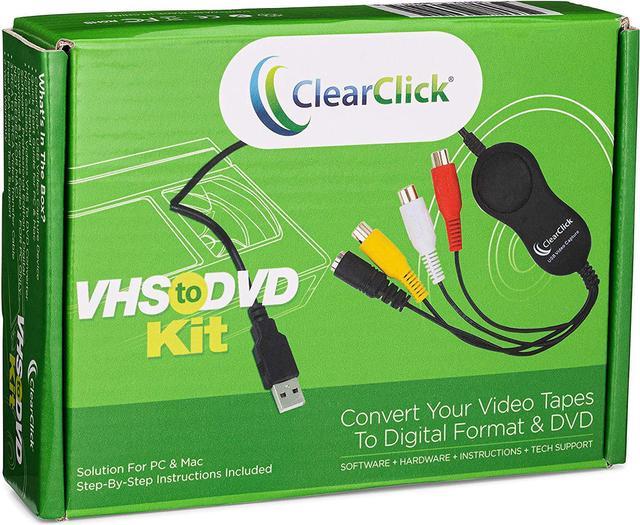
Here's how it works...
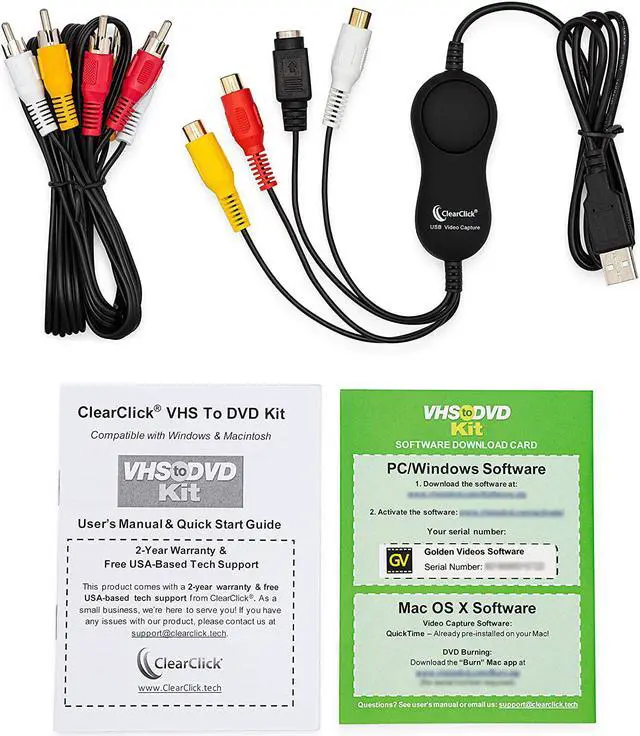
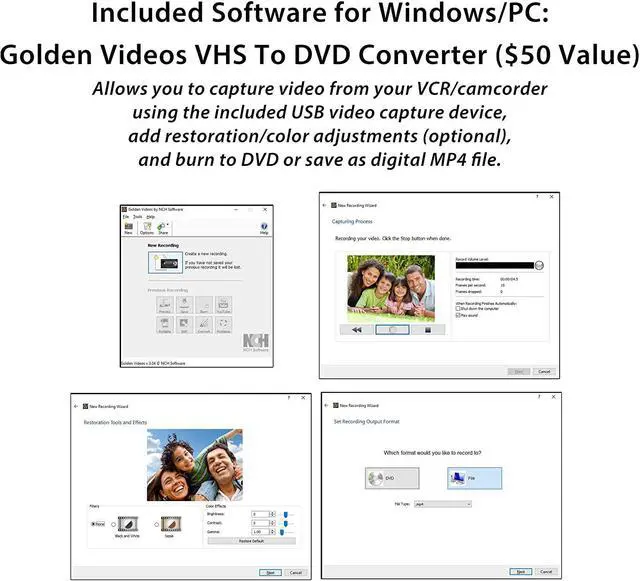
1) PC: Install the included "Golden Videos VHS To DVD Converter" Software (published by NCH Software) & activate it using the included license.
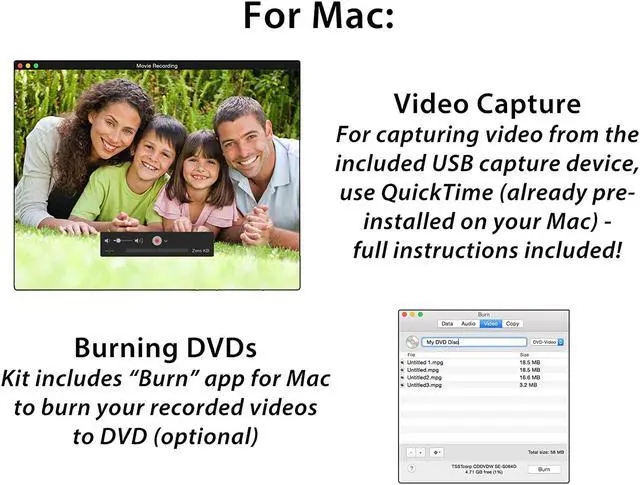
Mac: Follow the instructions to use the built-in video recording which is already pre-installed on your Mac.
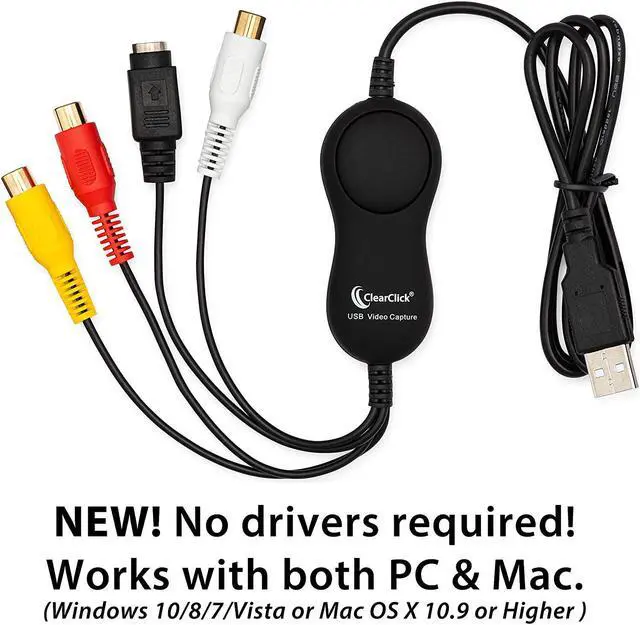
2) Connect the ClearClick Video Capture Device (Included)
Next, plug in the included ClearClick Video Capture Device to any USB port on your computer. Your PC/Mac will automatically install it - no drivers required! Then, connect your VCR or camcorder to the USB video capture device using the included video transfer cable. (Note: this device is NOT intended for modern HD/HDMI video sources)
3) Transfer Your Video & Burn To DVD
PC: Open the "NCH Golden Videos" software on your computer, and click "Create Recording." A step-by-step wizard will guide you through the conversion of your video. (Recording resolution: 640x480). You can then save the video on your computer in digital format or burn it to DVD.
Mac: Use your Mac's built-in video capture software (see instructions) and click File -> New Movie Recording. Set the software to the correct input source and click "Record." After saving your video, you can burn a DVD using the included DVD burning software.
Easy, step-by-step instructions are included as well as USA-based email tech support from ClearClick.