


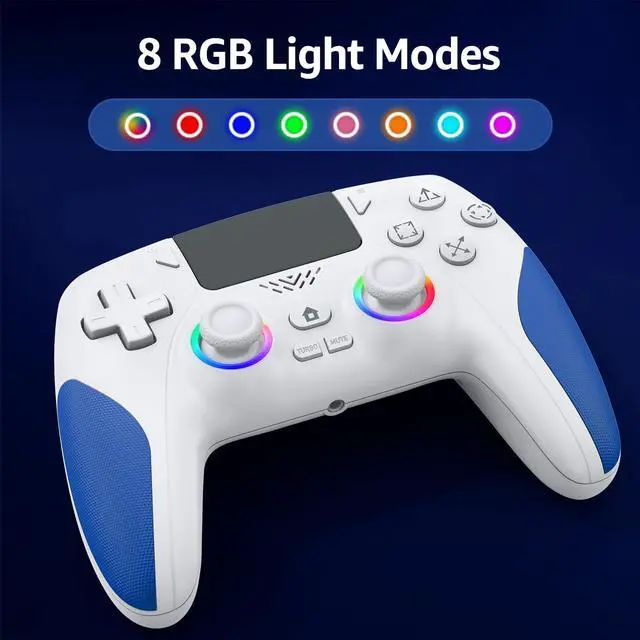
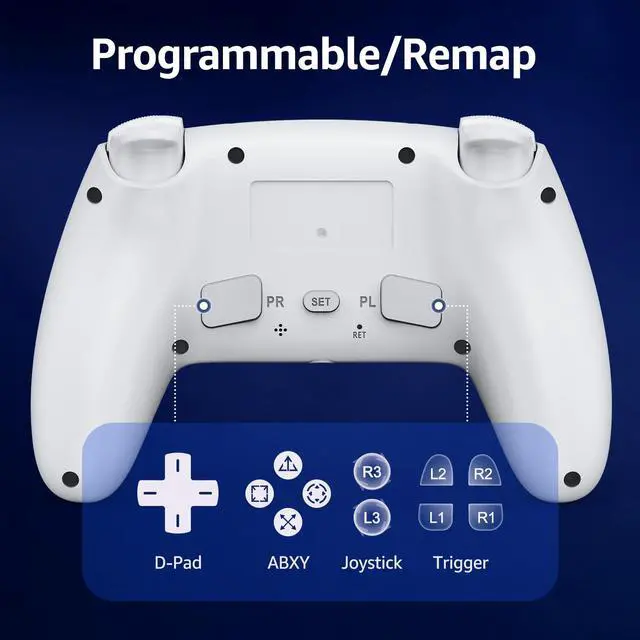


Frequently Asked Questions & Answers
Q1: My joysticks/triggers is drifting. What should I do?
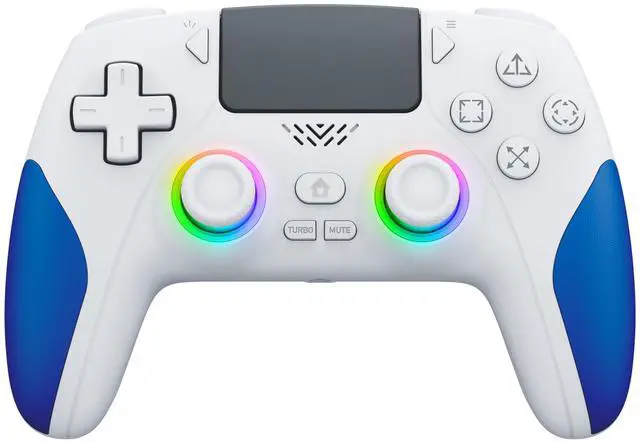
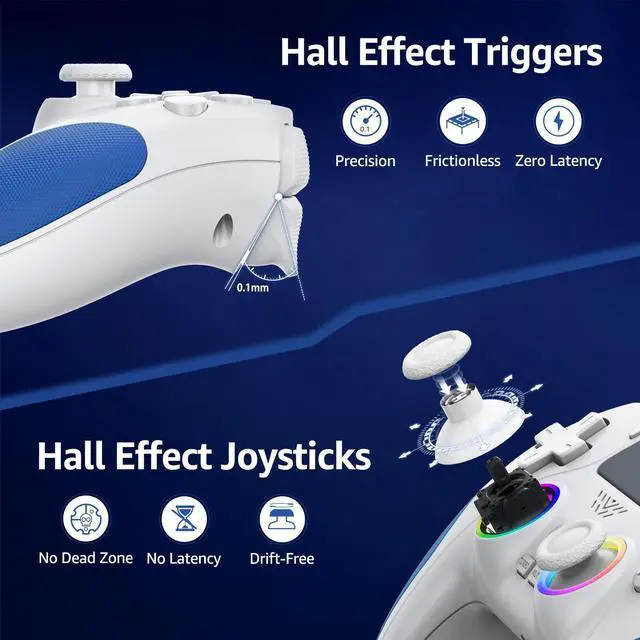
A1: Don’t worry — joysticks/triggers drift can often be resolved by recalibrating the Hall Effect joysticks. Steps: (Check the calibration tutorial video). Restart the controller after calibration to save settings.
Important: Do not lift or pull up the joysticks during calibration. This may damage the joystick or cause it to get stuck.
Q2: My controller won’t connect to my PS-5 and displays "Connect this device using a USB cable, or register it again." What does this mean?
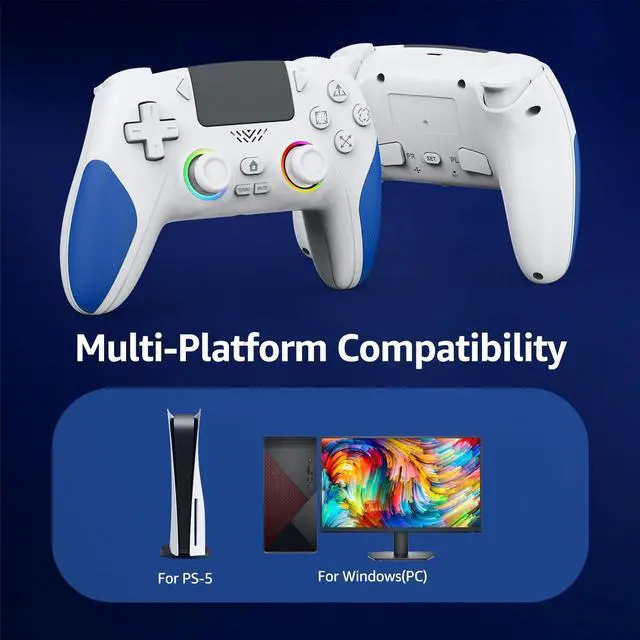
A2: This message means the PS-5 Console is not receiving data from the controller. The most common cause is using a charging-only USB cable instead of a data-transfer cable.
How to Fix: Use a USB data cable to connect the controller to the PS-5 Console. We strongly recommend using the included cable (supports both charging and data transfer). A proper data cable will allow normal pairing.
Q3: How to connect the controller to PS-5 Console?
A3: For the first connection, plug the controller into the PS-5 console with a USB data cable. Wait a few seconds for the console to recognize the controller, then press the Home button. (Ensure PS-5 settings allow USB controller connection.) The controller only remembers the last connected device. If you recently used it on a PC/phone, you must re-pair it with the PS-5 using a USB data cable.

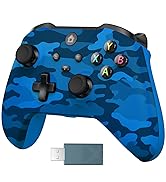
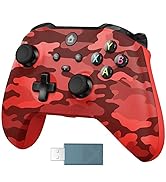
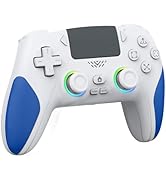
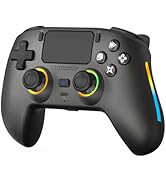
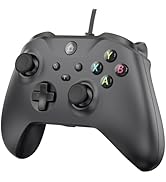
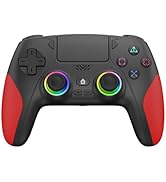
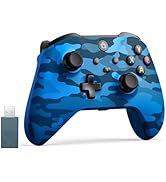
controller for x-box
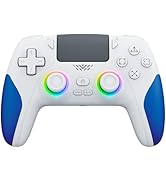
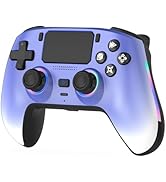
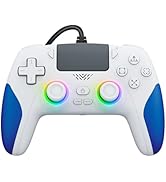
controller for ps-5
controller


Frequently Asked Questions & Answers
Q1: My joysticks/triggers is drifting. What should I do?
A1: Don’t worry — joysticks/triggers drift can often be resolved by recalibrating the Hall Effect joysticks. Steps: (Check the calibration tutorial video). Restart the controller after calibration to save settings.
Important: Do not lift or pull up the joysticks during calibration. This may damage the joystick or cause it to get stuck.
Q2: My controller won’t connect to my PS-5 and displays "Connect this device using a USB cable, or register it again." What does this mean?
A2: This message means the PS-5 Console is not receiving data from the controller. The most common cause is using a charging-only USB cable instead of a data-transfer cable.
How to Fix: Use a USB data cable to connect the controller to the PS-5 Console. We strongly recommend using the included cable (supports both charging and data transfer). A proper data cable will allow normal pairing.
Q3: How to connect the controller to PS-5 Console?
A3: For the first connection, plug the controller into the PS-5 console with a USB data cable. Wait a few seconds for the console to recognize the controller, then press the Home button. (Ensure PS-5 settings allow USB controller connection.) The controller only remembers the last connected device. If you recently used it on a PC/phone, you must re-pair it with the PS-5 using a USB data cable.