


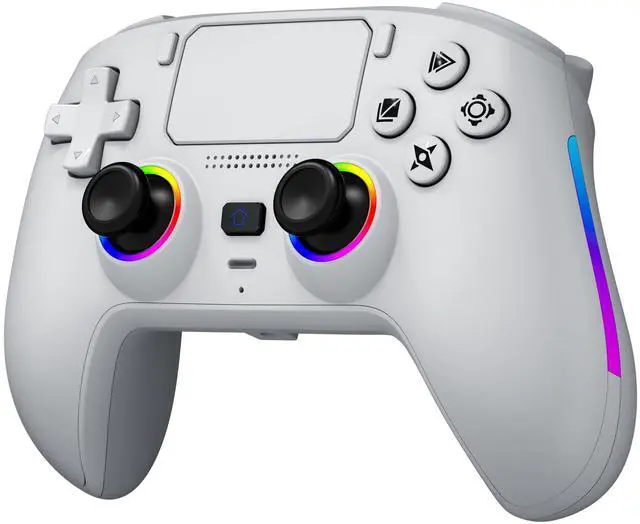


Wide Applicability
In addition to being compatible with PS5, it also compatible with PC/Steam Deck/MAC/Android phones/iOS phones, meeting your varied needs.

Hall Effect Technology
This game controller is equipped with two Hall-effect joysticks and two Hall-effect trigger buttons. And it has a calibration function,The Hall-effect joysticks prevent drift and offer enhanced feedback. The Hall-effect Linear triggers, featuring adjustable resistance levels, enable you to sense every action. With a response time under 0.1ms and 256 levels of pressure sensitivity, you can experience instant trigger recognition in FPS games.

1000 mAh Battery
Provides dual vibration feedback and is powered by a 1000 mAh battery.

Additional Features and Specifications
It comes with a 3.5mm headphone jack and a switchable microphone; incorporates touchscreen capability and utilizes enhanced conductive rubber for the buttons; 6 Axis Gyro Sensor;Daul Vibration

Magnetic Interchangeable Panel and Ergonomic Design
The front panel of the handle features a magnetic interchangeable design, enabling users to swap panels according to their preferences in the future. The handle's shape is ergonomically crafted, ensuring comfort during use.


Connect 1. Connect to PS-5 When your controller hasn’t been paired with your current PS-5 console or has been connected to another console, Use a USB cable to connect the controller to your PS-5 console. During the connection, the system will automatically pair the controller. Once paired, remove the USB cable and press the HOME button. The controller will now connect wirelessly via Bluetooth. The LED light will stay on with a steady color, indicating it’s successfully connected to your console. 2. Connect to Windows PC Turn off the controller. Press and hold the SHARE button and the HOME button together. Hold both for 3 seconds. The LED light will flash white. On your PC, open Bluetooth settings and start searching for devices. Find and click on "DualSense Wireless Controller" in the device list to pair. When paired successfully, the LED light will stay on. 3. Connect to Steam Deck Turn off your controller. Press and hold the SHARE button and the HOME button together. Hold both for 3 seconds. The LED light will flash white. Open Bluetooth settings on your Steam Deck. Find and click on "DualSense Wireless Controller" to connect. Once connected, the LED light will stay on. 4. Connect to Mac Open System Preferences > Bluetooth and turn Bluetooth on. With the controller off, hold SHARE + HOME (PS button) together for 3 seconds until its light flashes white. On your Mac, find "DualSense Wireless Controller" in the Bluetooth devices list, click Pair, and wait a few seconds—it'll connect automatically.
Wide Applicability
In addition to being compatible with PS5, it also compatible with PC/Steam Deck/MAC/Android phones/iOS phones, meeting your varied needs.
Hall Effect Technology
This game controller is equipped with two Hall-effect joysticks and two Hall-effect trigger buttons. And it has a calibration function,The Hall-effect joysticks prevent drift and offer enhanced feedback. The Hall-effect Linear triggers, featuring adjustable resistance levels, enable you to sense every action. With a response time under 0.1ms and 256 levels of pressure sensitivity, you can experience instant trigger recognition in FPS games.
1000 mAh Battery
Provides dual vibration feedback and is powered by a 1000 mAh battery.
Additional Features and Specifications
It comes with a 3.5mm headphone jack and a switchable microphone; incorporates touchscreen capability and utilizes enhanced conductive rubber for the buttons; 6 Axis Gyro Sensor;Daul Vibration
Magnetic Interchangeable Panel and Ergonomic Design
The front panel of the handle features a magnetic interchangeable design, enabling users to swap panels according to their preferences in the future. The handle's shape is ergonomically crafted, ensuring comfort during use.
Connect 1. Connect to PS-5 When your controller hasn’t been paired with your current PS-5 console or has been connected to another console, Use a USB cable to connect the controller to your PS-5 console. During the connection, the system will automatically pair the controller. Once paired, remove the USB cable and press the HOME button. The controller will now connect wirelessly via Bluetooth. The LED light will stay on with a steady color, indicating it’s successfully connected to your console. 2. Connect to Windows PC Turn off the controller. Press and hold the SHARE button and the HOME button together. Hold both for 3 seconds. The LED light will flash white. On your PC, open Bluetooth settings and start searching for devices. Find and click on "DualSense Wireless Controller" in the device list to pair. When paired successfully, the LED light will stay on. 3. Connect to Steam Deck Turn off your controller. Press and hold the SHARE button and the HOME button together. Hold both for 3 seconds. The LED light will flash white. Open Bluetooth settings on your Steam Deck. Find and click on "DualSense Wireless Controller" to connect. Once connected, the LED light will stay on. 4. Connect to Mac Open System Preferences > Bluetooth and turn Bluetooth on. With the controller off, hold SHARE + HOME (PS button) together for 3 seconds until its light flashes white. On your Mac, find "DualSense Wireless Controller" in the Bluetooth devices list, click Pair, and wait a few seconds—it'll connect automatically.