





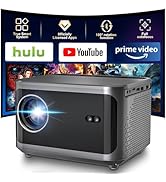
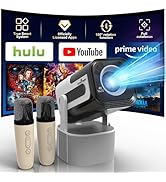
MINI PORTABLE PROJECTOR

QYKE
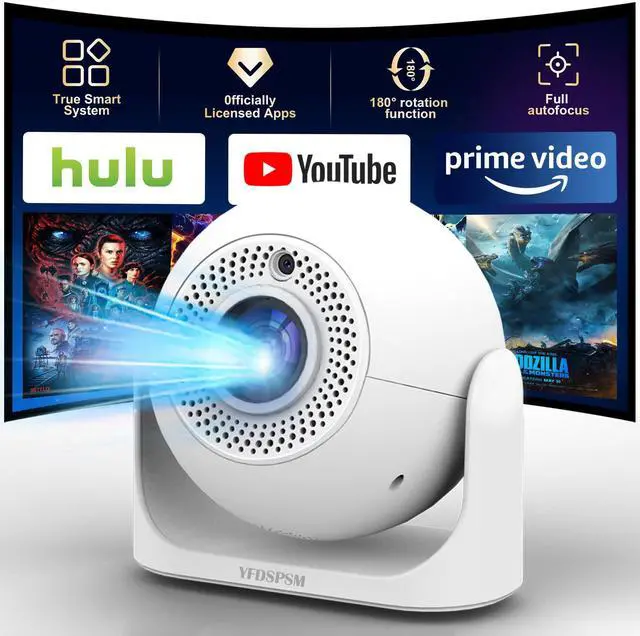
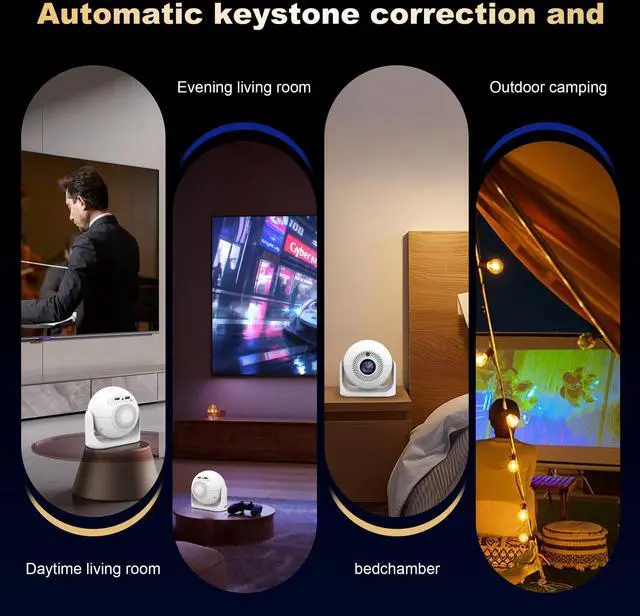
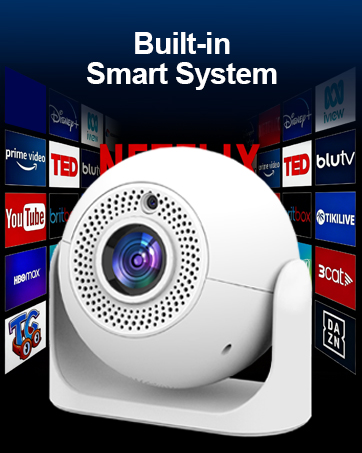
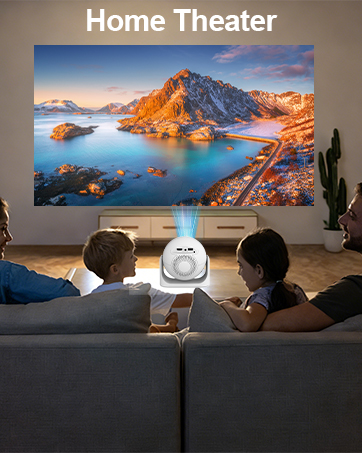
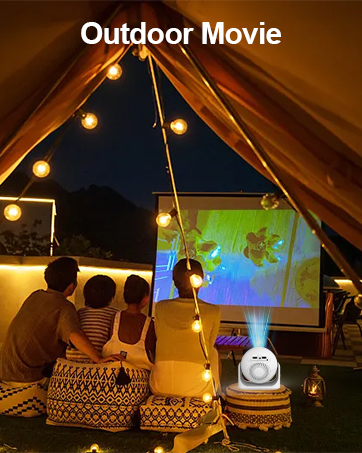
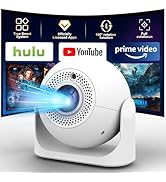
Our projector is mini and portable, supports Wi-Fi and Bluetooth, it comes with built-in applications such as Prime Video, YouTube, and you can also download more apps from the built-in app store. Moreover, it is a projector for mobile phones, supporting both iPhone and Android, is suitable for various application scenarios, this makes it easy for you to create a projector for the bedroom and outdoor projector.
How to use?
This projector only needs to be plugged in and turned on. After turning it on, connect to Wi-Fi and it's ready to use. It has built-in applications such as YouTube and Prime Video. You can start watching right away without any complicated operations.
Can it be connected to a smart phone?
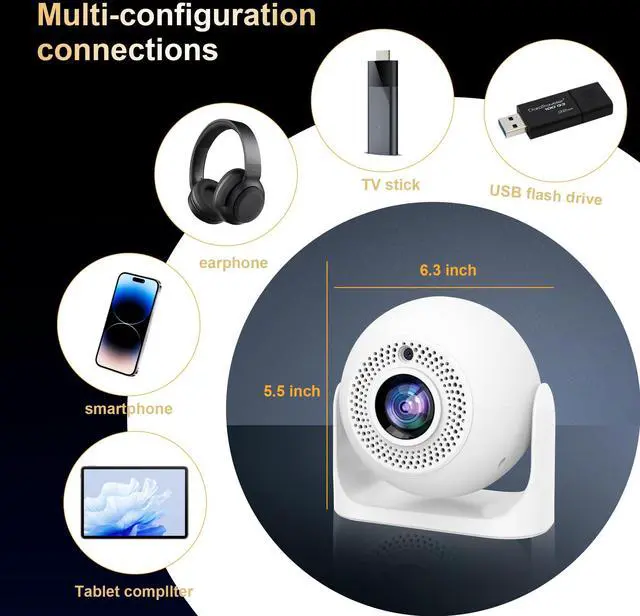
It can be connected to a smart phone and is compatible with both iPhone and Android phones, allowing you to mirror your phone's screen onto the projector.
Is it portable?
This mini projector measures only 7×7×6 inches, making it convenient for you to carry it in your backpack or suitcase.
Hassle-Free Operation for Everyone

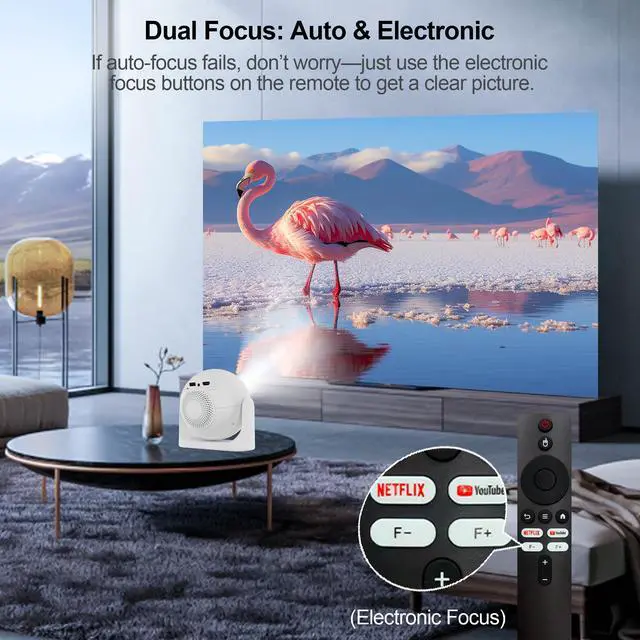
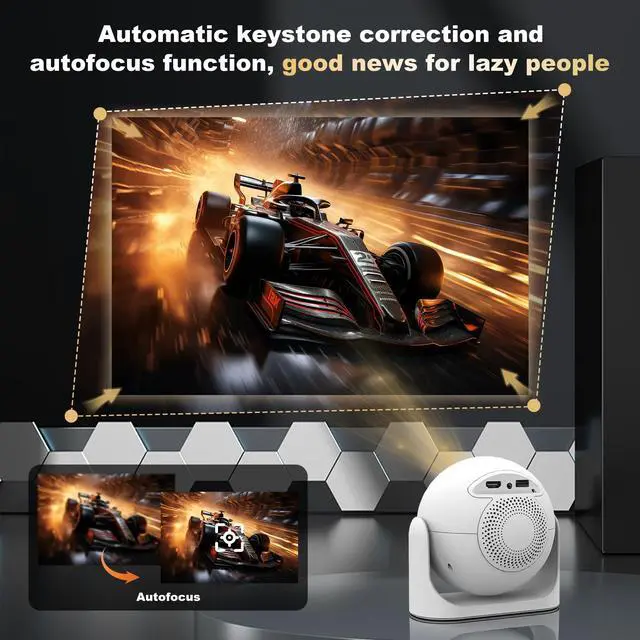
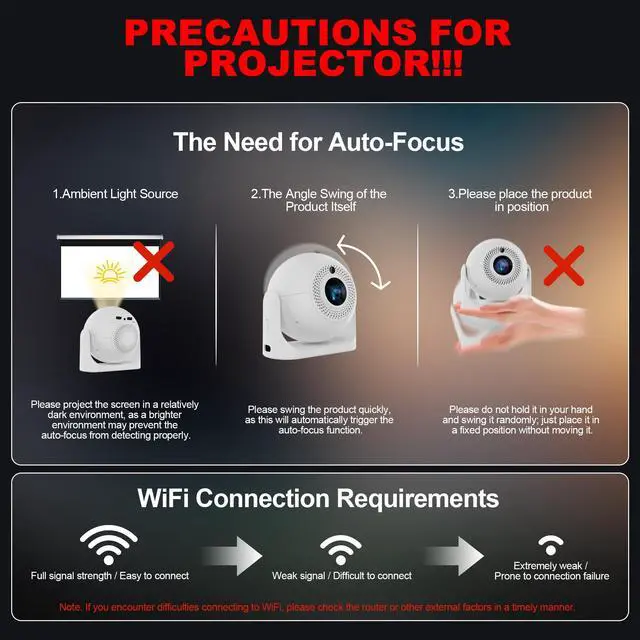
Thanks to auto keystone correction (±15°) and auto focus, you’ll get a perfectly rectangular, clear image in seconds—no complicated tweaks or tech skills required. On top of that, the Android 13.0 system runs smoothly, with simple menus that make navigating a total breeze.
WiFi 6 Technology, Smooth Playback Without Lag

Adopting the latest WiFi 6 technology, it is compatible with WiFi 6, 5G, and 2.4G WiFi bands. The high-speed network transmission ensures no buffering or lag when streaming movies or browsing content, bringing you a seamless viewing experience.
Ultra-clear 1080P and 4K Support visuals

Native 1280×720 resolution, Support 4K 1080P, 2000:1 contrast ratio, this projector delivers sharp, clear images with vibrant colors and distinct light-dark details. Whether you’re watching movies, TV shows, or streaming content, the picture quality stays consistent and immersive.
Compact & Portable, Perfect for Multiple Scenarios

Flexible Projection for Any Space: With a 1.17:1 throw ratio and 1.5-2M projection distance, you can get a 30-200 inch screen size—perfect for bedrooms, small living rooms, or even compact dorms. It’s ideal for anyone who wants a big-screen experience without the hassle of a bulky device.
A Variety of Smart Projectors to Choose From
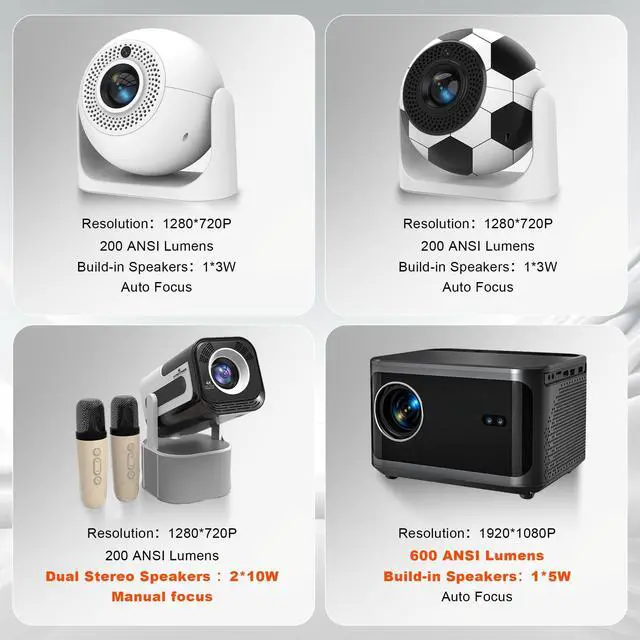
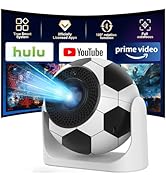
 Auto Focus Mini Projector |  Football Mini Projector |  Portable KTV Projector |  Native 1080P Projector | |
|---|---|---|---|---|
Customer Reviews | — | — | — | — |
Price | — | — | — | — |
Resolution | Native 1280*720P/4K Supported | Native 1280*720P/4K Supported | Native 1280*720P/4K Supported | Native 1920*1080P/4K Supported |
Brightness | 200 ANSI Lumens | 200 ANSI Lumens | 200 ANSI Lumens | 600 ANSI Lumens |
Build-in Speakers | 1*3W | 1*3W | 2 *10W, Stereo Sound | 1*5W |
Focus | Auto Focus | Auto Focus | Manual focus | Auto Focus |
Wireless | WIFI 6/5G+2.4G | WIFI 6/5G+2.4G | WIFI 6/5G+2.4G | WIFI 6/5G+2.4G |
Android OS | Android 13.0 | Android 13.0 | Android 13.0 | Android 13.0 |
Bluetooth | Bluetooth 5.2 | Bluetooth 5.2 | Bluetooth 5.2 | Bluetooth 5.2 |
Built-in APPs | YouTube, Prime Video, etc. | YouTube, Prime Video, etc. | YouTube, Prime Video, etc. | YouTube, Prime Video, etc. |
Correction | Auto Keystone Correction | Auto Keystone Correction | Auto Keystone Correction | Auto Keystone Correction |
No Battery Built-in | ? | ? | ? | ? |
How to Connect Your Phone to the Projector for Android Devices?
First, connect your phone and the projector to the same Wi-Fi
1. On the projector: Navigate to QuickShare > Miracast.
2. On your phone: Go to Settings, search for and enable Screen Mirroring.
3. Select your projector from the list to start casting.
How to Connect Your Phone to the Projector iOS Devices?
First, connect your phone and the projector to the same Wi-Fi
1. On the projector: Navigate to QuickShare > AirPlay.
2. On your phone: Swipe to Control Center and tap Screen Mirroring.
3. Select your projector from the device list to start casting.
What Is the Optimal Projection Distance?
The recommended projection distance is 1.5–2 meters. This range delivers a clear, properly sized image between 56–80 inches.
Why Can't the Projector Connect to Wi-Fi?
If the projector can detect Wi-Fi but won't connect:
1. Check for network overload.
2. Test with your phone's hotspot.
3. Restart the router if hotspot works.
If the projector cannot detect any Wi-Fi at all: Please contact after-sales support.
Streaming Apps Notice
Due to the limitations of the HDCP copyright agreement, some apps (such as Netflix, Disney+, etc.) may malfunction when using the screen mirroring function. Please to download and install the app directly on a projector to watch the content.
Hassle-Free Operation for Everyone

Thanks to auto keystone correction (±15°) and auto focus, you’ll get a perfectly rectangular, clear image in seconds—no complicated tweaks or tech skills required. On top of that, the Android 13.0 system runs smoothly, with simple menus that make navigating a total breeze.
WiFi 6 Technology, Smooth Playback Without Lag

Adopting the latest WiFi 6 technology, it is compatible with WiFi 6, 5G, and 2.4G WiFi bands. The high-speed network transmission ensures no buffering or lag when streaming movies or browsing content, bringing you a seamless viewing experience.
Ultra-clear 1080P and 4K Support visuals

Native 1280×720 resolution, Support 4K 1080P, 2000:1 contrast ratio, this projector delivers sharp, clear images with vibrant colors and distinct light-dark details. Whether you’re watching movies, TV shows, or streaming content, the picture quality stays consistent and immersive.
Compact & Portable, Perfect for Multiple Scenarios

Flexible Projection for Any Space: With a 1.17:1 throw ratio and 1.5-2M projection distance, you can get a 30-200 inch screen size—perfect for bedrooms, small living rooms, or even compact dorms. It’s ideal for anyone who wants a big-screen experience without the hassle of a bulky device.
A Variety of Smart Projectors to Choose From
Auto Focus Mini Projector | Football Mini Projector | Portable KTV Projector | Native 1080P Projector |
|---|---|---|---|
| Customer Reviews | |||
| — | — | — | — |
| Price | |||
| — | — | — | — |
| Resolution | |||
| Native 1280*720P/4K Supported | Native 1280*720P/4K Supported | Native 1280*720P/4K Supported | Native 1920*1080P/4K Supported |
| Brightness | |||
| 200 ANSI Lumens | 200 ANSI Lumens | 200 ANSI Lumens | 600 ANSI Lumens |
| Build-in Speakers | |||
| 1*3W | 1*3W | 2 *10W, Stereo Sound | 1*5W |
| Focus | |||
| Auto Focus | Auto Focus | Manual focus | Auto Focus |
| Wireless | |||
| WIFI 6/5G+2.4G | WIFI 6/5G+2.4G | WIFI 6/5G+2.4G | WIFI 6/5G+2.4G |
| Android OS | |||
| Android 13.0 | Android 13.0 | Android 13.0 | Android 13.0 |
| Bluetooth | |||
| Bluetooth 5.2 | Bluetooth 5.2 | Bluetooth 5.2 | Bluetooth 5.2 |
| Built-in APPs | |||
| YouTube, Prime Video, etc. | YouTube, Prime Video, etc. | YouTube, Prime Video, etc. | YouTube, Prime Video, etc. |
| Correction | |||
| Auto Keystone Correction | Auto Keystone Correction | Auto Keystone Correction | Auto Keystone Correction |
| No Battery Built-in | |||
| ? | ? | ? | ? |
How to Connect Your Phone to the Projector for Android Devices?
First, connect your phone and the projector to the same Wi-Fi
1. On the projector: Navigate to QuickShare > Miracast.
2. On your phone: Go to Settings, search for and enable Screen Mirroring.
3. Select your projector from the list to start casting.
How to Connect Your Phone to the Projector iOS Devices?
First, connect your phone and the projector to the same Wi-Fi
1. On the projector: Navigate to QuickShare > AirPlay.
2. On your phone: Swipe to Control Center and tap Screen Mirroring.
3. Select your projector from the device list to start casting.
What Is the Optimal Projection Distance?
The recommended projection distance is 1.5–2 meters. This range delivers a clear, properly sized image between 56–80 inches.
Why Can't the Projector Connect to Wi-Fi?
If the projector can detect Wi-Fi but won't connect:
1. Check for network overload.
2. Test with your phone's hotspot.
3. Restart the router if hotspot works.
If the projector cannot detect any Wi-Fi at all: Please contact after-sales support.
Streaming Apps Notice
Due to the limitations of the HDCP copyright agreement, some apps (such as Netflix, Disney+, etc.) may malfunction when using the screen mirroring function. Please to download and install the app directly on a projector to watch the content.
MINI PORTABLE PROJECTOR
QYKE
Our projector is mini and portable, supports Wi-Fi and Bluetooth, it comes with built-in applications such as Prime Video, YouTube, and you can also download more apps from the built-in app store. Moreover, it is a projector for mobile phones, supporting both iPhone and Android, is suitable for various application scenarios, this makes it easy for you to create a projector for the bedroom and outdoor projector.
How to use?
This projector only needs to be plugged in and turned on. After turning it on, connect to Wi-Fi and it's ready to use. It has built-in applications such as YouTube and Prime Video. You can start watching right away without any complicated operations.
Can it be connected to a smart phone?
It can be connected to a smart phone and is compatible with both iPhone and Android phones, allowing you to mirror your phone's screen onto the projector.
Is it portable?
This mini projector measures only 7×7×6 inches, making it convenient for you to carry it in your backpack or suitcase.