Out of stock
This item is currently out of stock and it may or may not be restocked.
Sold by Newegg

Shipped by Newegg

Shop it at NeweggBusiness.

KLO Bluetooth Mouse for MacBook/MacBook air/Pro/iPad, Wireless Mouse for Laptop/Notebook/pc/iPad/Chromebook (BT/A Turquoise-Black)

  • 3DPI SWITCH:Using high-performance optical chips, up to 1600 dpi(800, 1200, 1600) accurately tracking,to meet different needs.
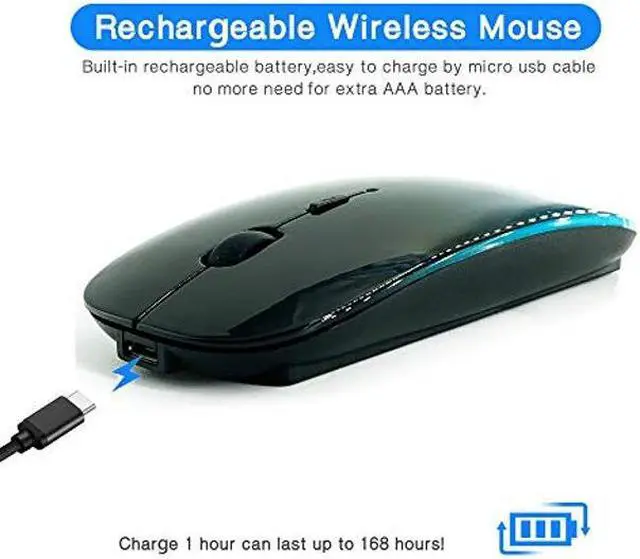
  • Adopt bluetooth 3.0/5.2 technology,built-in durable 500mAh Lithium polymer rechargeable battery,high cycle life, The charging time is about 1.5-2.5 hours, lasting use time, the Auto Switch Off function will help you save energy as your bluetooth mouse will switch off when your PC is turned off or the receiver is disconnected. If you do not use the mouse for eight minutes, it will go to sleeping mode, you can press the any button to weak it up. energy saving and extremely low power consumption.
  • It is compatible with Mac OS Windows /Win8/10/and is suitable for desktop/ipad/notebook/Mac Macbook Pro/Air(2017/2018/2019/2020/2021) iMac and other devices.
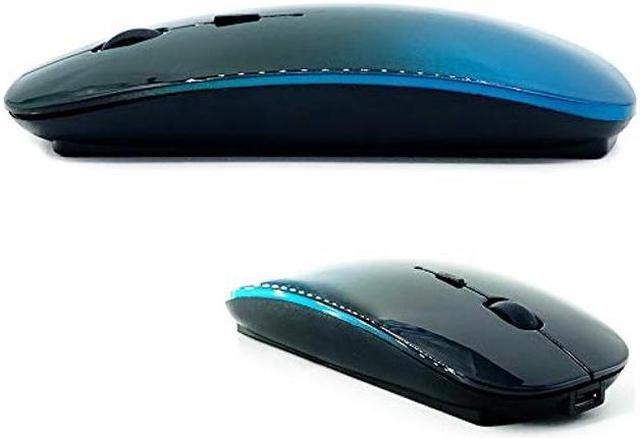
  • contoured shape, Ultra Thin and lightweight design, smooth surface ensure maximum comfort and support for your hand even after long working hours, The rubber scroll wheel makes sure that yo
Overview
Specs
Reviews
avatar

Any questions? Our AI beta will help you find out quickly.

Adopt bluetooth 3.0 / 5.2 technology, built-in 500mAH A product lithium battery, configuration charging line, like a mobile phone, easy to charge, more scientific, charge and discharge of more than 500 times, the mouse no longer need to buy a battery.

size: 113mm x 58mm x23mm weight: 3.2 oz
package: Bluetooth mouse x1, USB Charging Cable x1

How to use Bluetooth wireless mouse:

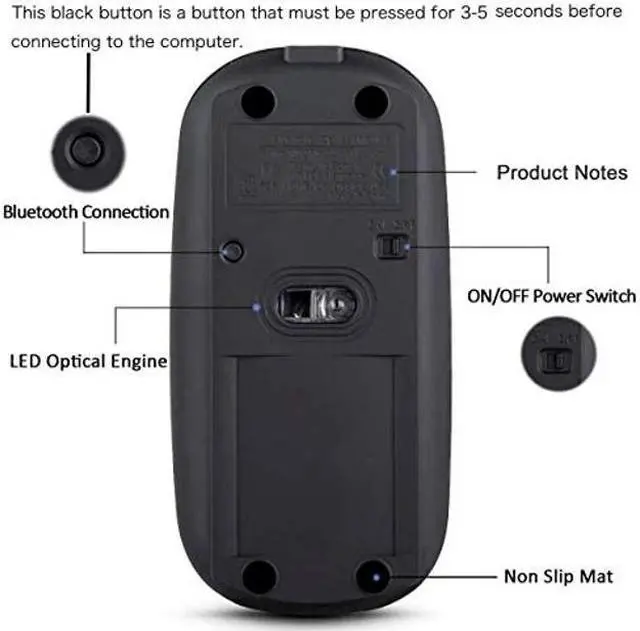
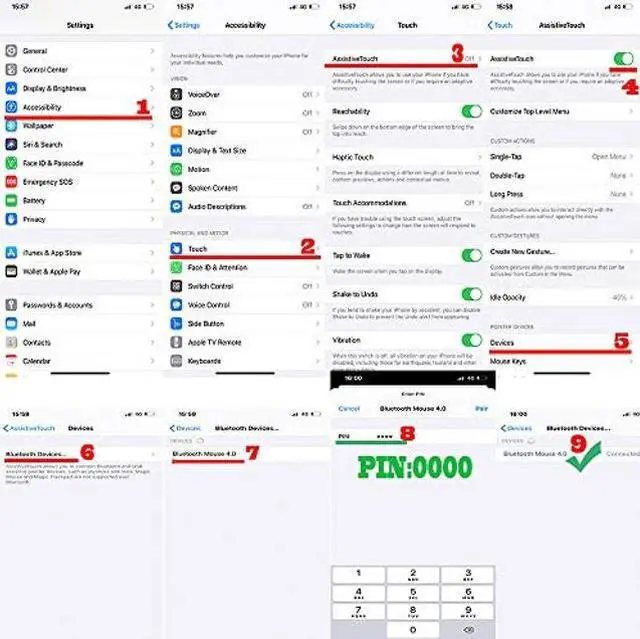
Apple Mac MacBook/pro/Air 2012/2013/2014/2015/2016/2017/2018/2019/2022: first, open the mouse switch, open the computer system preferences, open the bluetooth, when the computer Bluetooth display is searching for nearby Bluetooth devices, hold down the mouse button (at the bottom of the mouse small black button) and keep 3 to 8 seconds, and then your computer display the search bluetooth mouse, bluetooth device click on the link, and then the connection is successful


Win7/8/10/XP series notebook computer usage instructions: First, open the mouse switch, open the computer settings, open the device Bluetooth function, open add Bluetooth, open Bluetooth, when the computer Bluetooth display is searching for nearby Bluetooth devices, hold down the mouse button (at the bottom of the mouse small black button) and keep 3 to 8 seconds, and then your computer display the search bluetooth mouse, bluetooth device click on the link, and then the connection is successful
Warranty & Returns

Warranty, Returns, And Additional Information

Return Policies

Manufacturer Contact Info

LOADING...