


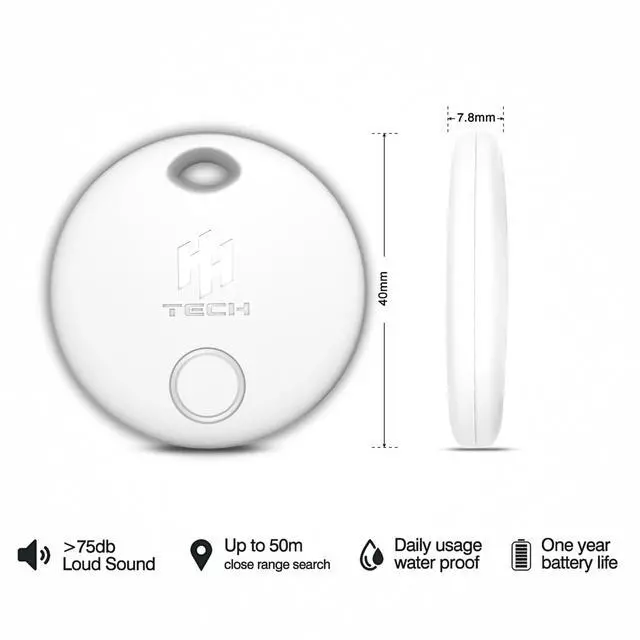


HH-Tag For Android

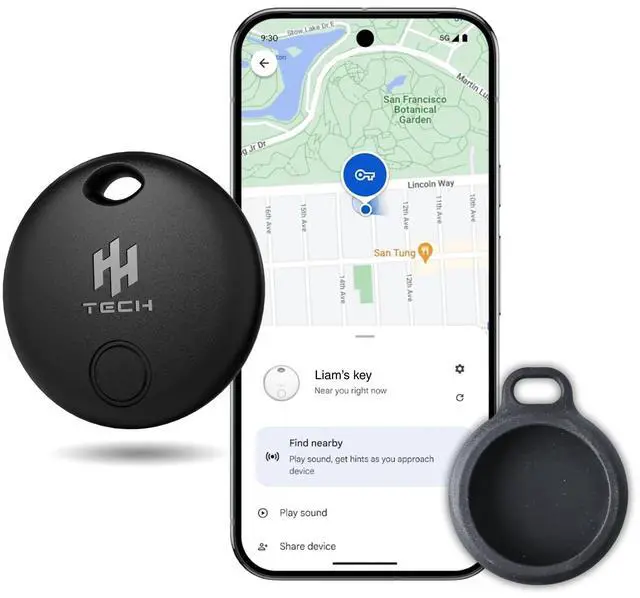
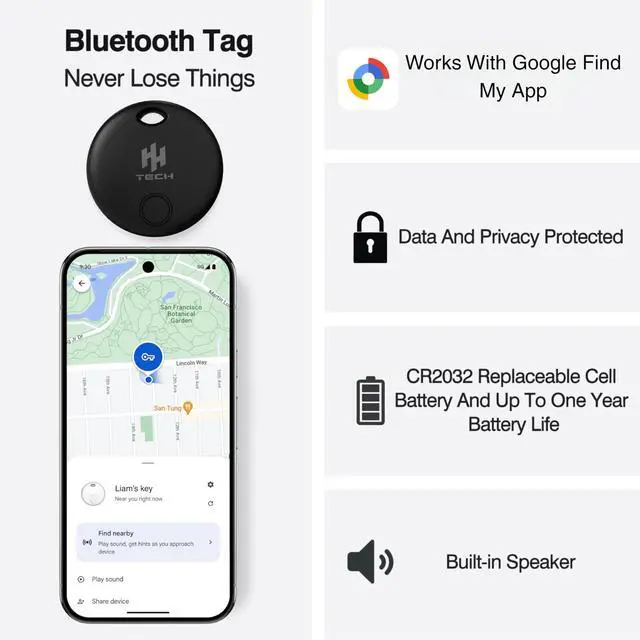
Android Phones like Samsung, Oppo, Vivo, Google Pixel, Xiaomi, Redmi, Motorola, Oneplus, Tecno, Honor, and other brands powered by Google play services can use our tags. HH-Tag are compatible with phones run Android 9 or above. On 13th May 2025, Find My Device app have changed name to Find Hub app.

1. On 13th May 2025, Find My Device app have changed name to Find Hub app. 2. Protectors are insided the Packaging boxes. 3. Only when your tag is beyond the connection distance, you can mark the tag as lost. 4. This tag does not have a GPS, updates of the location based on nearby android devices.


Pairing With Your Android

In case you missed the Pop-up, then: 1. Open Settings. 2. Go to Google. 3. Tap on “All Services”. 4. In the “Connected Devices & Sharing” menu, select “Devices”. 5. Enable “Scan for Nearby Devices”. 6. HH-Tech Tag will appear in the list of available nearby devices.
Which phones are this tag compatible with?
It is compatible with Android Phones running Android version 9 or a later version, with Google’s Find Hub (formerly known as Google Find My Device) being installed in your phone.
How can I reset my smart tag to factory mode?
Press the function button on the SmartTags quickly 4 times and then hold it for a couple of seconds on the 5th press until you hear a beep, indicating that the Smart Tag has been factory reset.
How does the smart tag work beyond the connection distance?
It relies on nearby Android devices to update location. It updates its location as soon as it comes in range with an Android device.
What should I do if Smart tag is not updating location?
1. Go to the settings of your phone, search “Find Hub” and tap on “Find your offline devices” and select "With network in all areas”.
2. Turn on Bluetooth and location services in your phone settings.
3. Make sure you have a stable Internet.
My Smart Tag stopped working within 1 year. How can I claim a service?
Please contact our team for tech help and good quality services.
HH-Tag For Android

Android Phones like Samsung, Oppo, Vivo, Google Pixel, Xiaomi, Redmi, Motorola, Oneplus, Tecno, Honor, and other brands powered by Google play services can use our tags. HH-Tag are compatible with phones run Android 9 or above. On 13th May 2025, Find My Device app have changed name to Find Hub app.

1. On 13th May 2025, Find My Device app have changed name to Find Hub app. 2. Protectors are insided the Packaging boxes. 3. Only when your tag is beyond the connection distance, you can mark the tag as lost. 4. This tag does not have a GPS, updates of the location based on nearby android devices.


Pairing With Your Android

In case you missed the Pop-up, then: 1. Open Settings. 2. Go to Google. 3. Tap on “All Services”. 4. In the “Connected Devices & Sharing” menu, select “Devices”. 5. Enable “Scan for Nearby Devices”. 6. HH-Tech Tag will appear in the list of available nearby devices.
Which phones are this tag compatible with?
It is compatible with Android Phones running Android version 9 or a later version, with Google’s Find Hub (formerly known as Google Find My Device) being installed in your phone.
How can I reset my smart tag to factory mode?
Press the function button on the SmartTags quickly 4 times and then hold it for a couple of seconds on the 5th press until you hear a beep, indicating that the Smart Tag has been factory reset.
How does the smart tag work beyond the connection distance?
It relies on nearby Android devices to update location. It updates its location as soon as it comes in range with an Android device.
What should I do if Smart tag is not updating location?
1. Go to the settings of your phone, search “Find Hub” and tap on “Find your offline devices” and select "With network in all areas”.
2. Turn on Bluetooth and location services in your phone settings.
3. Make sure you have a stable Internet.
My Smart Tag stopped working within 1 year. How can I claim a service?
Please contact our team for tech help and good quality services.