





How to download Reports?
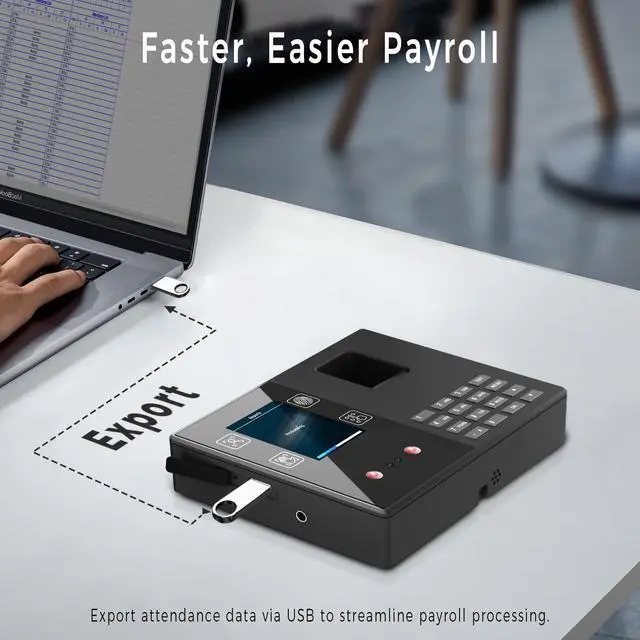
Step1:Insert a USB flash drive (FAT32 Format) in the device, Press "OK" to select "Download" on the shifts page.Press "OK" to download.
Step2:Open the sheets on PC,enter the password"asdw123" if you want to modify the details.
Attendance quick check
Step1:Enter the main menu page, press "OK" to enter the "Viewinfo" page,
Step2:Press to select "User Log" then enter the employee's ID you want to check.
How to register users?
Step1:Press MENU to enter the main menu,Press to select "Users"
Step2:Press OK to enter the "Enroll" page, enter the ID and name then press OK to save.
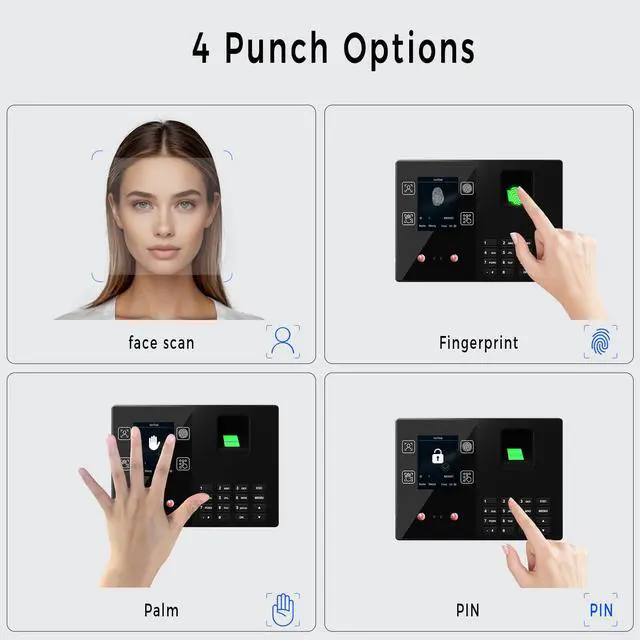
Step3:Press OK to select the authentication method.
Department setting
Step1:Enter the main menu ?Press to select "Dept."
Step2:Press OK to enter the Dept. page.then Press to select the department you want to edit and enter the department name by the keyboard then press OK to save it.
How to edit shifts?
Step1:Enter the main menu ?Press to select "Shifts."
Step2:Press to select the shift, Press "OK" to enter the edit page,You can set up to 24 shifts.
Step3:Press "OK" to select the shift you want to modify
How to set the language?
Step1:Enter the main menu page, press "OK" to enter the settings page,
Step2:then press "OK" to select "Device" and press OK to set the language.
How to set the time?
Step1:Enter the main menu page, press "OK" to enter the settings page,
Step2:Press to select "Time" and press "OK" to set the time.
Initialization Setting
Step1:Enter the main menu page, press "OK" to enter the "setting" page, then press to "intial" page
Step2:Press to select "Reset Default" to all data, delete password:1007


How to download Reports?
Step1:Insert a USB flash drive (FAT32 Format) in the device, Press "OK" to select "Download" on the shifts page.Press "OK" to download.
Step2:Open the sheets on PC,enter the password"asdw123" if you want to modify the details.
Attendance quick check
Step1:Enter the main menu page, press "OK" to enter the "Viewinfo" page,
Step2:Press to select "User Log" then enter the employee's ID you want to check.
How to register users?
Step1:Press MENU to enter the main menu,Press to select "Users"
Step2:Press OK to enter the "Enroll" page, enter the ID and name then press OK to save.
Step3:Press OK to select the authentication method.
Department setting
Step1:Enter the main menu ?Press to select "Dept."
Step2:Press OK to enter the Dept. page.then Press to select the department you want to edit and enter the department name by the keyboard then press OK to save it.
How to edit shifts?
Step1:Enter the main menu ?Press to select "Shifts."
Step2:Press to select the shift, Press "OK" to enter the edit page,You can set up to 24 shifts.
Step3:Press "OK" to select the shift you want to modify
How to set the language?
Step1:Enter the main menu page, press "OK" to enter the settings page,
Step2:then press "OK" to select "Device" and press OK to set the language.
How to set the time?
Step1:Enter the main menu page, press "OK" to enter the settings page,
Step2:Press to select "Time" and press "OK" to set the time.
Initialization Setting
Step1:Enter the main menu page, press "OK" to enter the "setting" page, then press to "intial" page
Step2:Press to select "Reset Default" to all data, delete password:1007