

Your Browsing History





Any questions? Our AI beta will help you find out quickly.
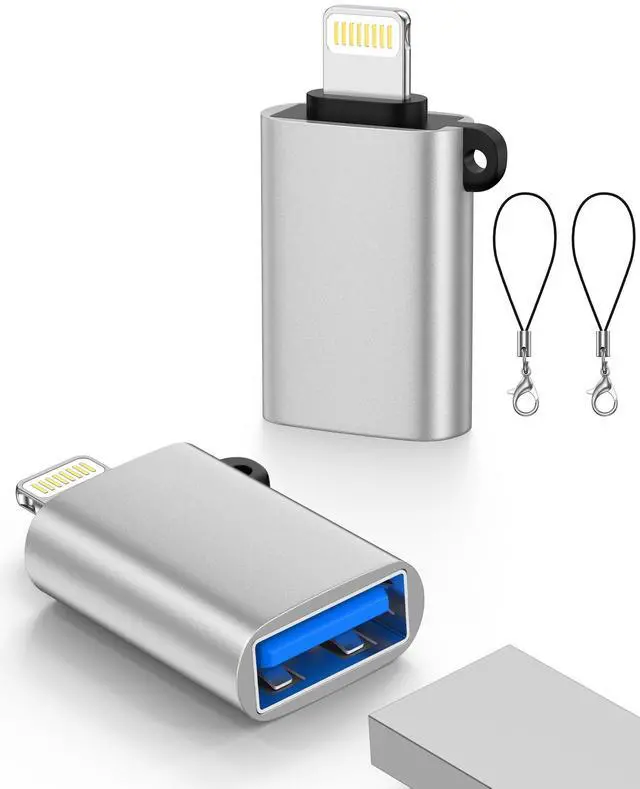
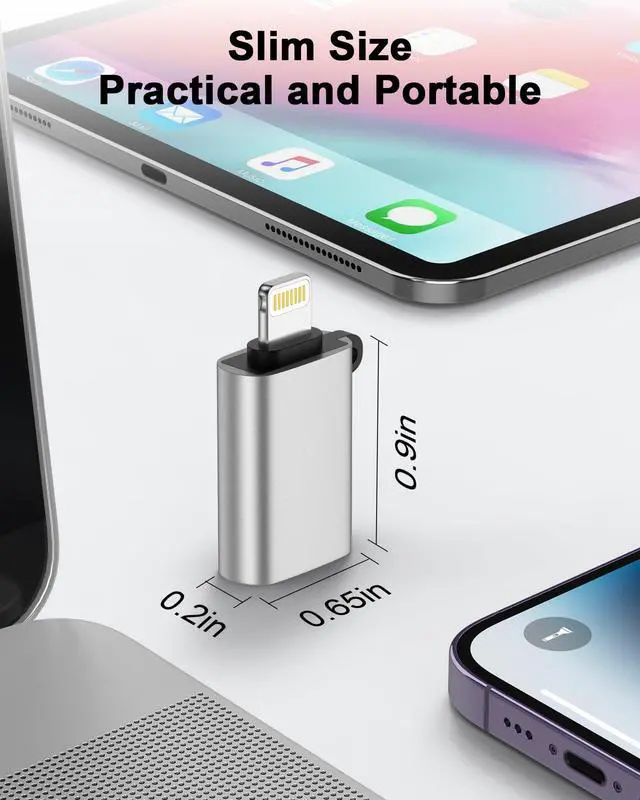
USB Female to Lightning Male Adapter
Product Features:
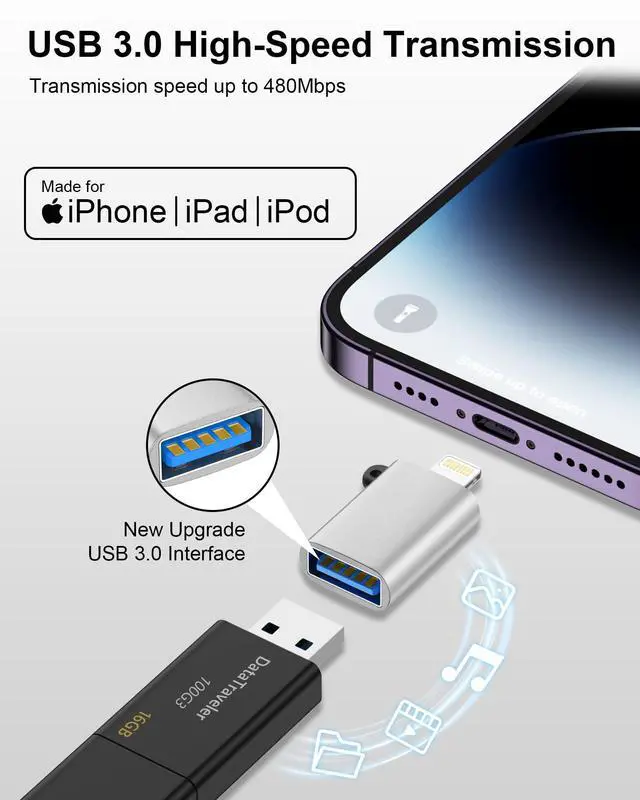
High-Speed Transmission: The USB to iPhone OTG Adapter features high-speed data transfer of up to 480Mbps, enabling fast and efficient photo and video transfers from your flash to your device, saving you valuable time.
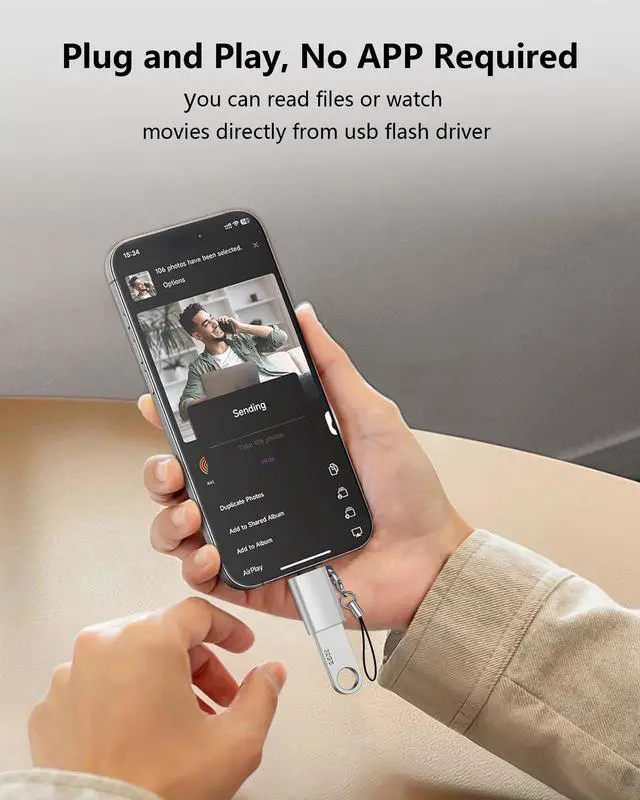
Plug & Play: No drivers or applications required. Just plug and play. Note: Please make sure your devices is with lightning port and has OTG function.
Compatibility
--- Lightning Male
---iPhone 14/14 Plus/14 Pro/14 Pro Max, iPhone 13/13 Pro/13 mini/13 Pro Max;
---iPhone 12/12 mini/12 Pro/12 Pro Max, iPhone 11 Pro Max /11 Pro/11;
---iPhone XS/Max/XS/XR/X/SE/8 Plus/8/7 Plus/7/6 Plus/6s/6/5s/5s;
---iPad Pro 10.5"/Pro 9.7"/iPad Mini(2019)/mini 4(2015)/Mini 3/Mini 2/Mini;
---USB A Female
--cameras, USB flash drives, card readers, MIDI keyboards, mouse, USB hubs, and more.
Please Note
1. Supports iOS 13 and above only.
2. If your USB drive is not recognized, please make sure it is formatted as FAT32 or exFAT, as NTFS is not supported.
3. External hard drives, USB printers, USB WiFi devices, and USB security keys, etc., are not supported due to power or system limitations.
4. The adapter may become slightly warm during use, especially during high-load tasks. This is normal and safe.
5. Some digital headphones, microphones, and game controllers may work, but compatibility is limited and not guaranteed.
6. Thick or full-coverage phone cases may prevent proper connection. Please remove the case if needed.
How to use
1. Connect the Adapter
Plug the USB to Lightning adapter into your iPhone or iPad (iOS 13 or later only).
2. Connect USB Devices
Supports connecting cameras, USB flash drives, card readers, MIDI keyboards, mouse, USB hubs, and more.
3. Access Files
After connecting a USB flash drive, you need to open the Files App to view and manage photos, videos, documents, and other files.
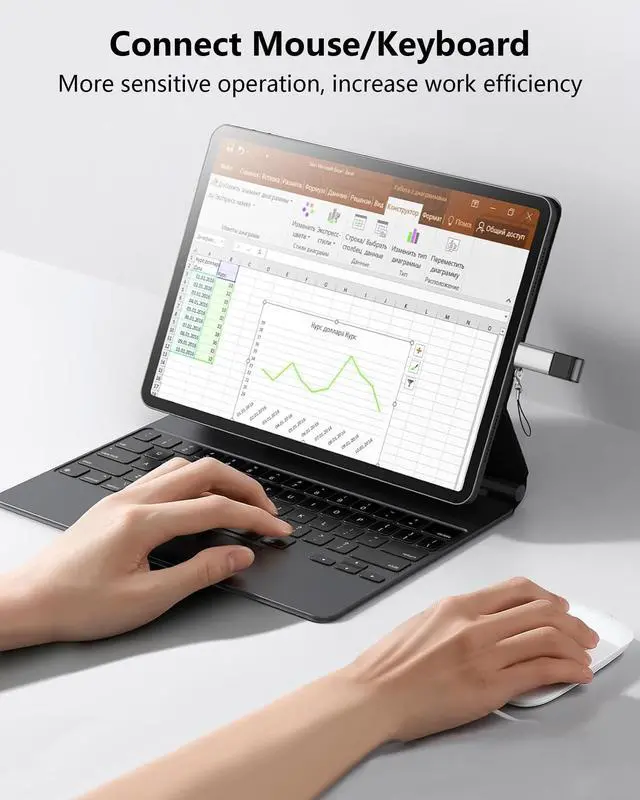
4. Mouse Setup
If you need an external mouse or keyboard, Please go to Settings Accessibility Touch AssistiveTouch Turn On