


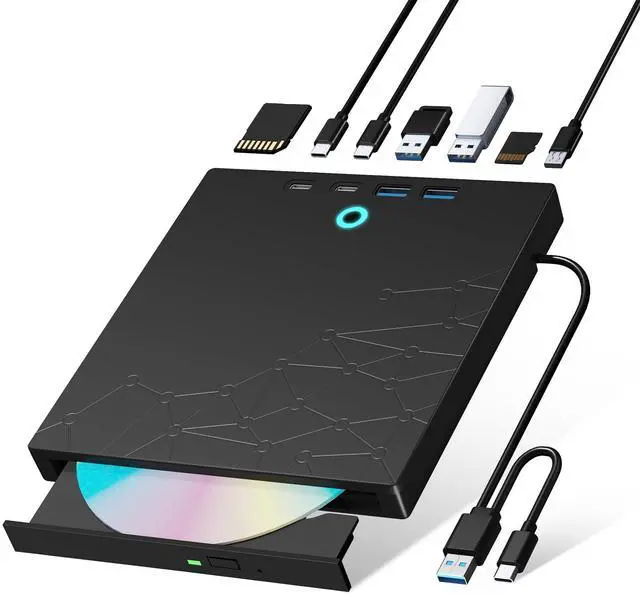
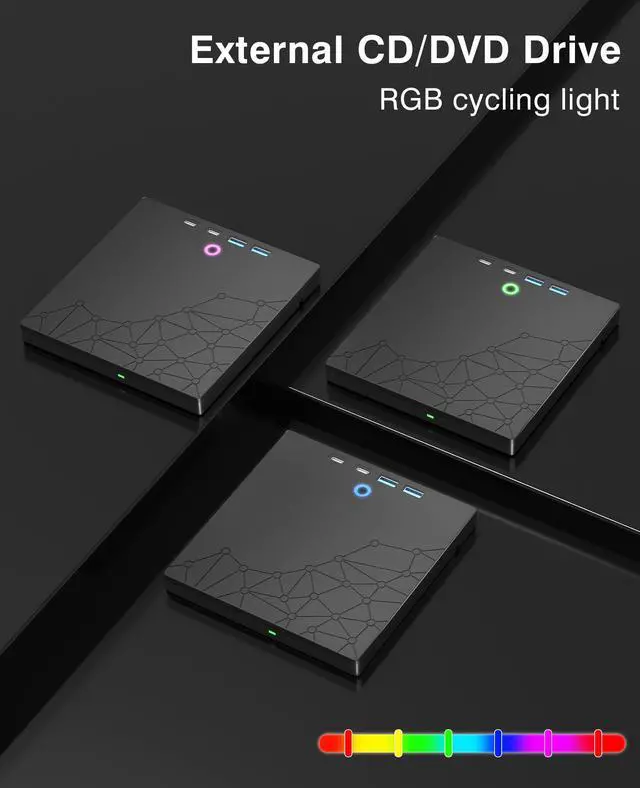
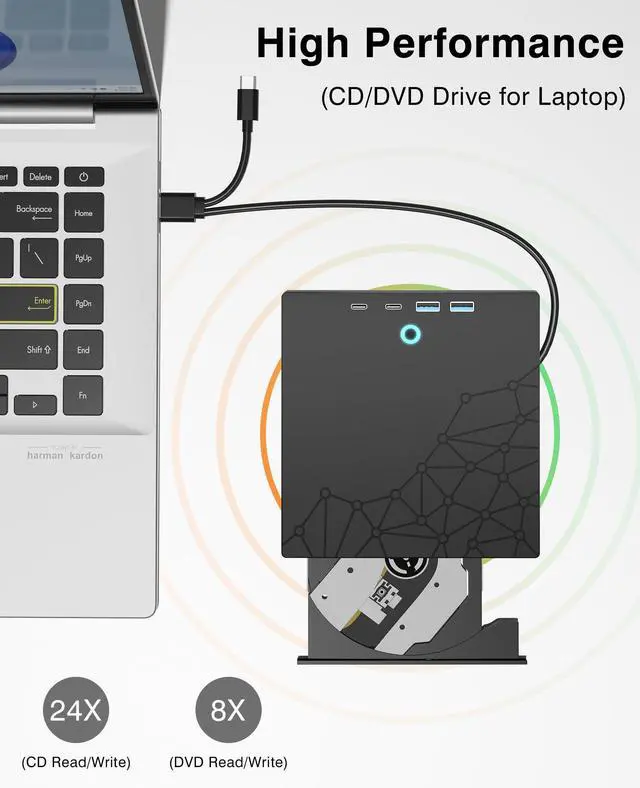


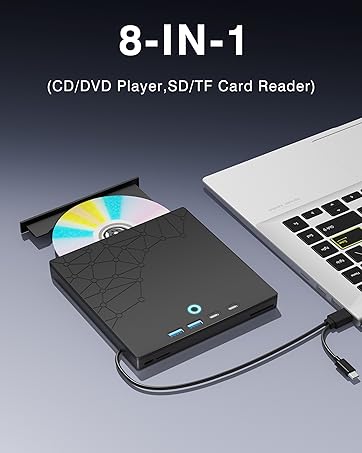
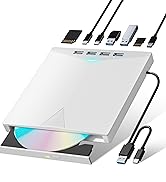
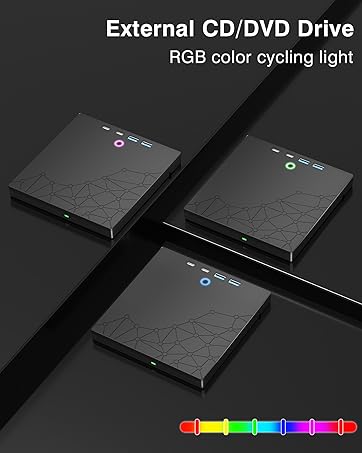
CD/DVD Drive for Laptop PC
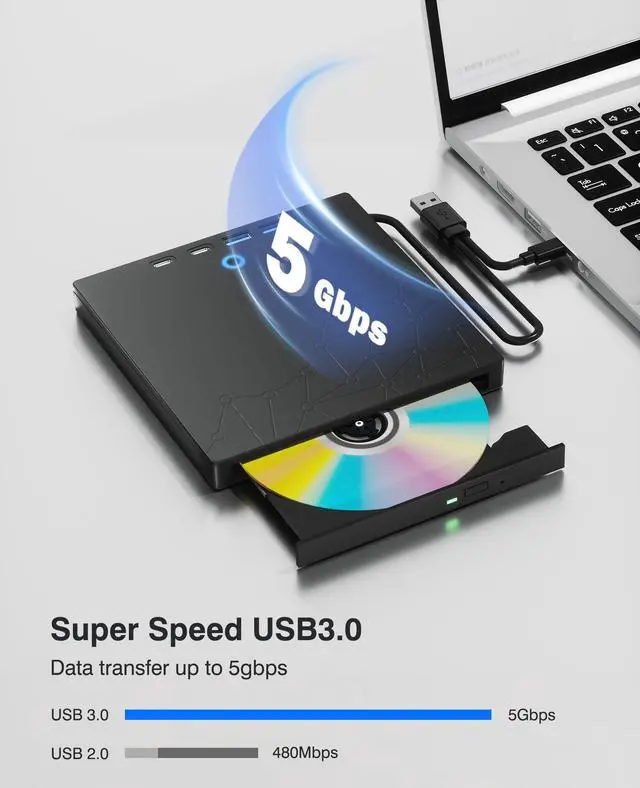
High Speed Transmision 5Gbps
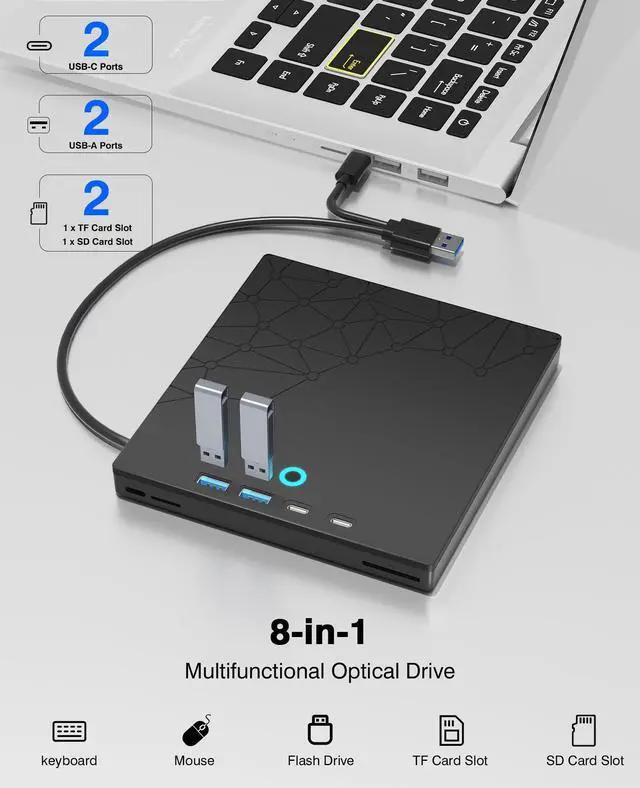
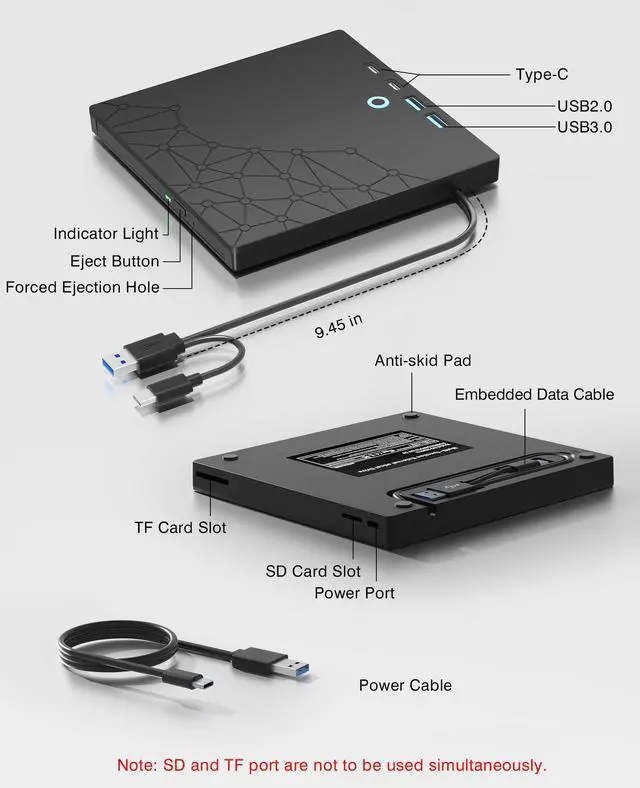
8-IN-1 USB CD/DVD Drive
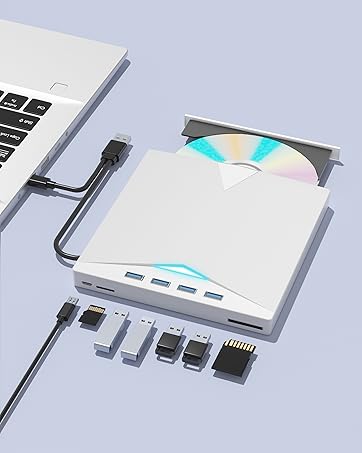
Multifunctional
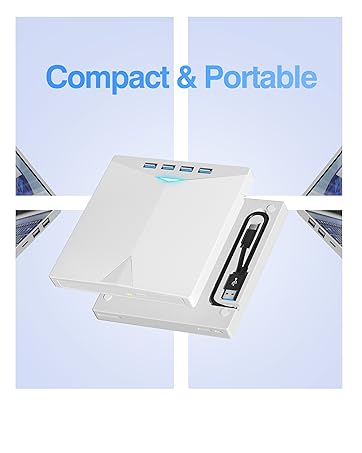
External CD Drive(White)

Xadioei is committed to providing simple, efficient, and intelligent data transmission solutions through innovative technology, revolutionizing the way data is transferred to enhance productivity and simplify life.
Our vision is to become the global leader in this field, delivering unprecedented convenience to make every connection effortless.


How to use the external cd/dvd drive?
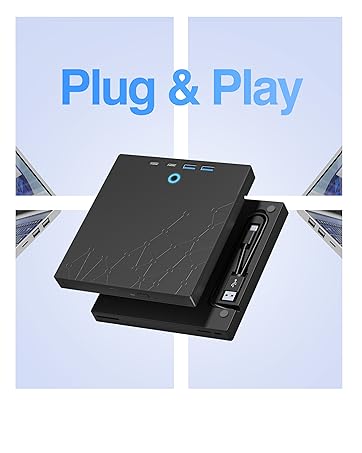
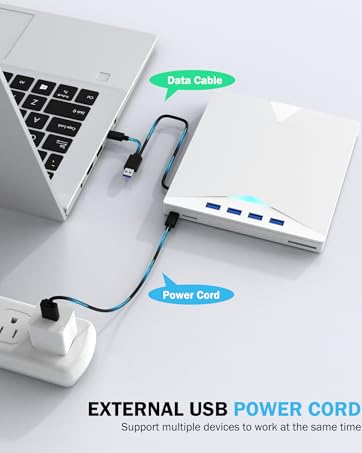
Step1 : Plug the USB A or USB C connector into your computer's USB port instead of USB extension hub.
Step2 : [For Windows OS] Your computer will recognize the drive and shows "CD/DVD-ROM" folder for optical drive.
[For Mac OS] The Mac OS computer will not display the device icon until the disc is inserted into the optical drive and the disc is read successfully.
Step3 : Set the DVDs region code (CDs do not have region code). The disc can only be played when there on code of the DVD drive matchesthe DVD. (Note: Only allows to change the region code 4-5 times)
The steps of changing the region codes:
1. Right-click My Computer and click Properties.
2. Click Hardware. - Click Device Manager. - Expand DVD-ROM drives and select the optical drive. - Click Action and select Properties.
3. Select the DVD Region tab.
4. Choose the desired region.
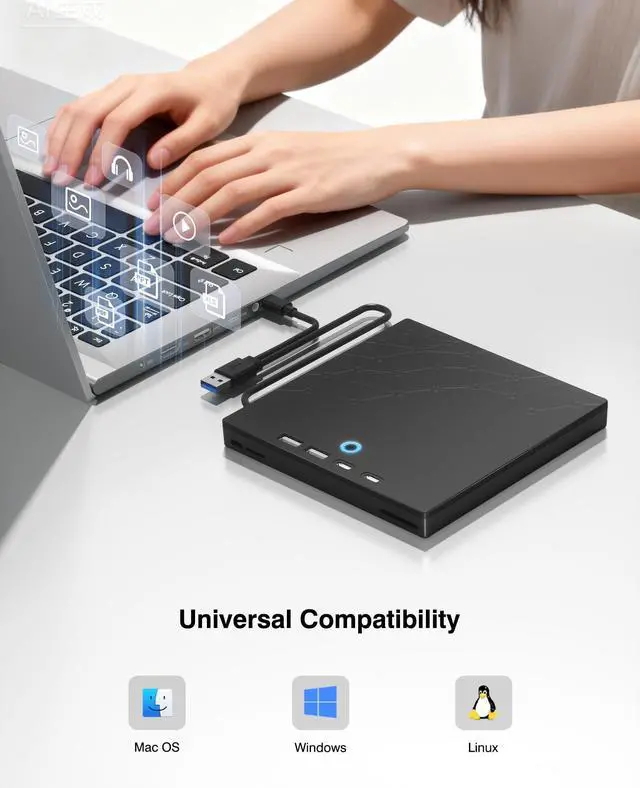
Step4 : The CD/DVD disk drive Not compatible with Blu ray,TV, car, tablet, phone, projector,PS5 and Chrome OS.


How to use the external cd/dvd drive?
Step1 : Plug the USB A or USB C connector into your computer's USB port instead of USB extension hub.
Step2 : [For Windows OS] Your computer will recognize the drive and shows "CD/DVD-ROM" folder for optical drive.
[For Mac OS] The Mac OS computer will not display the device icon until the disc is inserted into the optical drive and the disc is read successfully.
Step3 : Set the DVDs region code (CDs do not have region code). The disc can only be played when there on code of the DVD drive matchesthe DVD. (Note: Only allows to change the region code 4-5 times)
The steps of changing the region codes:
1. Right-click My Computer and click Properties.
2. Click Hardware. - Click Device Manager. - Expand DVD-ROM drives and select the optical drive. - Click Action and select Properties.
3. Select the DVD Region tab.
4. Choose the desired region.
Step4 : The CD/DVD disk drive Not compatible with Blu ray,TV, car, tablet, phone, projector,PS5 and Chrome OS.
CD/DVD Drive for Laptop PC
High Speed Transmision 5Gbps
8-IN-1 USB CD/DVD Drive
Multifunctional
External CD Drive(White)
Xadioei is committed to providing simple, efficient, and intelligent data transmission solutions through innovative technology, revolutionizing the way data is transferred to enhance productivity and simplify life.
Our vision is to become the global leader in this field, delivering unprecedented convenience to make every connection effortless.